
Stella Ma
Product Marketing Manager

Abhi Motgi
Product Manager
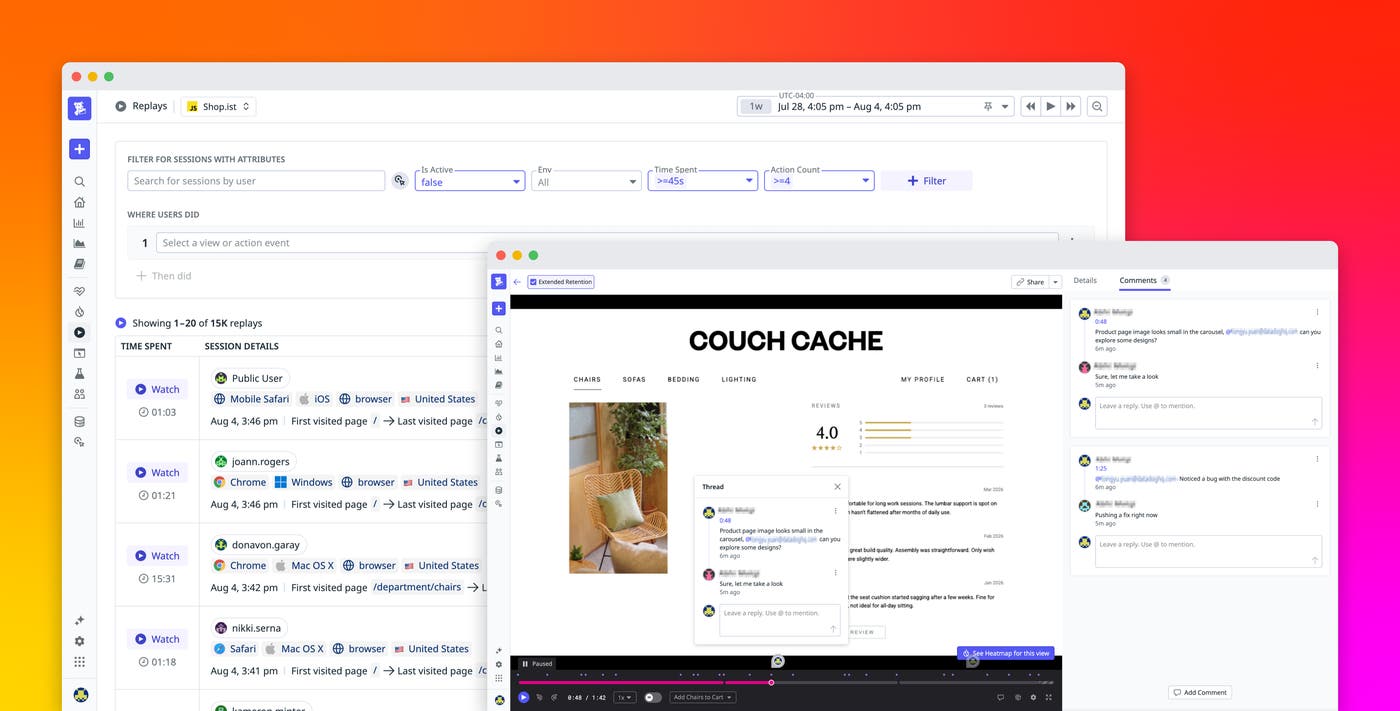
Teams supporting user-facing applications rely on session replays to understand user friction. But resolving an issue or improving the user experience takes more than watching a replay. Engineers, product managers, and designers first need to find the right sessions to investigate, then quickly learn what happened at the key moments. Once they’ve investigated a replay, they need to share what they found across product, design, support, and engineering so that the right teams can act. Too often, though, these conversations happen apart from the replay itself, making it hard to trace the discussion back to the specific moment that was flagged.
Datadog Session Replay, available in both Datadog Real User Monitoring (RUM) and Product Analytics, now brings the entire investigation into one place. You can find the right session from your RUM and Product Analytics data, analyze it with AI summaries that highlight the moments worth watching, and collaborate with teammates using timestamped comments pinned directly to the replay. Everyone works from the same source of truth, so investigations move faster, and findings reach the right people with full context attached.
In this post, we’ll show how Session Replay helps you:
Find the session that matters, fast
Every investigation starts by locating the right session replay. That’s true whether you’re a frontend engineer investigating an issue with RUM, or a product manager or designer using Product Analytics to understand how users interact with the product.
For frontend engineers looking at a specific error, RUM sessions with an error automatically include an associated session replay. This makes the session you need to investigate easy to find so that you can watch exactly what happened. For product managers and designers looking at a funnel or user journey in Product Analytics, journeys that end with a conversion drop-off also connect directly to an associated replay. This allows you to see exactly what the user did before leaving.
And when you need to search more broadly, both RUM and Product Analytics let you filter sessions by user, device, browser, operating system, error type, and custom attributes. This narrows thousands of sessions down to the ones with a particular error or user of interest.
Understand what happened at a glance
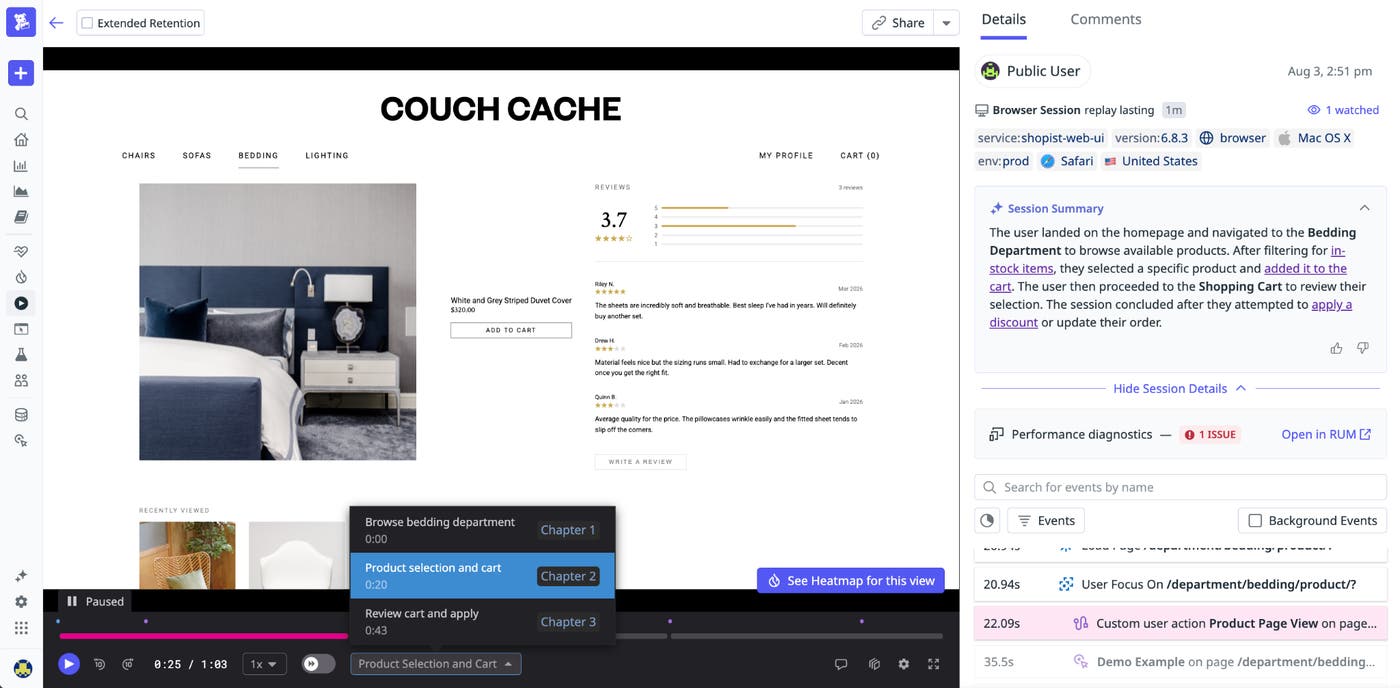
Before you start a replay, AI-generated session summaries provide a concise overview of what happened during each captured session replay. Session summaries describe intent, key actions, friction signals, and outcomes before you start playback, with specific moments hyperlinked so that you can jump directly to them. This helps you understand the session quickly and focus on the most relevant behavior.
Smart chapters break the replay into labeled stages of the user’s journey, and frustration signals like rage clicks, dead clicks, and error clicks appear directly on the player timeline. Together, they let you skip straight to what matters. You can hover over the timeline or use the chapter dropdown to jump to a stage, and spot the moment of friction without having to watch the full recording.
Add comments with context to close the loop between teams
When you find a moment worth sharing, you can leave a timestamped comment at that exact point in the replay. You can also tag the teammate or team that needs to review it. The comment remains anchored to the moment it describes, keeping the finding connected to its supporting context. Mentioned users receive an email notification with a link to the replay and timestamped comment.
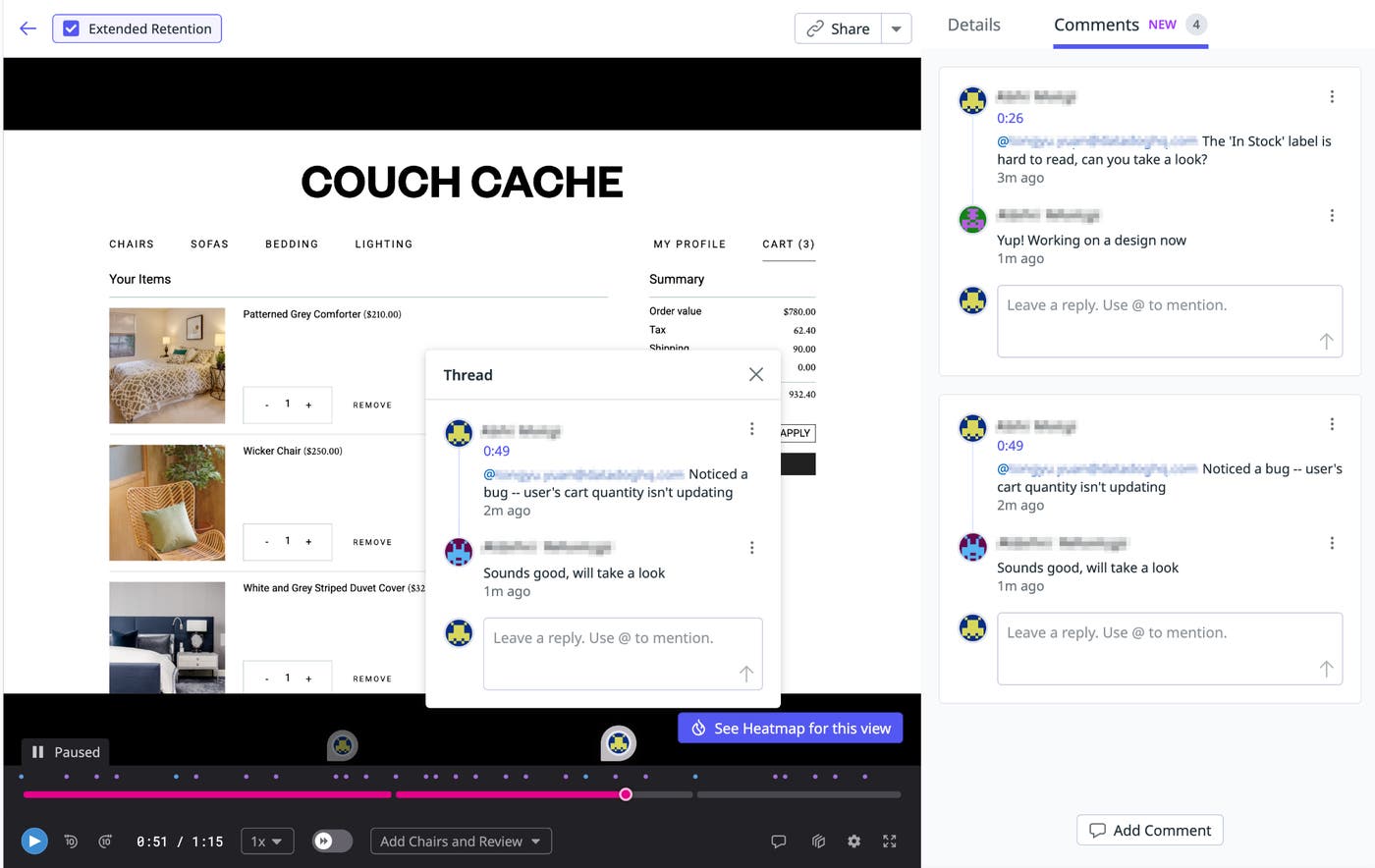
You can also copy a link to any comment and share it in Jira tickets, Slack messages, or Confluence pages. Since the link carries the timestamp, teammates never have to search for the moment you flagged.
Visual markers on the player timeline indicate where comments have been added. When playback is paused, or when you hover over the timeline, comment bubbles appear inline. This keeps the discussion visible while you review the replay.
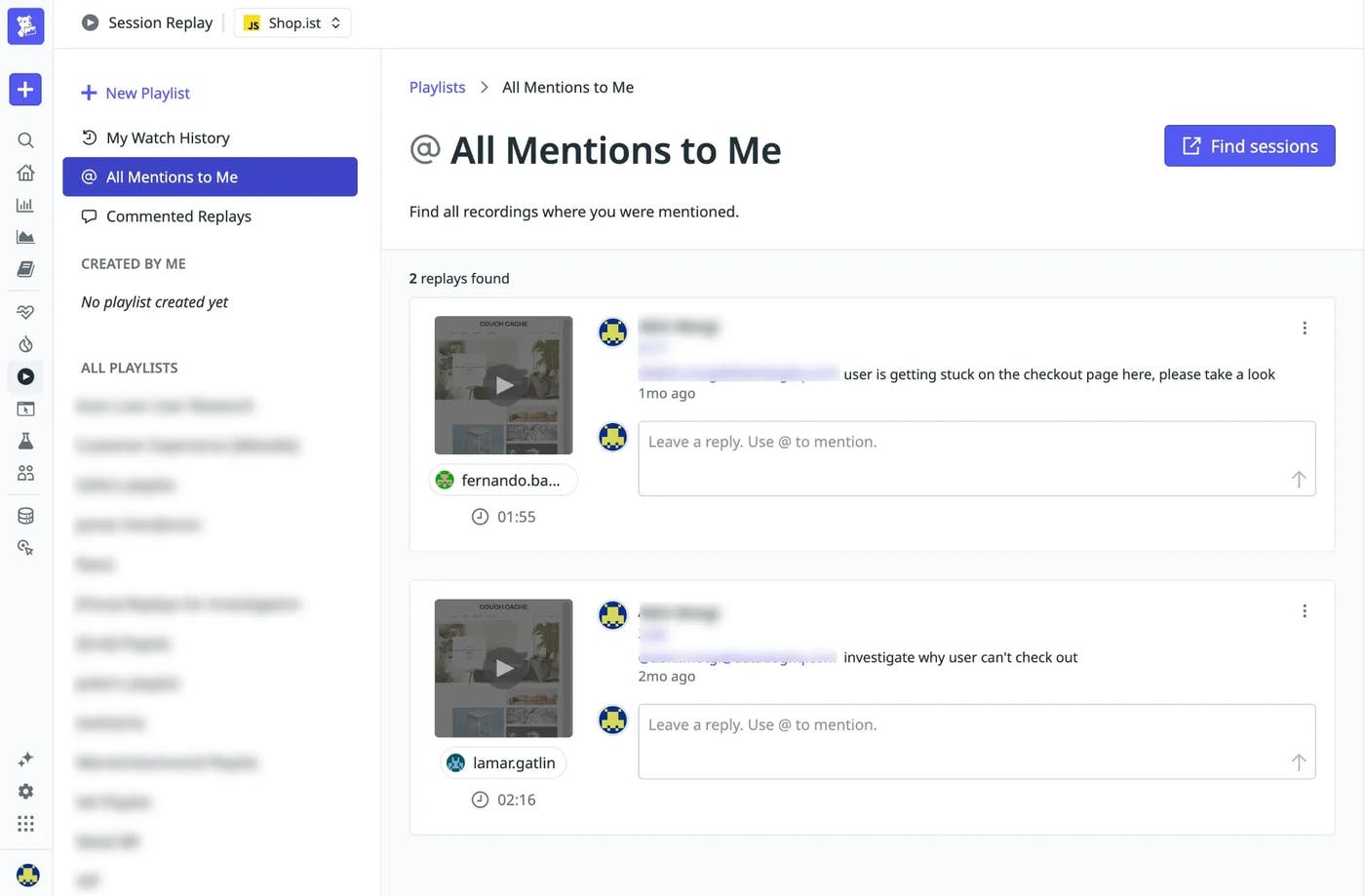
Two default playlists on the Session Replay playlists page help you track this activity. The “All Mentions to Me” playlist collects comments that tag you. The “Commented Replays” playlist shows commented sessions across your organization. These two playlists help you find replays that need your attention and allow you to review sessions that teammates have flagged.
Run a complete investigation in one place
Together, these capabilities make Session Replay a shared workspace for troubleshooting issues and identifying areas of product friction. Consider a checkout drop-off investigation that is launched when a product manager notices a conversion dip in Product Analytics and opens a correlated replay. The session summary flags frustration clicks on a button before playback even starts, and the replay confirms it: A user is error-clicking “Apply” four times before abandoning a $120 cart. The product manager comments at 2:15: “@eng-payments, this user is getting an error applying the SPRING25 code.”
The payments engineer receives the notification and opens the link. The replay starts at 2:15, with the comment already visible. After reviewing the correlated RUM and APM data, the engineer identifies the bug and deploys a fix. They then reply with a staging link with the change to let the product manager know that the issue is being addressed.
The product manager also tags the design team, flagging the problem as a UX issue worth fixing. A designer opens the replay, sees the friction firsthand, and starts improving the error message. Product, design, and engineering can work from the same evidence while addressing different parts of the issue.
In this scenario, Session Replay serves as the record of the investigation, from the first discovery through the final fix. The collaboration, context, and conclusions all remain connected to the moment that started the investigation.
Start investigating faster in Session Replay
Session Replay brings discovery, analysis, and collaboration into one place. Engineering and product teams can find the relevant replays, understand key moments, and share findings without leaving the replay. Timestamped comments preserve the surrounding context, helping everyone work from the same evidence and coordinate the next step.
To learn more, check out the Session Replay documentation covering AI-powered summaries and smart chapters and comments. If you’re new to Datadog, sign up for a 14-day free trial.
