
Erica Ho

Natasha Silva
Technical Content Writer
When users report slow applications or poor video call quality, IT and network teams often can’t tell where the issue originates. Without a way to trace network paths across device, network, and application layers, teams are left switching between separate tools to correlate telemetry.
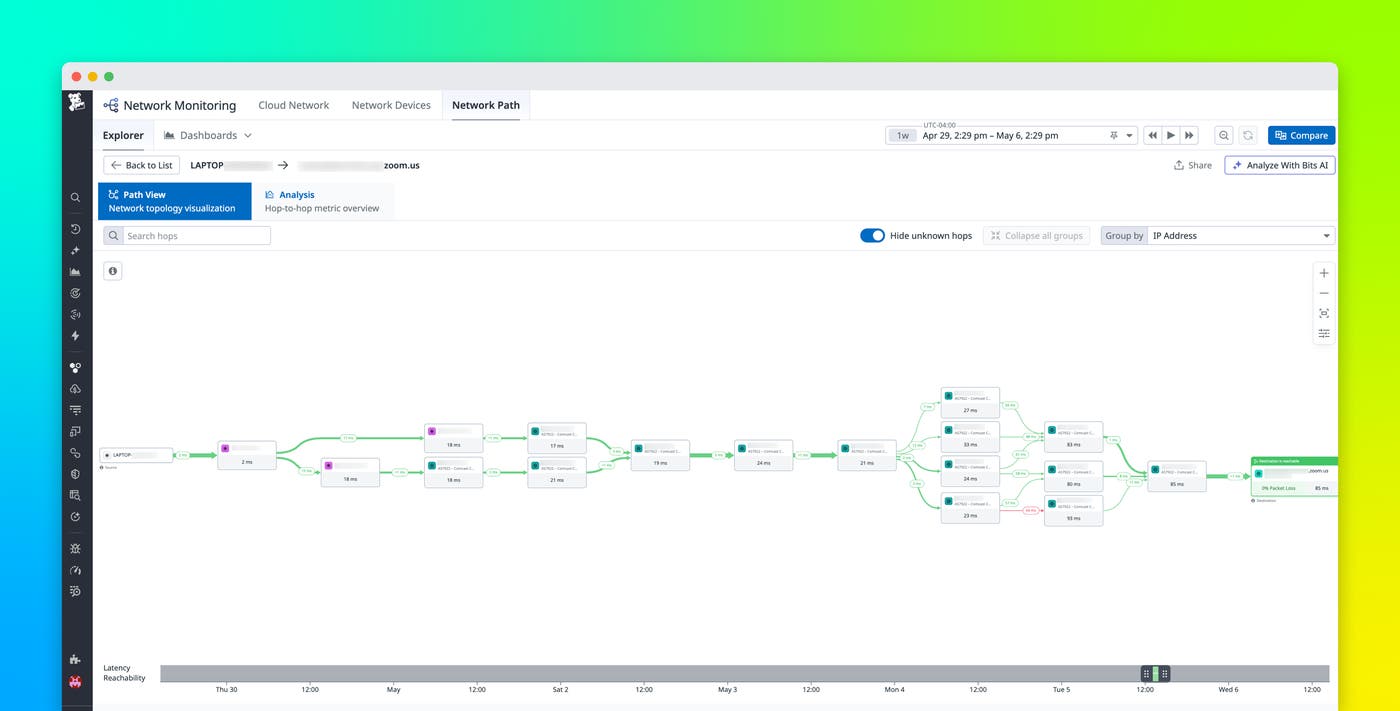
By combining Datadog End User Device Monitoring, now available in Preview, with Datadog Network Path, IT admins and network engineers can trace the full network path from an end user’s device, such as a laptop or desktop, to a SaaS application. You can visualize traffic flow hop by hop, including per-hop latency and packet loss. Network Path helps identify where slowdowns occur so you can compare behavior across devices and time windows, and perform more precise root cause analysis.
In this post, we’ll show how you can:
Visualize each network hop from device to SaaS application
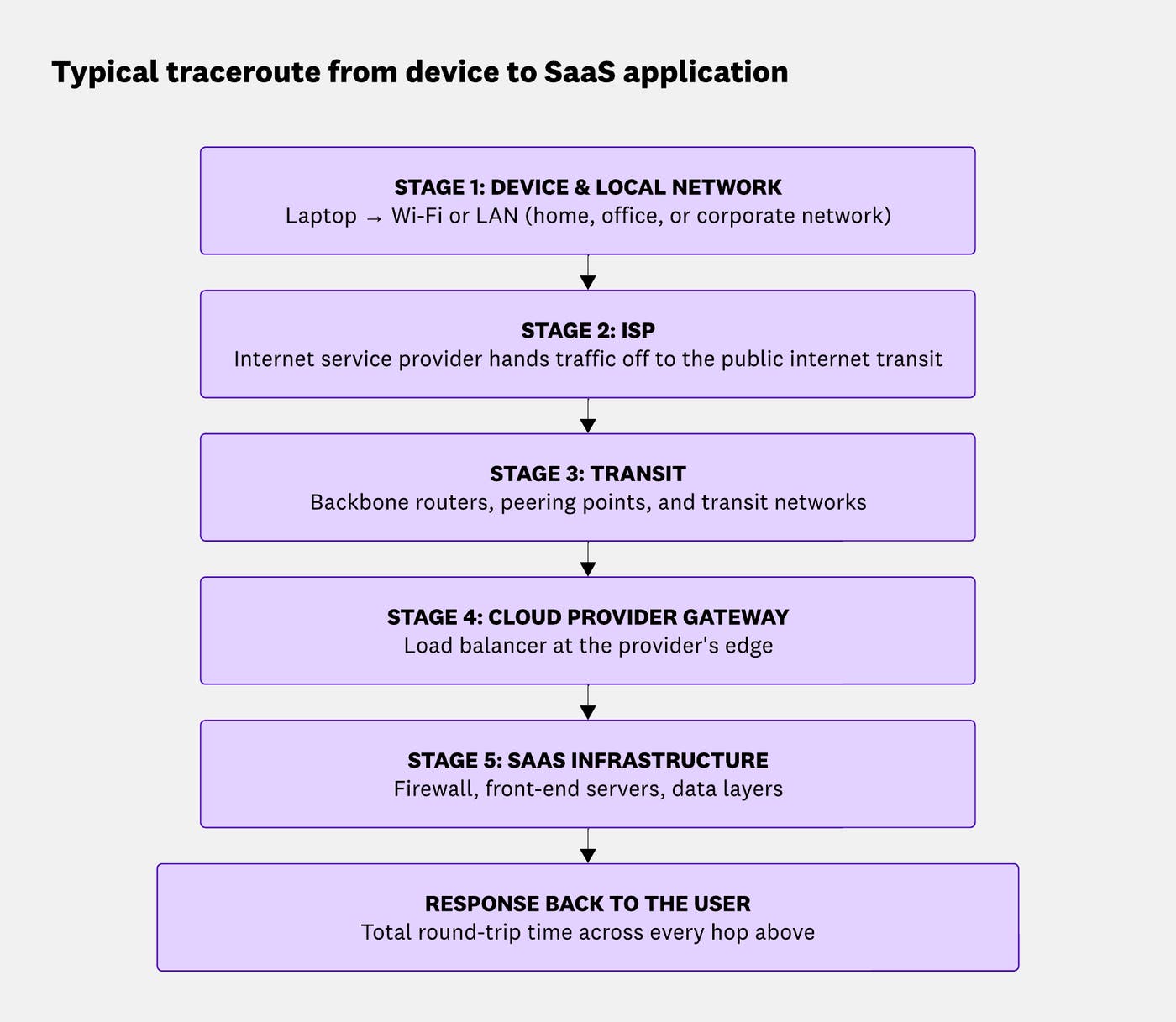
To troubleshoot performance issues, IT admins and network engineers need to understand how traffic flows between users and applications. In most cases, the path passes through several stages. These include the user’s laptop, a local router or corporate network, an internet service provider (ISP), the public internet, and the SaaS provider’s infrastructure, such as a content delivery network (CDN), load balancer, or application servers.
Any of these stages can introduce latency or become a point of failure. Without visibility into these intermediate hops, it’s harder to determine where delays are introduced or whether the issue is isolated or systemic.
Pinpoint where slowdowns occur hop by hop
Once the full path is visible, the next challenge is determining where latency is introduced. Most traceroute tools surface total round-trip time, which makes it difficult to pinpoint where performance breaks down.
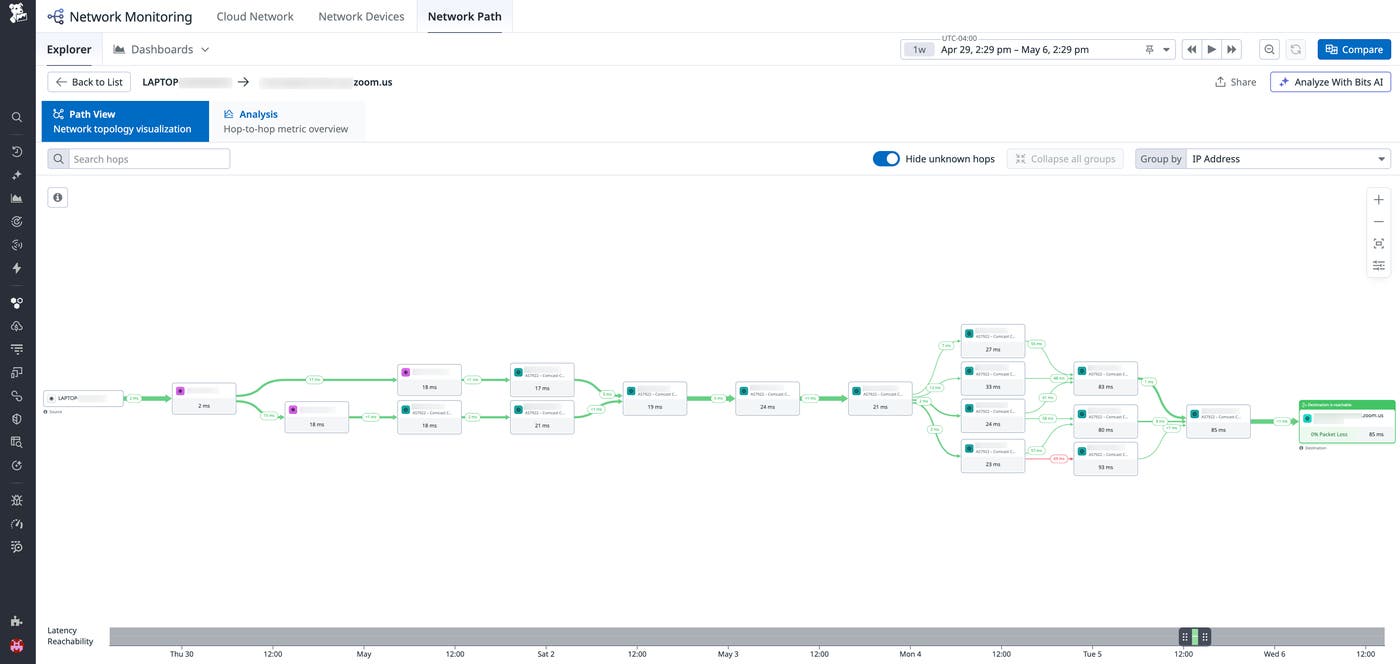
Network Path addresses this by providing per-hop latency and packet loss metrics along the traceroute. Each hop includes timing data that shows where delays increase. With access to this information, you can distinguish between issues in the local network, ISP routing, or the SaaS provider’s infrastructure.
For example, say your team is experiencing video call quality issues. IT suspects a network problem, but the networking team points to the device. Network Path shows where latency spikes along the route. If latency spikes at an ISP hop, you can rule out device or application issues. If the delay appears closer to the destination, you can focus your investigation on the CDN or load balancer. Per-hop detail helps teams move from knowing a problem exists to knowing where it originates.
Compare paths across devices and time periods
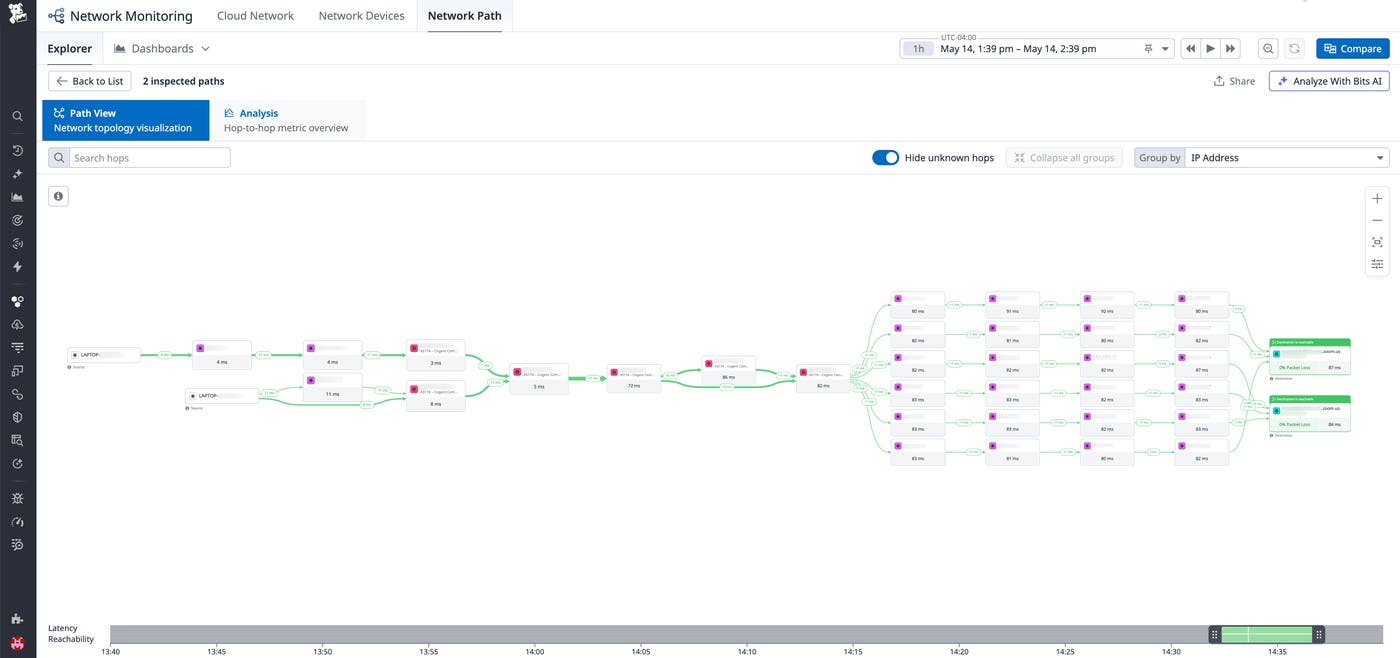
Troubleshooting network performance often requires comparing behavior across different contexts. A single snapshot of a network path may not reveal whether an issue is persistent, intermittent, or isolated to a specific user.
With Datadog Network Path, you can compare traceroute results across multiple devices or time periods. For instance, you can analyze paths across devices on the same network to determine whether an issue is localized or widespread. You can also compare paths before and after a reported incident to identify when latency changed and whether it increased at a specific hop during that window.
By aligning these comparisons with reported issues, you can determine the cause of network issues. Analyzing behavior over time and across environments reduces the need to manually correlate logs or switch between tools.
Start network path analysis directly from a user’s device
End user experience issues often involve interactions between the device, the network, and the application. Monitoring these layers separately makes it difficult to analyze signals across them.
The Datadog Agent collects data directly from each user’s device and makes Network Path available as a built-in capability from the End User Devices page. With the Agent running on a user’s laptop, you can run a network path trace directly from that device, using the device’s own IP as the source.
You can connect device-level signals, such as CPU usage, network interface performance, or connectivity issues, with what’s happening along the network path to the application. Centralizing this telemetry reduces the time you spend correlating device, network, and application signals during an investigation.
Trace performance issues from device to application with Datadog
Tracing the network path from a user’s device to a SaaS application provides the context needed to investigate performance issues faster. Visualizing every hop, measuring per-hop latency, and comparing paths across devices and time helps you identify where slowdowns originate and respond.
To start tracing network paths from your users’ devices, join the End User Device Monitoring Preview.
If you’re new to Datadog, you can sign up for a free 14-day trial.
