
Amber Tunnell
Senior Product Manager

Brianne Bujnowski
Senior Product Marketing Manager

Tom Sobolik
Senior Technical Content Writer
Agents are everywhere; visibility isn’t. Engineering organizations are adopting coding agents such as GitHub Copilot, Claude Code, opencode, Codex, and Cursor, often across multiple teams at once. As adoption spreads, platform and engineering leaders need to understand who is using these agents, whether they are helping teams ship better software, and how spend relates to the work being done.
Datadog Agent Console, available in Preview, gives you a unified view of agent activity across coding agents and Datadog’s own Bits AI agents. Agent Console helps you answer three practical questions:
Who in my organization is using coding agents the most?
What are users doing well with agents and where are they struggling?
How does AI spend correlate with engineering output?
It also goes beyond visibility by detecting waste patterns and helping teams apply vetted fixes directly to affected repositories. In this post, we’ll show how Agent Console helps you:
Get a real-time overview of agent activity across your organization
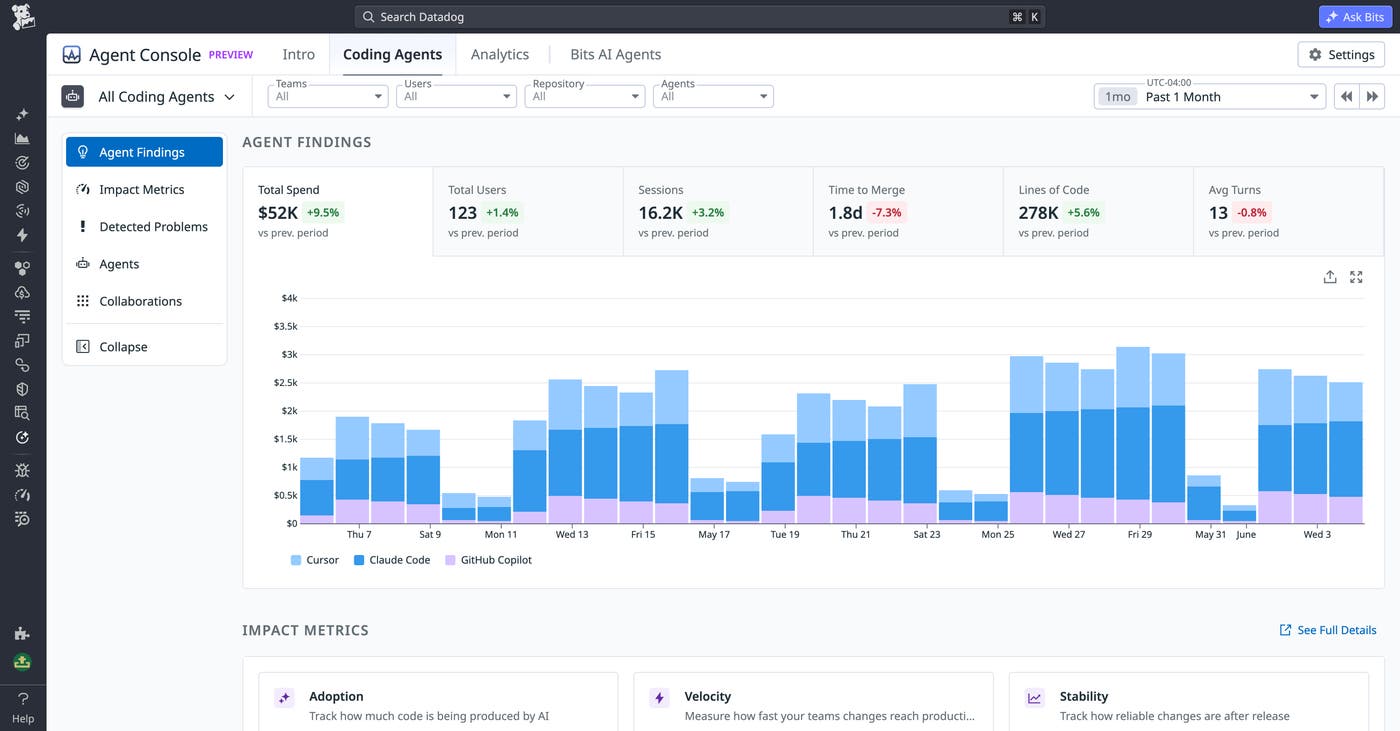
Agent Console gives platform and engineering leaders an organization-wide view across the agents they have running. Once telemetry data collection is enabled, the Agent Findings view in the Coding Agents tab shows real-time activity across supported coding agents, rather than limiting analysis to one vendor or one team’s preferred assistant. This helps leaders understand adoption, spot changes in usage, and investigate spend patterns before they become difficult to explain.
The Agent Findings view brings key metrics into one place, including total spend across coding agents, total active users, total sessions, and median time to merge. You can also review spend over time broken down by agent, such as Cursor, Claude Code, and others, and then filter the data by team or repository. These filters help you move from a high-level trend to the specific groups and codebases that are driving it.
Agent Console also tracks Datadog’s Bits AI agents, including Bits Investigation, Bits Chat, Bits Agent Builder, and Bits Code. This applies a consistent observability model to internally deployed Datadog agents, so you can analyze usage, spend, and activity in the same place where you review third-party coding agents. As a result, teams can compare adoption across the full set of agents that are contributing to engineering workflows.
For example, you might notice in the Agent Findings view that one coding agent’s spend doubled week over week without a matching increase in sessions. That pattern can indicate that a small number of users moved to more expensive workflows or that a team is relying on the agent for a new class of tasks. From there, you can use Agent Console’s user-level and team-level breakdowns to understand who drove the change and whether the activity maps to useful engineering output.
Measure adoption, engagement, and engineering impact
Agent adoption only matters if it improves the way teams build and ship software. Agent Console helps you move beyond basic usage counts by showing both who is using coding agents and how that usage correlates with engineering outcomes. This gives engineering leaders a way to distinguish broad, productive adoption from isolated pockets of heavy usage that may need enablement, policy changes, or cost controls.
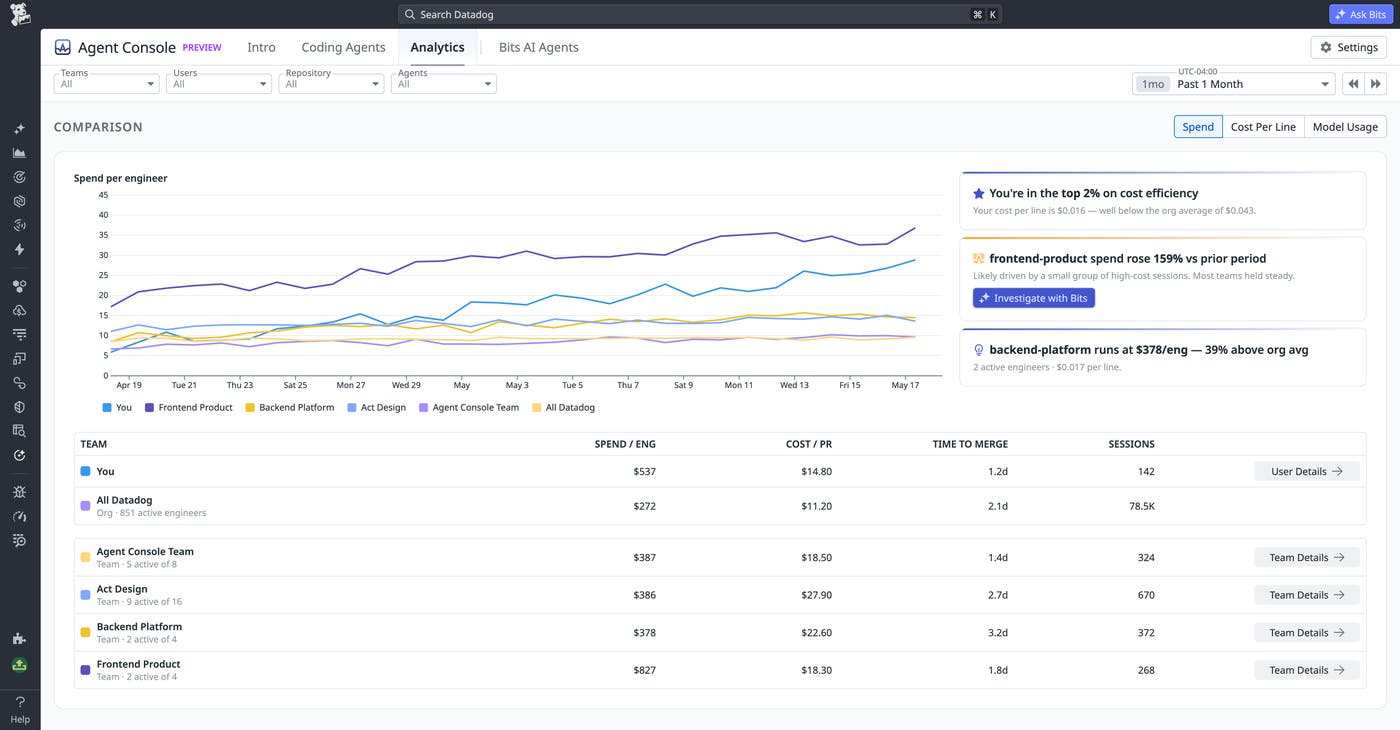
In the Analytics tab, Agent Console surfaces adoption and engagement data such as top users by spend, top users by lines generated, and team-level rollups. These views help you identify the teams and individuals who rely on coding agents most heavily. They also help you find outliers, such as users whose spend is high relative to their generated code.
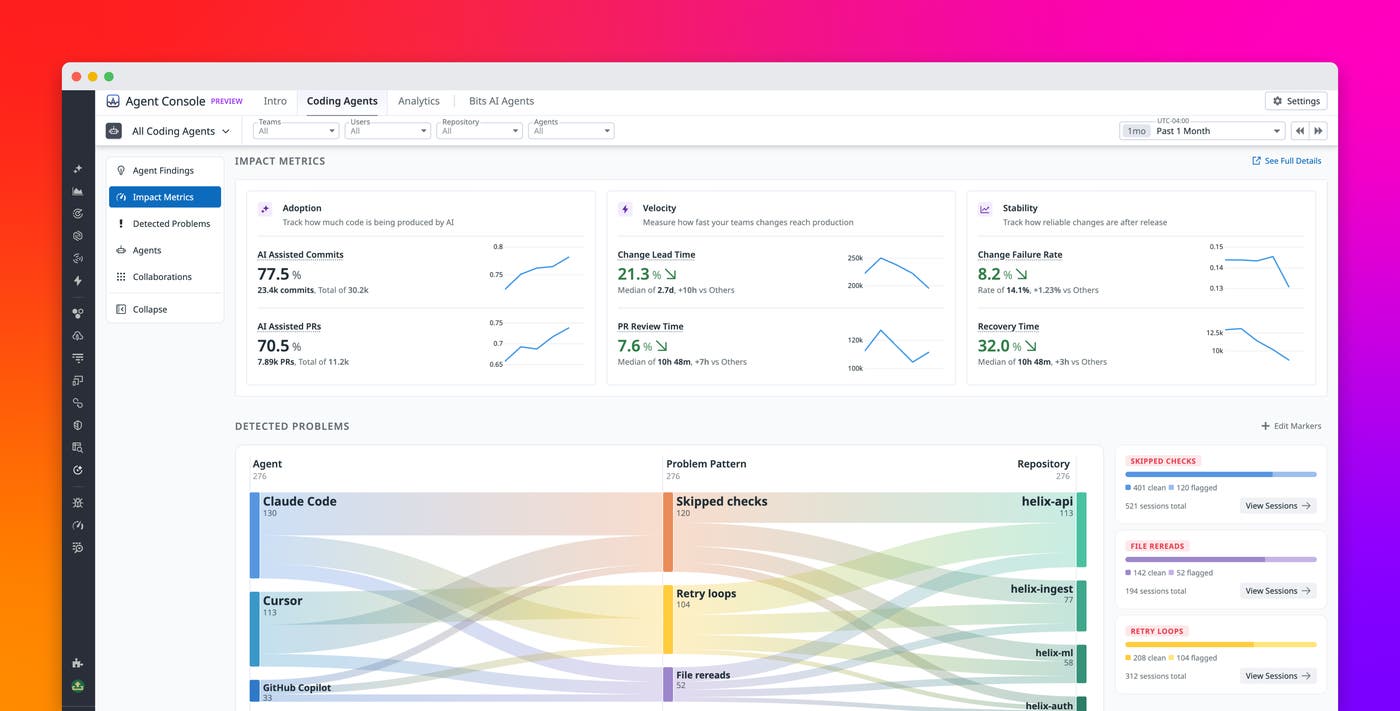
After you identify adoption patterns, the Impact Metrics view helps you evaluate whether agent usage is associated with engineering value. The view organizes metrics into three pillars based on DORA metrics: adoption, velocity, and stability. Adoption metrics include percentage of AI-assisted commits and AI-assisted PRs. Velocity metrics include change lead time and PR review time, with comparisons between AI-assisted and non-AI work. Stability metrics include change failure rate and recovery time, also compared across AI-assisted and non-AI changes.
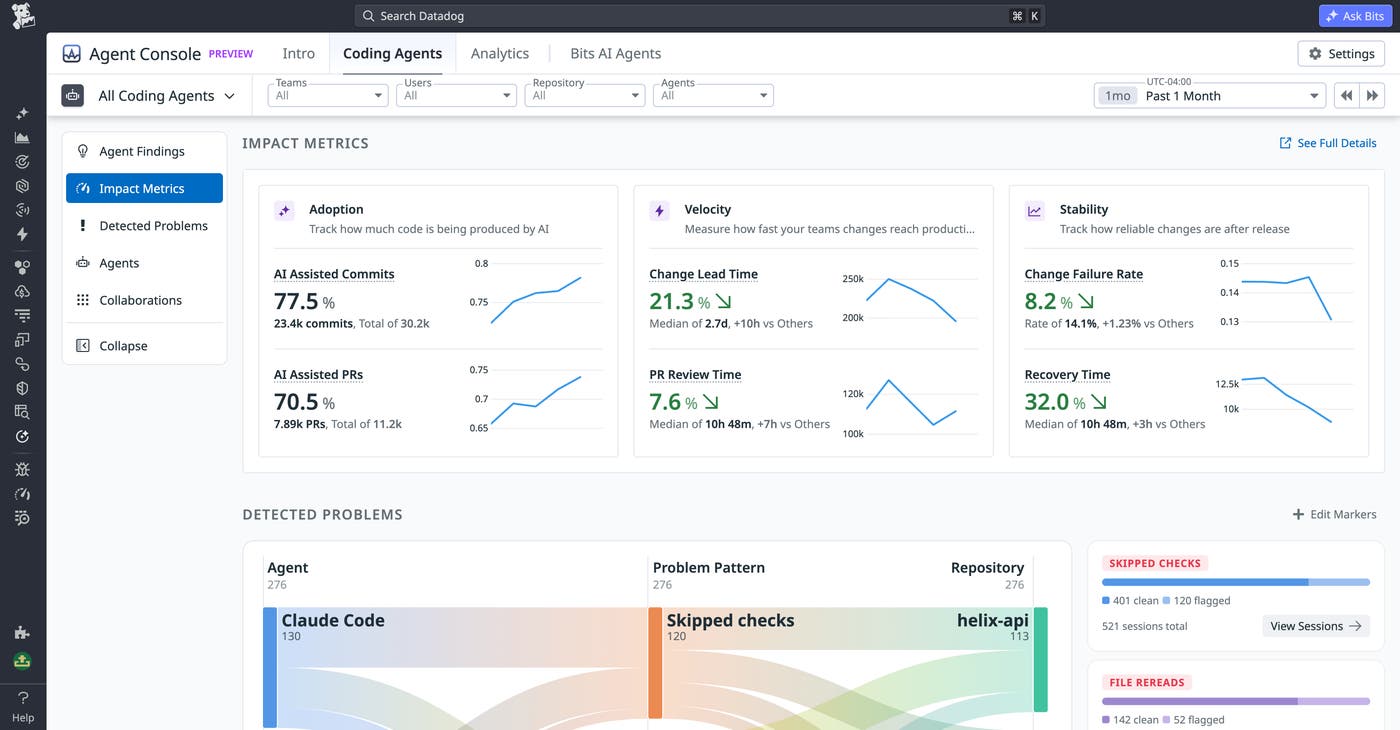
Consider an organization where 67.3% of commits are AI assisted, but AI-assisted pull requests have a slower change lead time than non-AI pull requests by 19 hours. That contrast tells leaders that agents are being adopted, but the current usage pattern may not be improving delivery speed. They can drill into top users to see which teams or workflows are contributing to the delay, then inspect detected problems to determine whether a specific waste pattern is slowing the work down.
Track spend and measure ROI across all your agents
AI coding spend is no longer a single line item. Many organizations now pay for several agents, each with its own pricing model and usage patterns. Agent Console helps you attribute spend to the agent, team, user, and the behaviors that drove it, so you can connect costs with adoption and engineering output.
Agent Console shows total spend across coding agents, with breakdowns by agent, team, and user. You can review top users by spend, such as users whose monthly costs are significantly above the rest of the organization, and compare that spend with activity such as lines generated, commits, and pull requests. This context helps leaders evaluate whether high spend reflects productive usage, inefficient workflows, or behavior that needs a closer look.
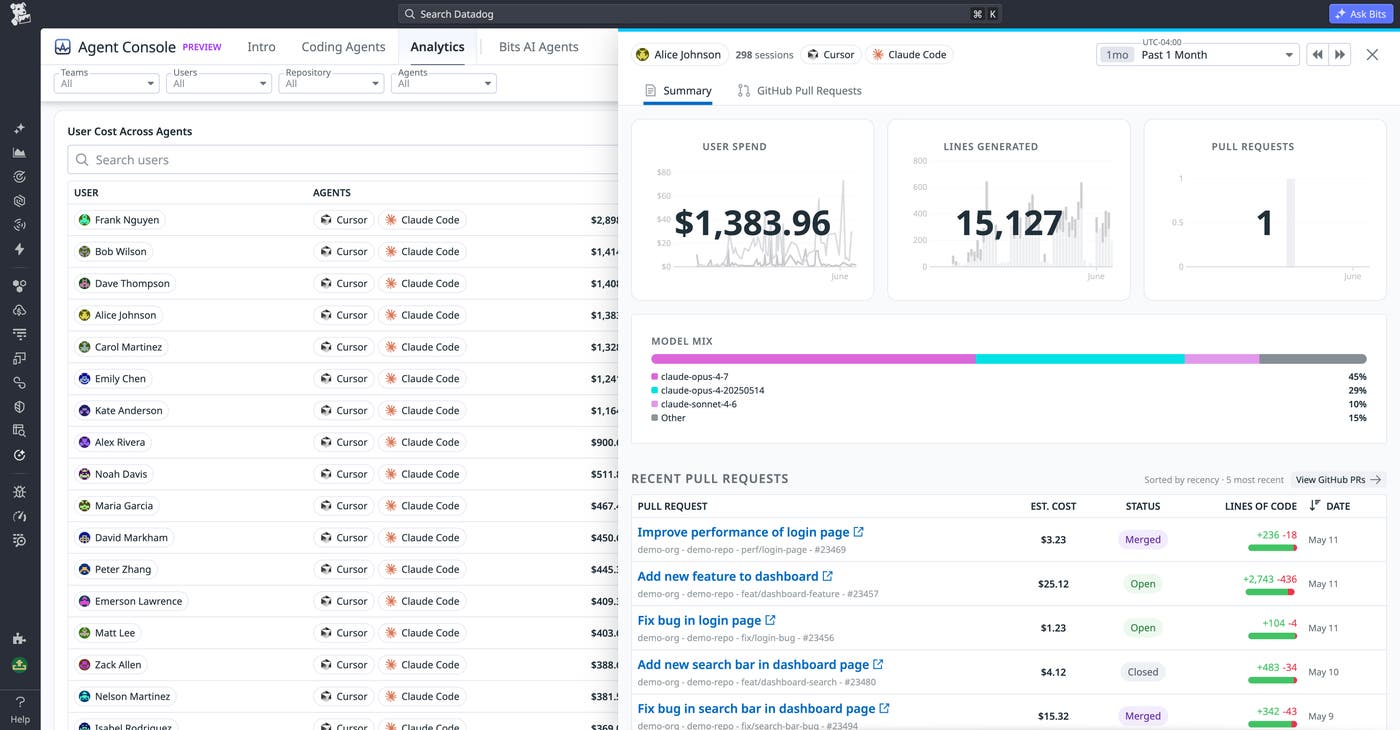
For example, a leader might see that Cursor spend grew 50% month over month while Claude Code stayed flat. By drilling into the spend breakdown, they find that most of the growth came from three users on one team. They can then review the related sessions, compare the spend with output, and set a per-team cost alert at the next threshold to catch a similar increase earlier.
Detect and fix common waste patterns
Dashboards can tell teams what is happening, but engineering leaders also need a way to act on what the data reveals. Agent Console helps close that loop by detecting common cost-draining patterns across coding agents and linking those findings to vetted fixes. This helps teams reduce wasted spend without asking every repository owner to diagnose the same problem from scratch.
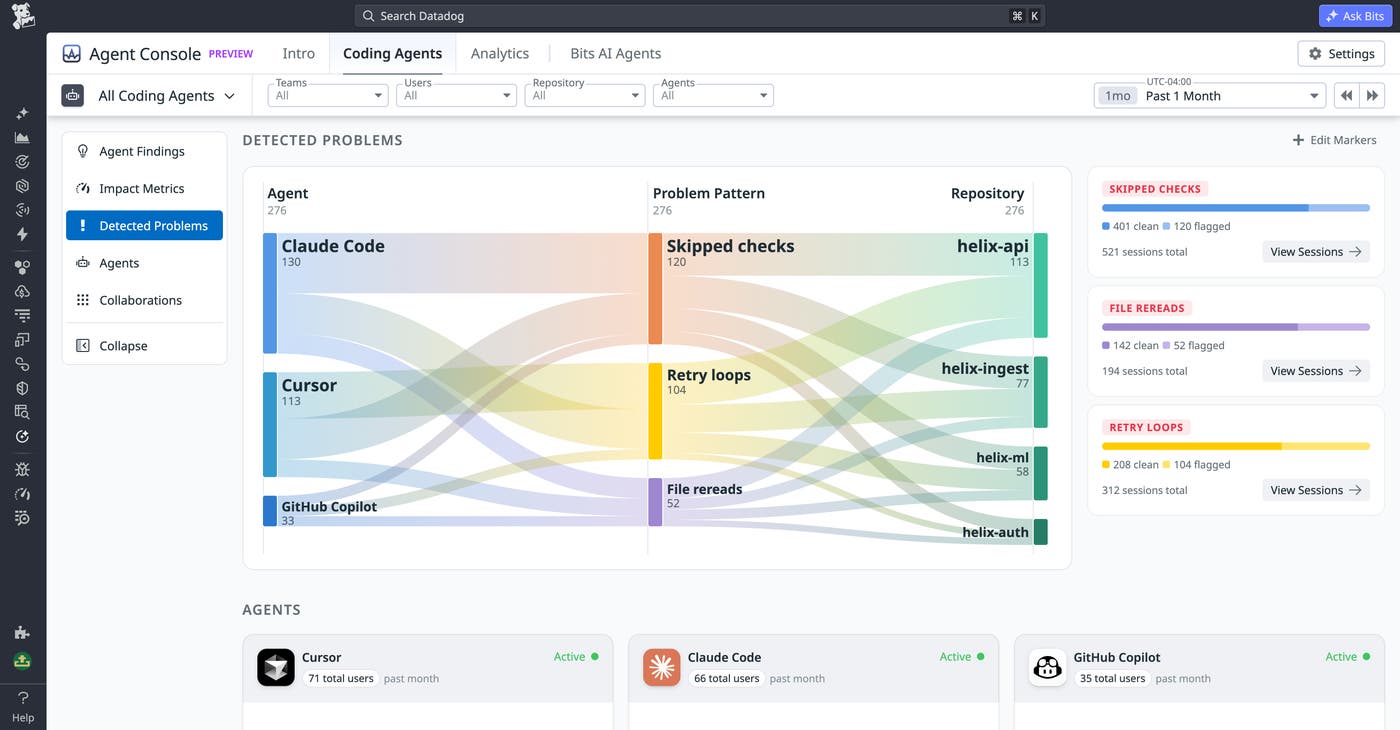
Agent Console surfaces patterns such as skipped checks, retry loops, and file rereads. Skipped checks occur when an agent commits without running tests. Retry loops occur when an agent repeatedly retries the same failing operation. File rereads occur when an agent reads the same file many times unnecessarily. These findings are displayed in a Sankey diagram that connects the agent, problem pattern, and repository, along with a per-repository sidebar that estimates how much spend could be saved.
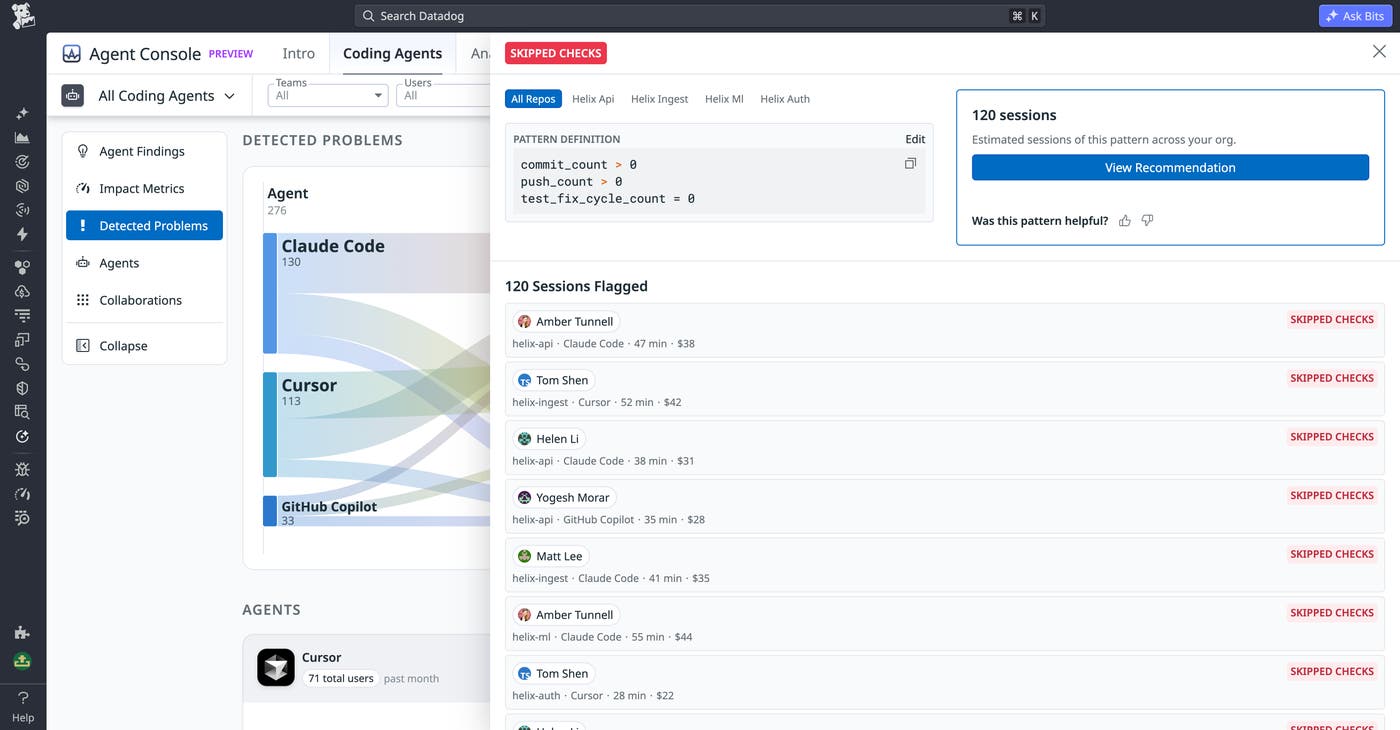
From the Sankey diagram, you can click into a pattern to diagnose the specific behavior behind it. Agent Console shows the pattern definition, such as commit_count > 0, push_count > 0, and test_fix_cycle_count = 0 for skipped checks. It also displays the estimated monthly cost across the organization and the users and repositories that triggered the pattern, with session-level cost attribution in dollars.
After you diagnose the pattern, Agent Console helps you apply a fix from the Fix Library. The Fix Library includes vetted remediations, such as a “Verify before git” PreToolUse hook that runs the repository’s test, lint, or build command before allowing the agent to commit. It can also include agent skills, such as a “Test coverage check,” and teams can author new fixes as their agent usage matures.
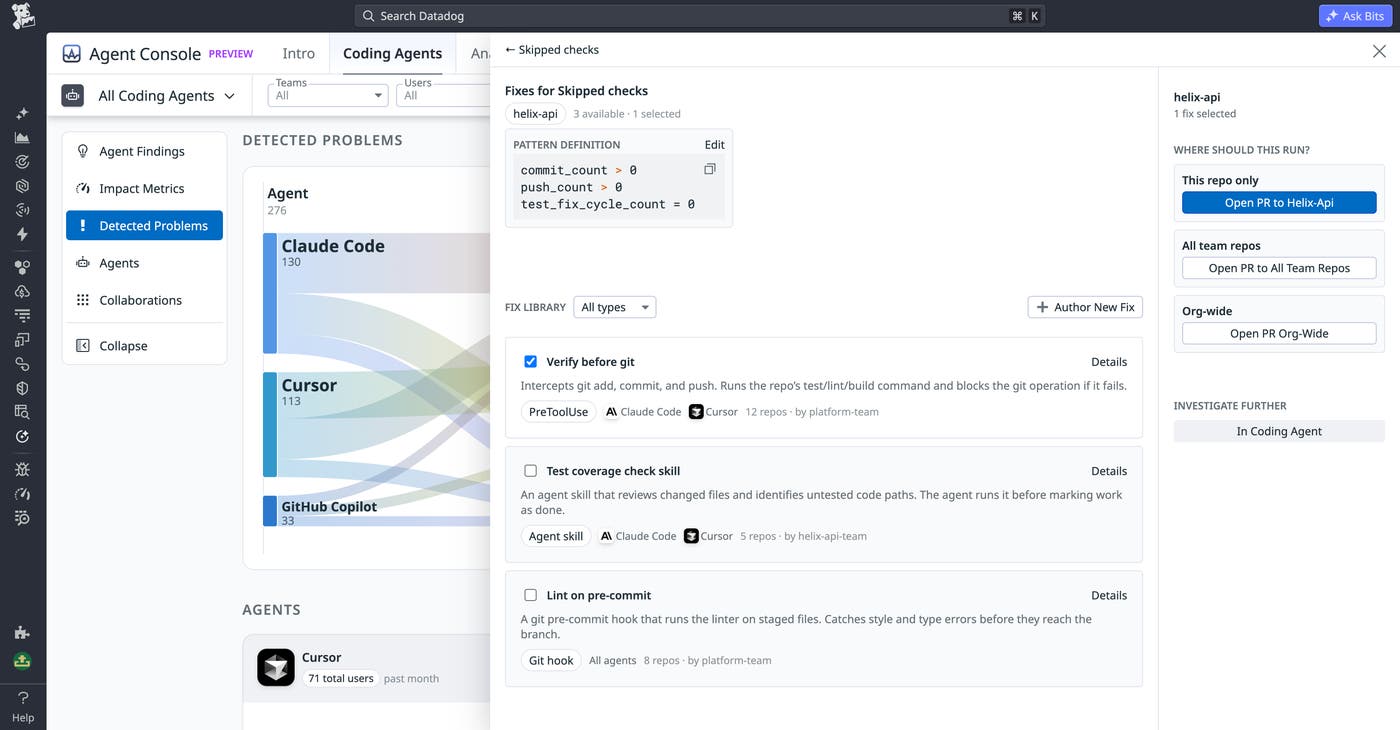
The deploy step is designed for platform teams that manage standards across many repositories. Agent Console can open a pull request scoped to one repository, all team repositories, or the full organization. Team members can select the recommended PreToolUse hook that blocks git add, git commit, or git push when tests fail, then ship it as one pull request across the organization. The next week, they can return to Agent Console to confirm that skipped-checks activity has dropped.
Get started with the Agent Console preview
Agent Console helps engineering organizations understand how AI agents are being adopted, how their costs are changing, and where agent behavior is creating avoidable waste. By combining adoption analytics, engineering impact metrics, spend attribution, cost alerts, detected problem patterns, and the Fix Library, Agent Console gives leaders a practical way to manage agent usage as it expands across teams.
To get started, check out the Agent Console documentation. If you don’t already have a Datadog account, you can sign up for a 14-day free trial.
