

John Matson
This post is part 3 of a 3-part series on how to monitor the MySQL-compatible edition of Aurora. Part 1 explores the key metrics available for Aurora, and Part 2 explains how to collect those metrics.
If you’ve already read our post on collecting metrics from Amazon Aurora, you’ve seen that you can easily collect metrics from Amazon’s CloudWatch monitoring service and from the database engine itself for ad hoc performance checks. For a more comprehensive view of your database’s health and performance, however, you need a monitoring system that can integrate and correlate CloudWatch metrics with database engine metrics, that lets you identify both recent and long-term trends in your metrics, and that can help you identify and investigate performance problems. This post will show you how to connect Aurora to Datadog for monitoring in two steps:
For an even more expansive view of your database instances, you can enable the new RDS enhanced monitoring feature, which provides more than 50 system-level metrics at a frequency as high as once per second. Those metrics can be ingested into Datadog for monitoring in just minutes:
Connect Datadog to CloudWatch
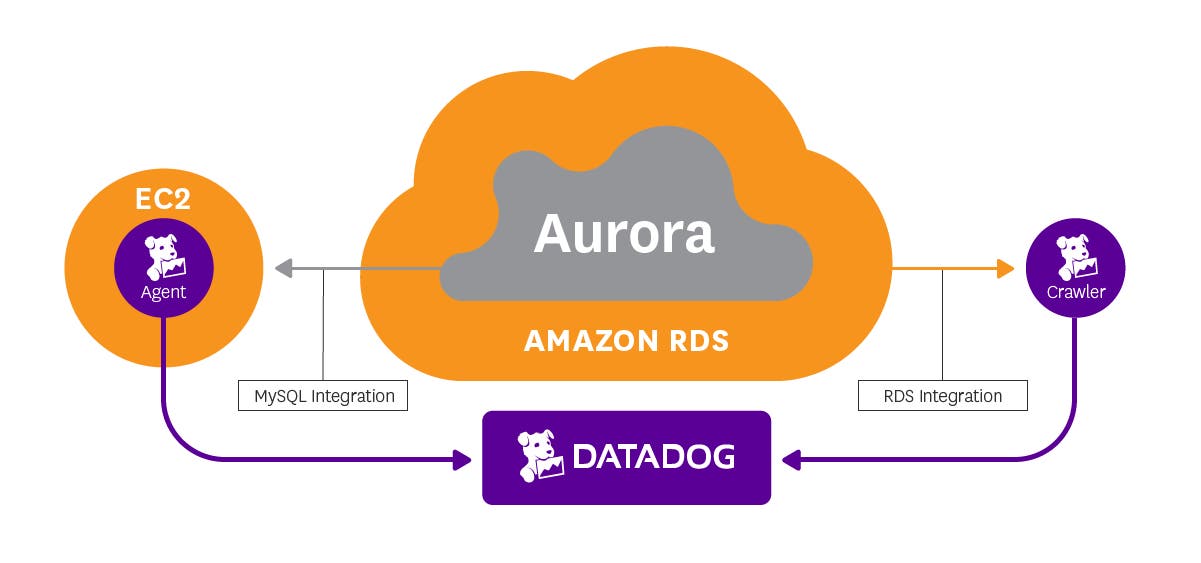
To start monitoring metrics from Amazon’s Relational Database Service (RDS), you just need to configure our CloudWatch integration. This involves setting up role delegation in AWS IAM, creating a new role for Datadog, and granting the Datadog role read-only access to your AWS services, by following the steps listed in our documentation.
Note that if you are using ELB, ElastiCache, SNS, or other AWS products in addition to RDS, you may need to grant additional permissions to the role. See here for the complete list of permissions required to take full advantage of the Datadog–AWS integration.
Integrate Datadog with Aurora’s database engine
As explained in Part 1, CloudWatch provides you with several high-level metrics that apply to any of the supported RDS database engines, plus several valuable Aurora-only metrics. To access the hundreds of metrics exposed by the native database engine, however, you must monitor the database instance itself.
Installing the Datadog Agent on EC2
Datadog’s Agent integrates seamlessly with MySQL, PostgreSQL, and compatible technologies (including Aurora) to gather and report key performance metrics, many of which are not available through RDS. Where the same metrics are available through the Agent and through basic CloudWatch metrics, Agent metrics should be preferred, as they are reported at a higher resolution. Installing the Agent is easy: it usually requires just a single command, and the Agent can collect detailed metrics even if the performance schema is not enabled and the sys schema is not installed. Installation instructions for different operating systems are available here.
Because RDS does not provide you direct access to the machines running Aurora, you cannot install the Agent on the database instance to collect metrics locally. Instead you must run the Agent on another machine, often an EC2 instance in the same security group. See Part 2 of this series for more on accessing Aurora via EC2.
Configuring the Agent for RDS
Collecting Aurora metrics from an EC2 instance is quite similar to running the Agent on a MySQL host to collect metrics locally, with two small exceptions:
Instead of
localhostas the server name, provide the Datadog Agent with your Aurora instance endpoint (e.g.,instance_name.xxxxxxx.us-east-1.rds.amazonaws.com).Tag your Aurora metrics with the DB instance identifier (
dbinstanceidentifier:instance_name) to separate database metrics from the host-level metrics of your EC2 instance.
The Aurora instance endpoint and DB instance identifier are both available from the AWS console. Complete instructions for configuring the Agent to capture metrics from your Aurora instances’ native database engine are available here.
Unifying your metrics
Once you have set up the Agent, all the metrics from your database instance will be uniformly tagged with dbinstanceidentifier:instance_name for easy retrieval, whether those metrics come from RDS or from the database engine itself.
View your comprehensive Aurora dashboard
Once you have integrated Datadog with RDS, a comprehensive dashboard called “Amazon - RDS (Aurora)” will appear in your list of integration dashboards. The dashboard gathers the metrics highlighted in Part 1 of this series: metrics on query throughput and performance, along with key metrics around resource utilization, database connections, and replication lag.
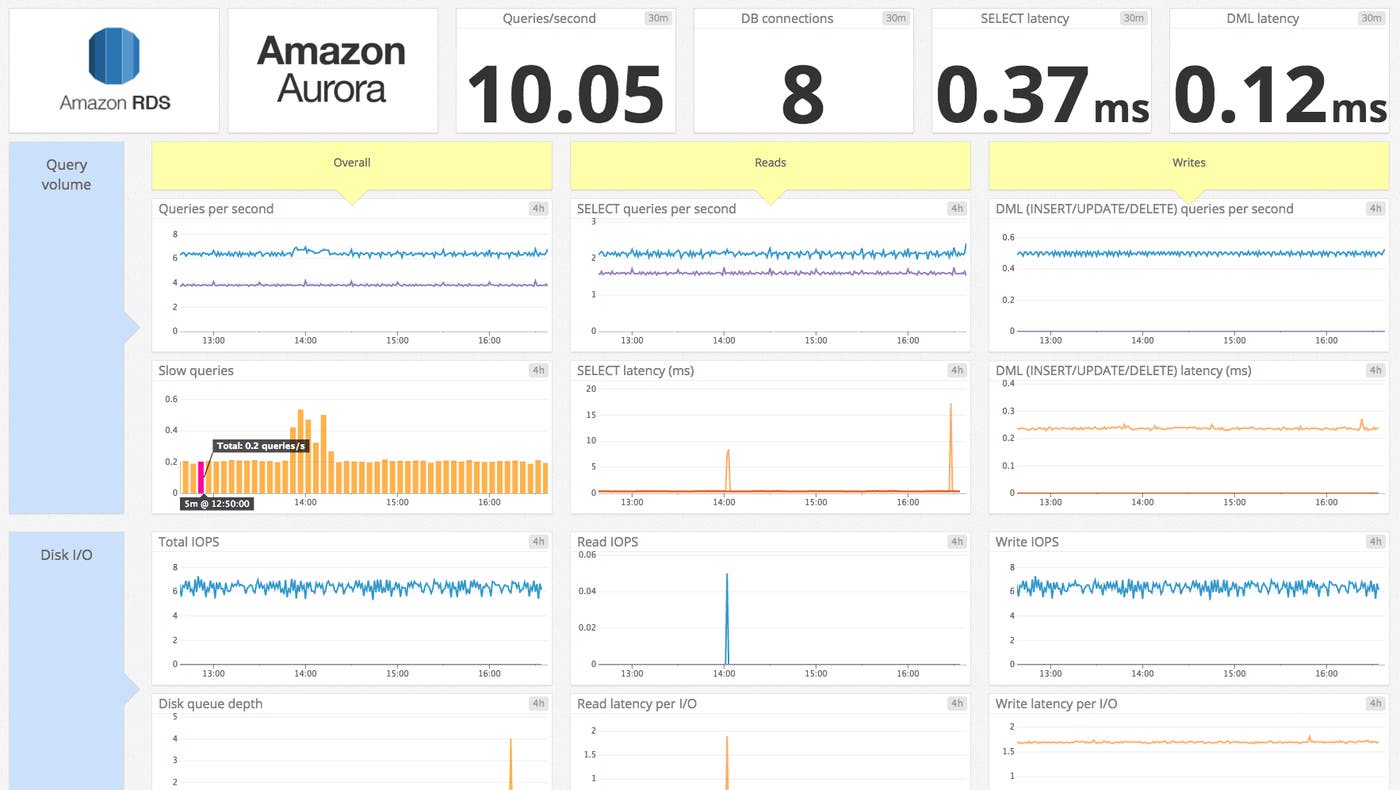
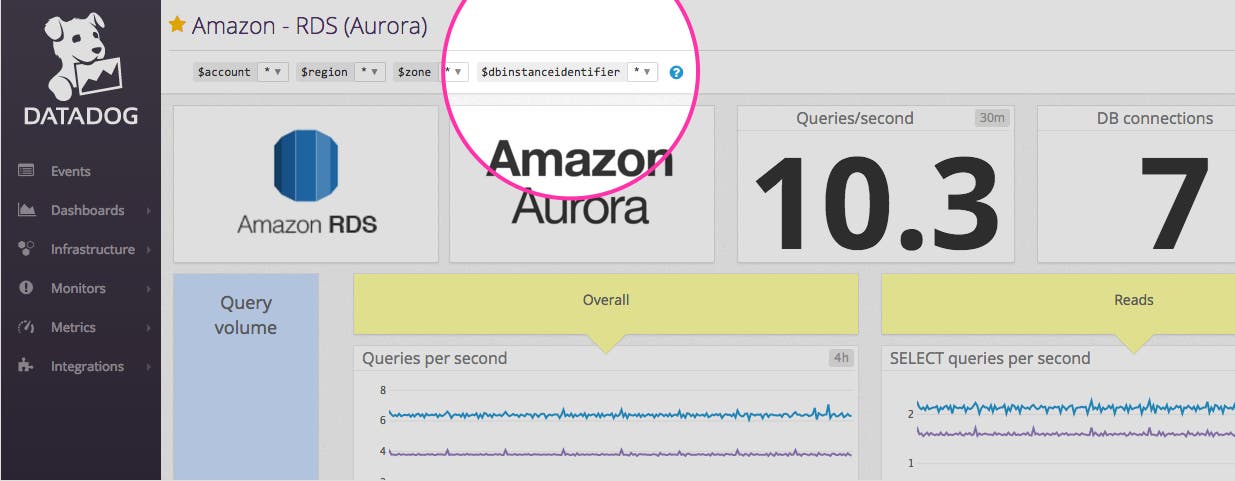
Out of the box, the dashboard displays database engine metrics from all instances configured via the MySQL integration, as well as RDS metrics from all instances running Aurora. You can focus on one particular instance by selecting a particular dbinstanceidentifier in the upper left.
Customize your dashboard
The Datadog Agent can also collect metrics from the rest of your infrastructure so that you can correlate your entire system’s performance with metrics from Aurora. The Agent collects metrics from ELB, NGINX, Redis, and 120+ other infrastructural applications. You can also easily instrument your own application code to report custom metrics to Datadog using StatsD.
To add more metrics from Aurora or other systems to your RDS dashboard, clone the template dash by clicking on the gear in the upper right.
Monitor RDS enhanced metrics with Datadog
AWS provides the option to enable enhanced monitoring for RDS instances running MySQL, MariaDB, Aurora, and other database engines. Enhanced monitoring includes more than 50 new CPU, memory, file system, and disk I/O metrics that can be collected on a per-instance basis as frequently as once per second.
AWS has worked with Datadog to help customers monitor this new, high-resolution data. With a few minutes of work your enhanced RDS metrics will immediately begin populating a pre-built, customizable dashboard in Datadog.
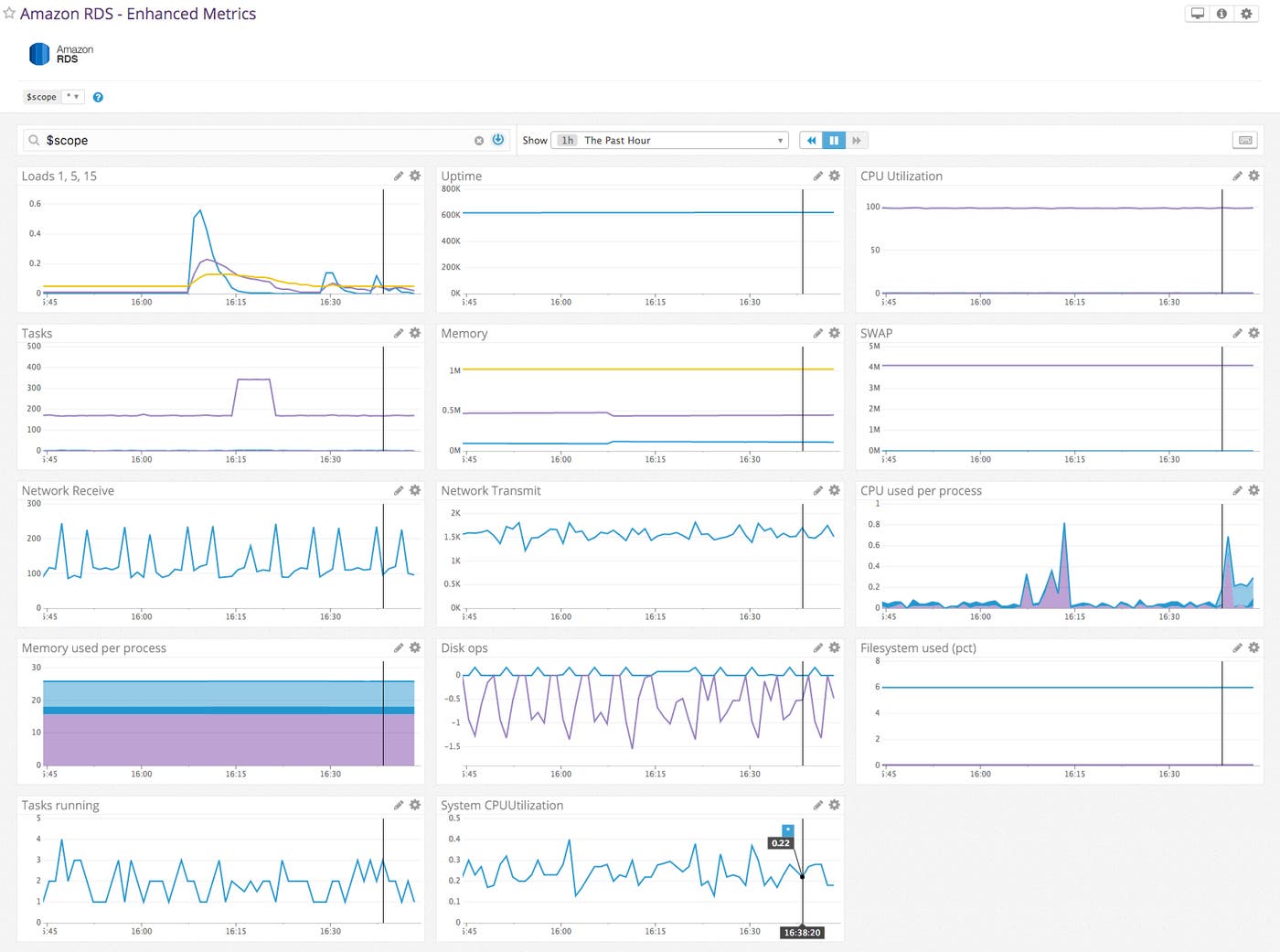
You can enable enhanced RDS metrics during instance creation, or on an existing RDS instance by using the RDS Console. When you enable enhanced RDS metrics, the metrics will be written to CloudWatch Logs. You can then use a ready-made Lambda function (available in the AWS Serverless Application Repository) to process those metrics and send them to Datadog. Enhanced metrics can be collected even if you do not use the Datadog Agent to monitor your RDS instances.
To set up Datadog’s RDS Enhanced integration, follow the instructions in our documentation.
Customize your enhanced metrics dashboard
Once you have enabled “RDS” in Datadog’s AWS integration tile, Datadog will immediately begin displaying your enhanced RDS metrics. You can clone the pre-built dashboard for enhanced metrics and customize it however you want: add MySQL-specific metrics that are not displayed by default, or start correlating database metrics with the performance of the rest of your stack.
Conclusion
In this post we’ve walked you through integrating Aurora with Datadog so you can access all your database metrics in one place, whether standard metrics from MySQL and CloudWatch or enhanced metrics from RDS.
When you monitor Aurora with Datadog, you get critical visibility into what’s happening with your database and the applications that depend on it. You can easily create automated alerts on any metric, with triggers tailored precisely to your infrastructure and your usage patterns.
If you don’t yet have a Datadog account, you can sign up for a free trial and start monitoring your cloud infrastructure, your applications, and your services today.
