
Bryan Antigua
Senior Product Manager

Jessica Manheimer
Product Marketing Manager
Frontend performance issues are often easy to detect through signals like worsening Interaction to Next Paint (INP) and Largest Contentful Paint (LCP) scores, or through recurring long tasks. Identifying the code responsible for frontend slowdowns, however, is much more difficult. What’s especially challenging is that performance degradations often appear only on specific devices, browsers, or network conditions. They can also take hours for frontend teams to reproduce in a test environment.
Datadog’s Browser Profiler helps frontend engineers trace the cause of degraded performance directly to the underlying JavaScript code path. By combining profiling data with Datadog Real User Monitoring (RUM), Browser Profiler captures method stack frames from real user sessions and surfaces them directly in the workflows engineers already use for troubleshooting. Teams can investigate slow interactions, identify recurring bottlenecks across thousands of sessions, and compare profiling data across deployments to validate that a fix actually improved performance.
In this post, we’ll show how Browser Profiler helps you:
- Surface code-level root causes when a signal degrades
- Spot systemic bottlenecks with aggregated profiling views
- Validate that your fix actually worked
- Investigate with Bits Chat and the Datadog MCP Server
Surface code-level root causes when a signal degrades
Frontend teams often know that performance regressed before they know why. A degraded INP score, for example, tells you that users are experiencing latency, but this information does not identify which function introduced the slowdown. It also cannot tell you which deployment caused the regression or which team owns the affected code.
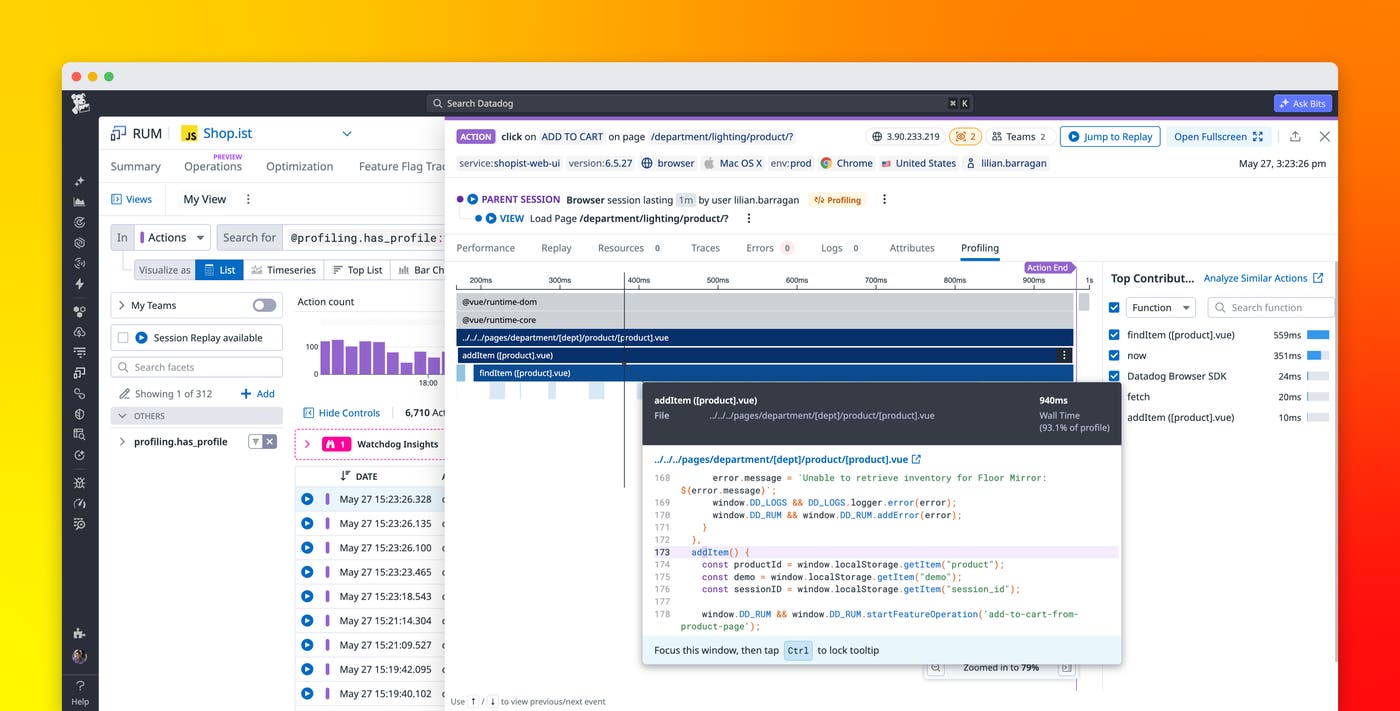
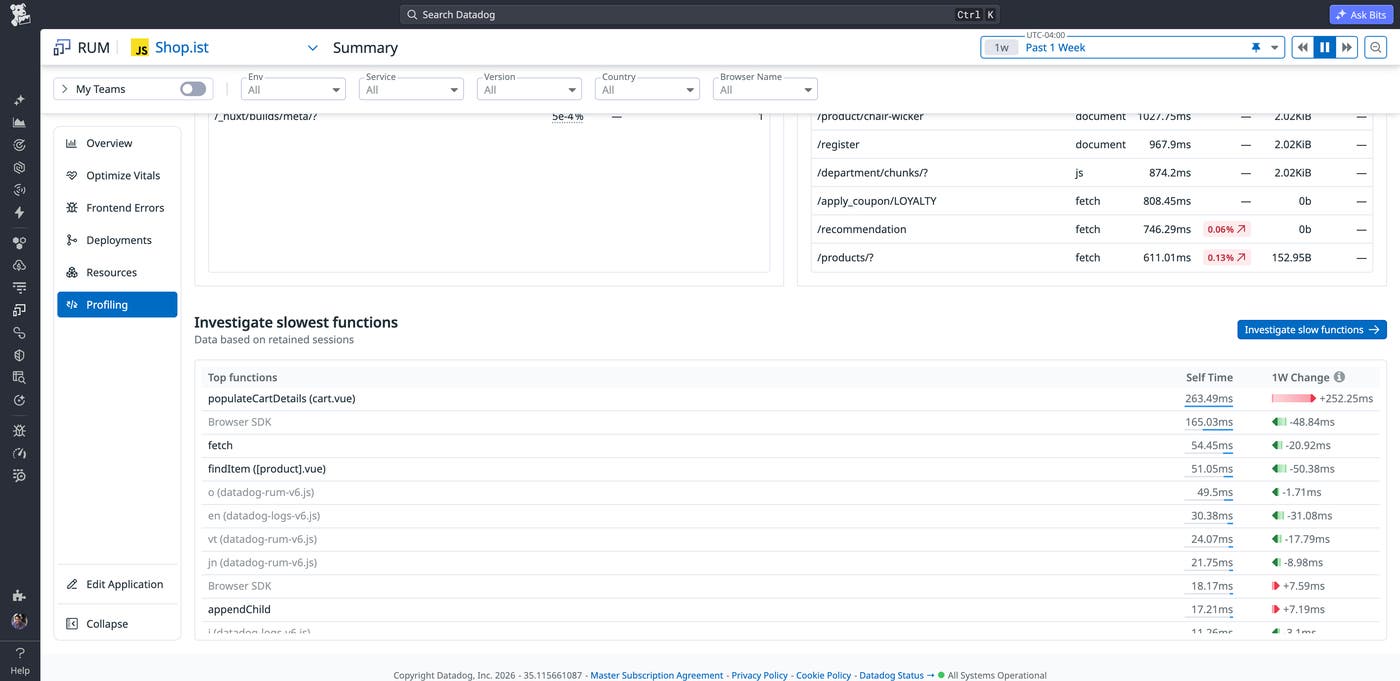
Browser Profiler connects method stack frames and code execution patterns directly to events, such as page views and actions, that are captured from real user sessions. This profiling data appears inside RUM workflows. For example, the Summary page in RUM surfaces the top CPU-consuming functions alongside key application metrics. The Session Explorer lets you filter down to profiled sessions for individual investigation, and the Profiling tab aggregates samples across sessions to summarize recurring bottlenecks.
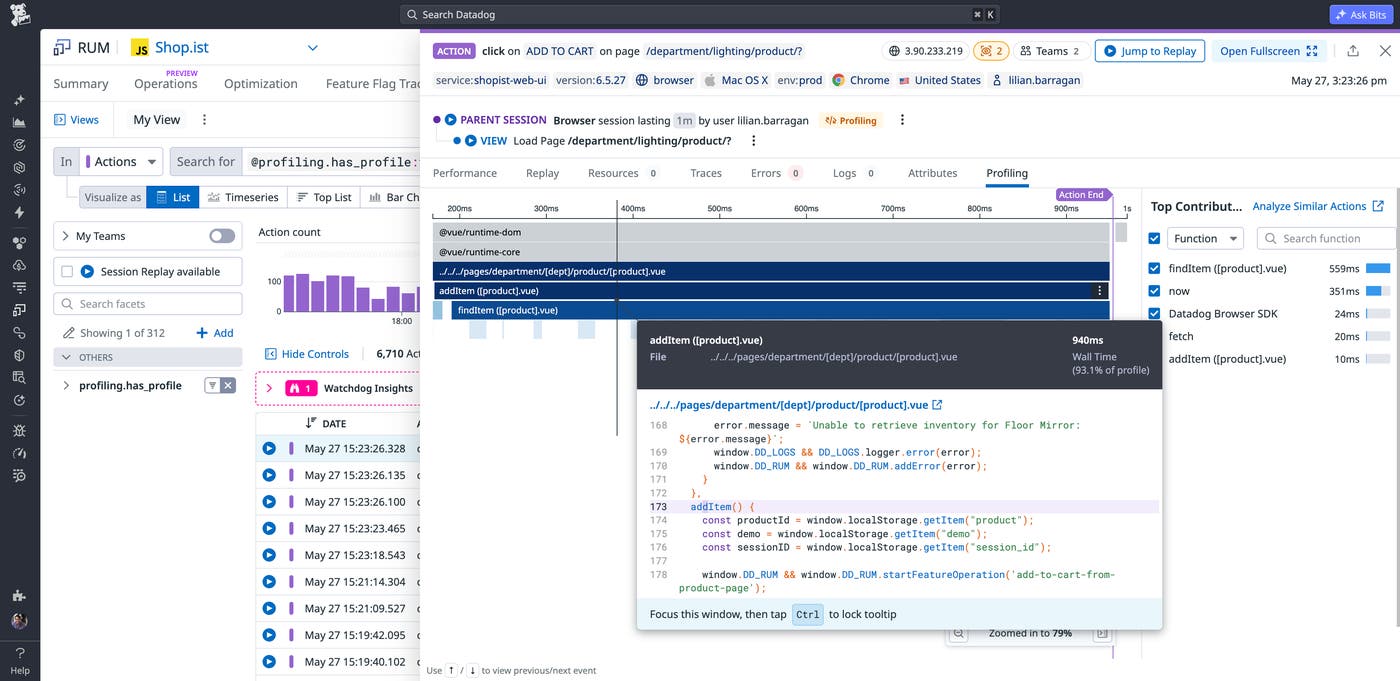
Browser Profiler also integrates with the Session Explorer so that teams can quickly isolate sessions that include profiling data. Engineers can filter sessions with the @profiling.has_profile attribute to surface profiled sessions, actions, and long tasks. Opening any profiled event reveals a side panel with execution details at the appropriate level of granularity, whether the investigation focuses on an entire session, a single user action, or a specific task that blocks the main thread.
Spot systemic bottlenecks with aggregated profiling views
Session-by-session debugging is useful for understanding an individual slowdown, but it can also create blind spots. Teams often investigate the sessions they already suspect are problematic while missing recurring bottlenecks that affect large portions of their user base.
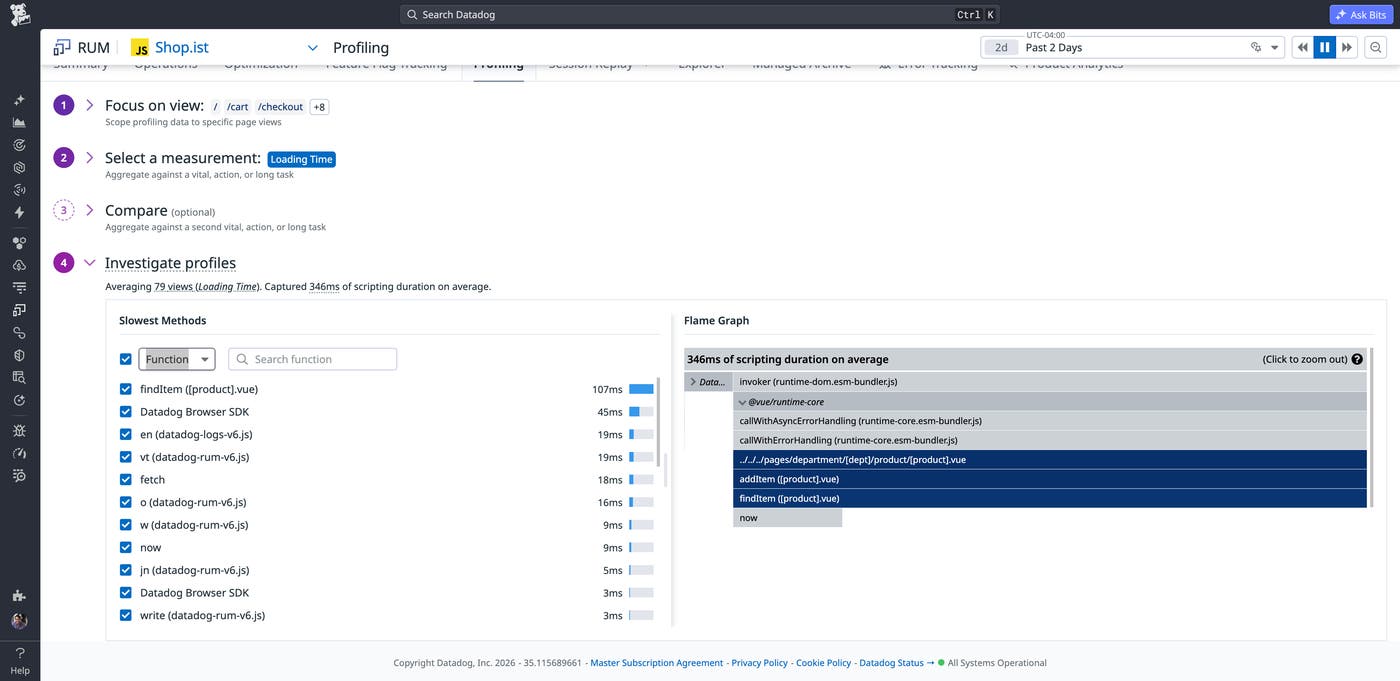
The Profiling Explorer addresses this challenge by aggregating samples across all profiled sessions. This approach surfaces recurring performance patterns across production traffic so that engineers can identify the functions that consistently consume CPU time or block the main thread.
For example, teams can filter profiling data by RUM view to isolate performance issues within a specific page or route. This makes it possible to investigate a checkout flow, onboarding experience, or dashboard page independently from the rest of the application.
Browser Profiler also enables teams to pivot by measurement. Engineers can reorder function rankings based on a selected performance metric to focus on the functions most closely associated with degraded user experience.
Validate that your fix actually worked
Frontend performance investigations do not end after a deployment. Once a fix ships, teams still need to confirm that the underlying regression improved in production and did not simply disappear from a small set of test sessions.
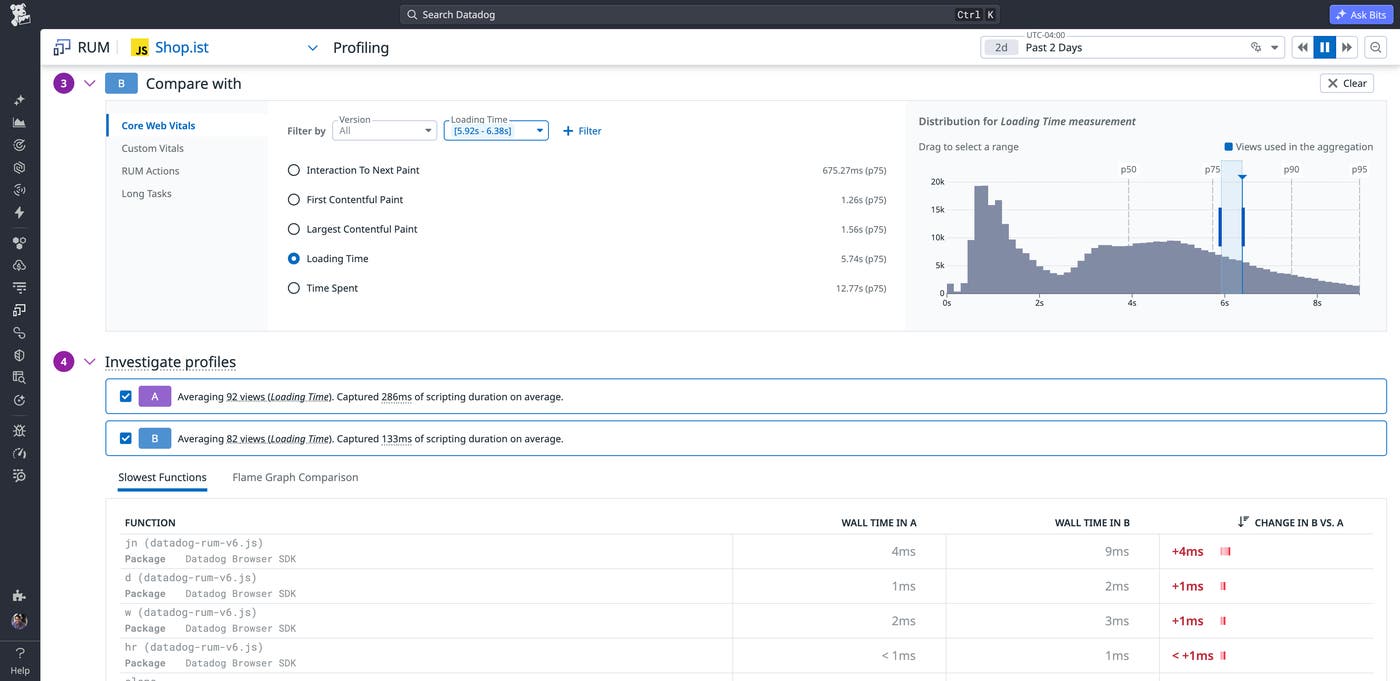
Browser Profiler includes a Compare view that places two profiling snapshots side by side across different application versions, time windows, or RUM attribute combinations. Engineers can compare profiling data before and after a deployment and inspect per-function wall time deltas to determine which functions became faster or slower.
Investigate with Bits Chat and the Datadog MCP Server
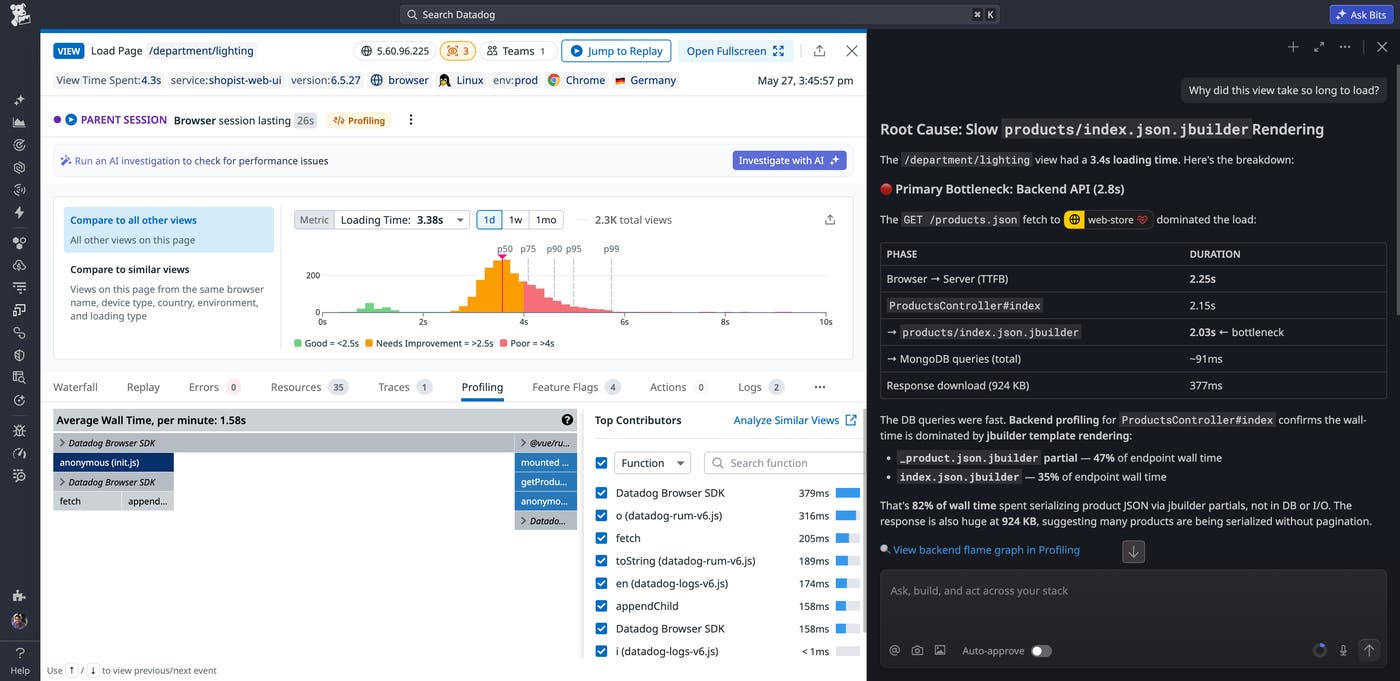
All the tasks described above can also be performed through Bits Chat and the Datadog MCP Server. Instead of navigating the UI to pull profiling data, identify bottlenecks, or compare versions, you can ask Bits Assistant directly or use MCP tools to do the work for you.
Investigate frontend performance regressions faster with Datadog’s Browser Profiler
Browser Profiler helps frontend teams connect degraded user experience metrics to the JavaScript functions responsible for them. By combining production profiling data with Datadog RUM workflows, teams can investigate slow interactions, identify recurring bottlenecks across large numbers of sessions, and validate performance improvements after deployments.
Browser Profiler is generally available. Mobile profiling supporting iOS and Android is currently in Preview and will be available in a future release. To learn more, read the documentation.
If you’re new to Datadog, you can sign up for a free 14-day trial.
