

Stella Ma

Abhi Motgi
Datadog Session Replay heatmaps track where users click, scroll, and engage across your web pages. Each heatmap is overlaid on a screenshot of the page, and that background determines what you can actually analyze. But getting the right screenshot can be tricky. Many UI states are dynamic, rare, or simply impossible to capture from replays, so heatmaps can end up showing the wrong view.
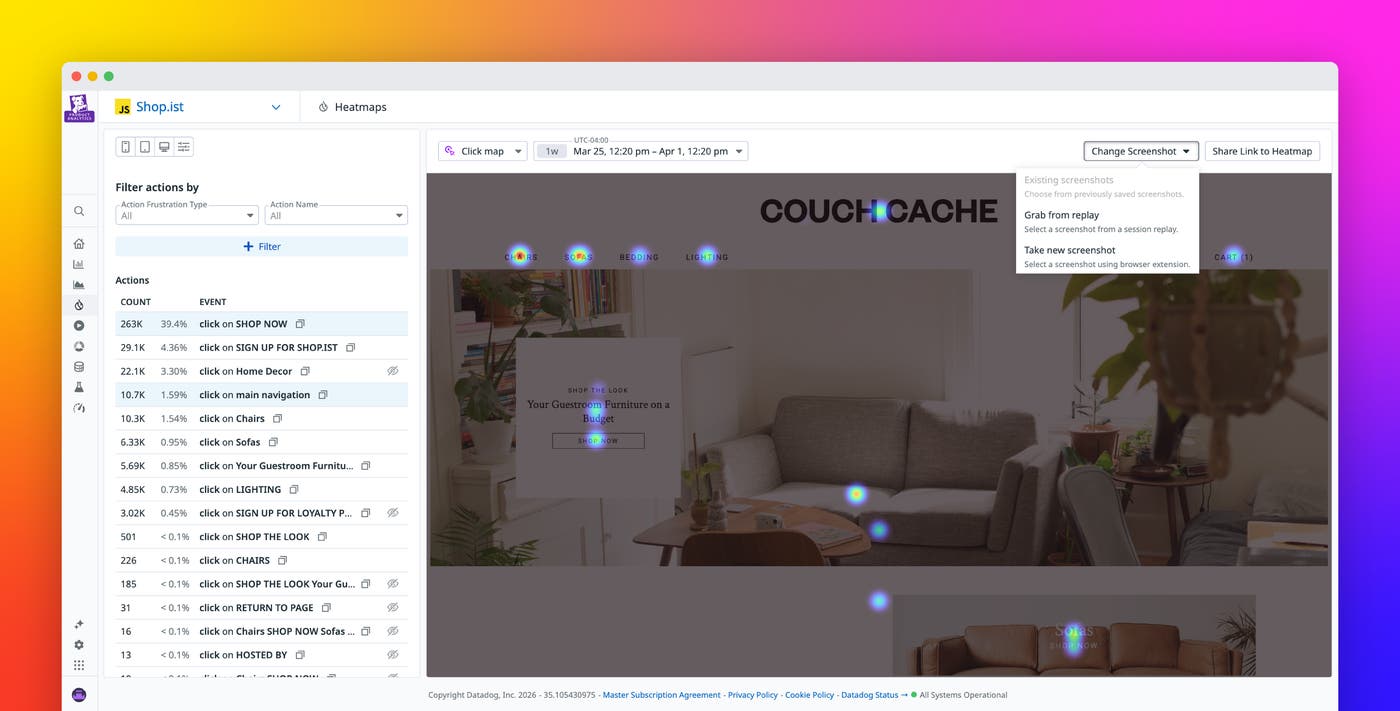
Session Replay is introducing two new capabilities that give teams more direct control over their heatmap backgrounds. With custom heatmap backgrounds, you can open your live site from Datadog, interact with it freely, and capture any UI state you want as your background. You can also save multiple backgrounds for a single heatmap view and switch between them instantly. Saved screenshots are shared across your org and persist across sessions, so teammates can jump straight to a curated set of views.
In this post, we’ll cover how Session Replay now enables you to:
- Capture the exact UI state you need for more accurate heatmap analysis
- Keep the right heatmap views ready for your whole team
Capture the exact UI state you need for more accurate heatmap analysis
Setting a heatmap background used to mean browsing Session Replay recordings and hoping to find the page in the right state. The process was time-consuming and sometimes unsuccessful because many critical UI states are dynamic or rare. Modals, dropdowns, lazy-loaded elements, and post-login views are nearly impossible to reliably capture from replays.
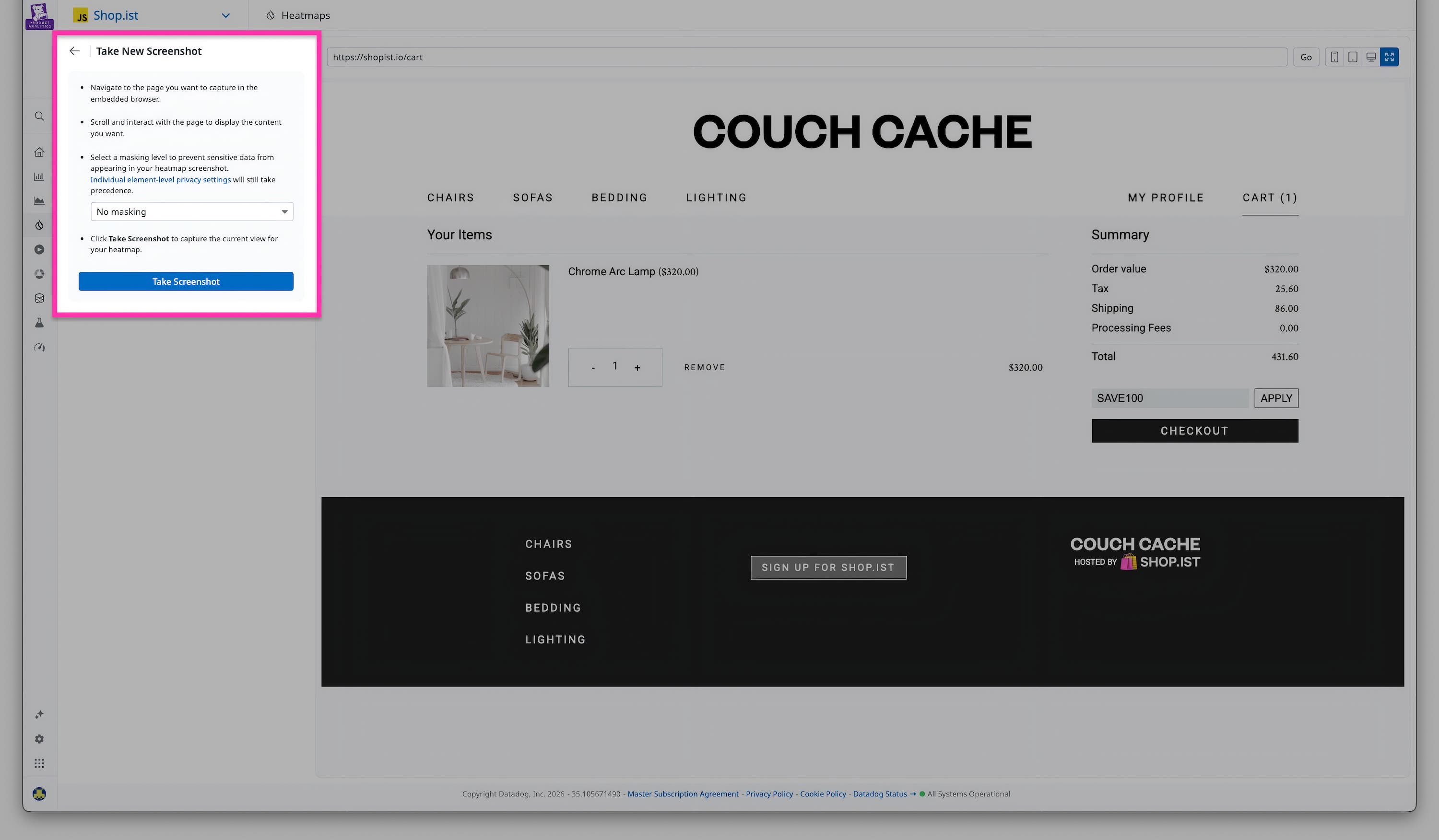
With custom heatmap backgrounds, you have direct control. From within Datadog, you can open your live site and interact with it freely. Scroll, click, open menus, trigger modals, and capture the exact view you need. And for states that are hard to reproduce yourself, like a post-checkout screen with real customer data, you can still select a background from a Session Replay as before.
With the right background in place, heatmap data becomes a reliable, accurate reflection of the specific user experience your team actually wants to analyze.
Keep the right heatmap views ready for your whole team
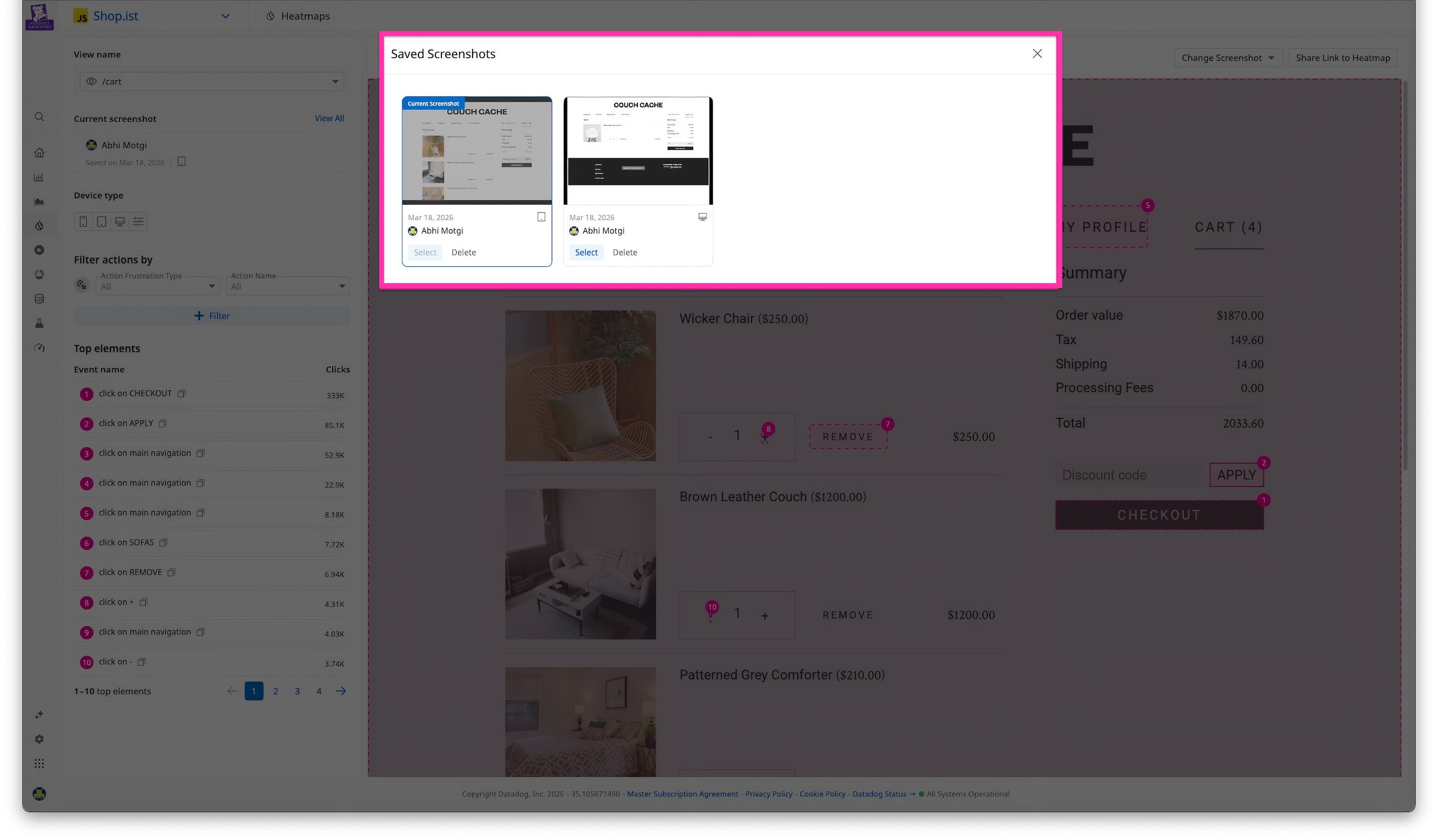
Once you capture the right background, it’s automatically saved and reused the next time anyone in your org opens that heatmap. You can save multiple backgrounds for the same view, such as a default homepage, an open nav menu, or an open modal, and switch between them at any time. Screenshots are shared org-wide, so if one team member sets up the backgrounds, everyone can access and benefit immediately.
A panel shows each saved screenshot’s device type, date saved, and who saved it, making it easy to manage and trust your library. You can delete screenshots you no longer need, with a confirmation step to prevent accidental removal.
Get more out of every heatmap
With custom heatmap backgrounds and saved screenshots, teams have full control over what they analyze. You can capture any UI state on demand and reuse it across your org, eliminating repeated effort. The result is heatmap data that accurately reflects the experiences your users actually encounter.
To learn more about heatmaps in Session Replay, visit our documentation. If you’re new to Datadog, sign up for a free 14-day trial.