

Addie Beach

Younes Berradia

Hiba Ijjaali
When developers and SREs design application tests, they often prioritize user workflows and API availability. Extending that suite with network tests that match your app’s traffic protocols can reveal whether issues originate in the network or application layer.
In this post, we’ll explore how you can design effective network tests using the Transmission Control Protocol (TCP), User Datagram Protocol (UDP), or Internet Control Message Protocol (ICMP), including:
- Choosing the right protocol for your network tests
- Simulating realistic traffic using synthetic tests
How to choose the right network test protocol
Traceroute-based tests are a common way to measure network health. By showing you the amount of time it takes for devices to respond to incoming requests, traceroute queries enable you to measure performance along every step of the network path, from the intermediary hosts to the destination server.
Depending on your testing tool, you may be able to run these queries over different protocols, usually ICMP, TCP, or UDP. Choosing a protocol that matches your app’s traffic—such as UDP for media streaming or TCP for web services—helps ensure your performance metrics reflect actual user experience. It can also help you determine how your app may interact with network components that can restrict traffic, such as firewalls.
Traceroute queries include two parts:
- The request sent to each device in a network path
- The reply sent from these devices, which is used to measure latency and availability
Requests and replies can be communicated using different protocols. For example, traceroutes use ICMP to send replies from intermediary hosts. Depending on your testing tool, however, you may be able to send the initial request over a different protocol like UDP or TCP.
Which protocol to test with: ICMP, TCP, or UDP?
Different protocols produce different kinds of results. ICMP is used for network diagnostics, as it has no transport layer and doesn’t support packet sequencing or retransmission. By contrast, TCP and UDP include more advanced functionality for handling packet transmission and are designed to carry app data, which enables them to reveal more about how your app behaves under real traffic conditions. Therefore, implementing traceroute queries with TCP or UDP enables you to gain additional insight into retransmission behavior and congestion response. Compared to ICMP, routers and firewalls are also less likely to rate limit or block TCP and UDP traffic.
TCP is useful for tracking the rate of successful data delivery, which can help you evaluate network throughput. By contrast, UDP helps you determine how well your system performs under heavy sustained traffic and measure characteristics like jitter.
TCP tracks connection state to guarantee reliable delivery. By treating data as a stream of sequenced bytes, TCP ensures that information is received in the order it was sent. Note that in high-jitter environments, this can lead to head-of-line (HoL) blocking, where the stack waits for a missing or delayed segment before passing subsequent data to the app, potentially causing significant latency.
Additionally, if a TCP packet is not acknowledged in a set timeframe, the sending device will automatically attempt to retransmit the data. If too many acknowledgements are missed, the sending device may trigger a retransmission timeout (RTO) mechanism to limit network congestion and help stabilize the connection. Depending on your operating system and network configuration, RTOs may last anywhere from 200 milliseconds to upwards of 120 seconds. Like HoL blocking, this can result in noticeable latency. These performance impacts mean that TCP is generally used for apps where data accuracy and reliability is more important than speed.
By contrast, UDP doesn’t attempt to sequence or retransmit packets. While these features make UDP less reliable than TCP, they also help UDP perform faster. Therefore, UDP is often used in situations where high-speed transmission is critical, like live video streaming, voice calls, or fast-paced games.
When to use SYN vs. SACK for TCP traceroute tests
Besides offering different protocol options to test with, testing tools may allow you to customize the requests themselves. For example, Network Path tests in Datadog Synthetic Monitoring let you choose between SYN and SACK strategies for TCP-based tests.
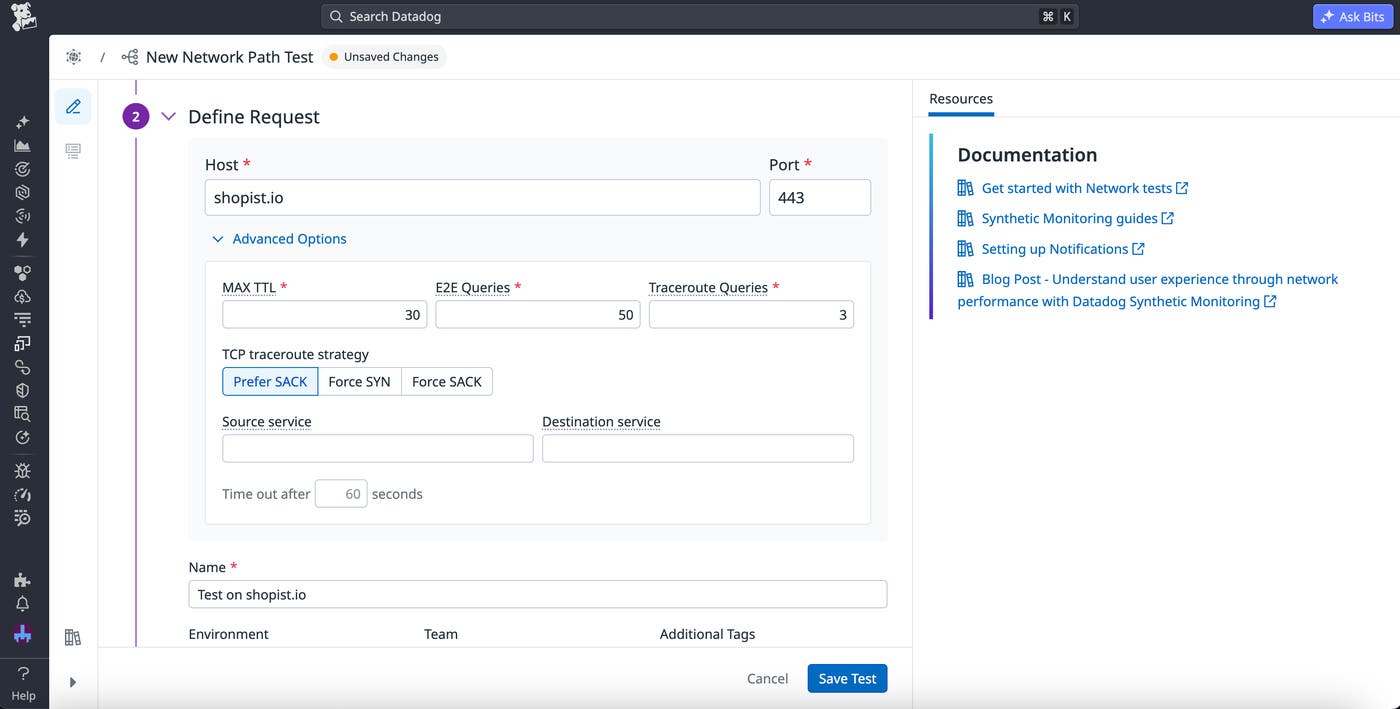
TCP uses three-way handshaking (SYN, SYN-ACK, ACK) to establish sessions, helping ensure that the destination port is available and data is transmitted reliably. Handshaking identifies “zombified” or “half-open” connections where a port may be open but the app is unresponsive. When sending test requests over TCP in Datadog synthetic tests, you can decide whether you want to send a full handshake (SACK) or a one-way request (SYN).
SYN is the standard option for most tests, as the partial connection means that traceroute queries will run even if the destination port is closed. However, firewalls may misinterpret SYN requests as SYN floods or port scans. In these situations, you can use TCP SACK instead, which simulates a new session opening with each traceroute query. Keep in mind that not all targets support TCP SACK, which may result in test failures.
How to simulate realistic network traffic using Datadog Synthetic Monitoring
Not every operating system makes it easy to use different protocols within your tests. For example, to send traceroute requests over TCP, you may need to install third-party tools like tracetcp for Windows or tcptraceroute for Linux and macOS. And once you’ve installed these tools, you may need to manually set up cron jobs to schedule each of your traceroute tests.
Datadog Synthetic Monitoring enables you to create and schedule Network Path tests that use either ICMP, UDP, or TCP to send requests. As your test runs finish, the results are visualized as diagrams showing the flow of requests through every host in your network. You can view these results alongside the rest of your synthetic test findings, such as those from your API, browser, and mobile tests.
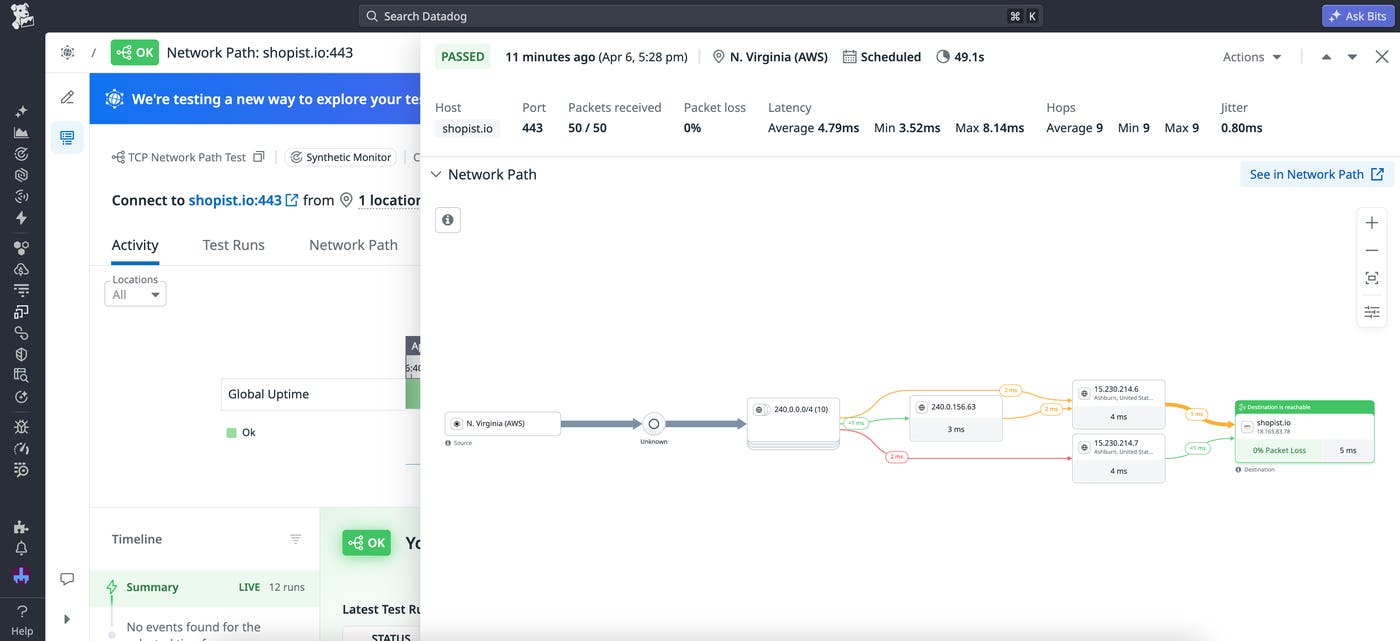
Let’s say that you’re an SRE. A few updates to your video streaming app have led to complaints of increased pixelation and frozen frames from users. To rule out potential network issues as the cause, you create a Network Path test that uses UDP requests to accurately replicate your traffic.
Datadog enables you to specify factors such as:
- The maximum time to live (TTL) for these requests
- The number of end-to-end queries sent to the destination server
- The number of traceroute queries executed per test run
You can also create an assertion that defines success for your test. In this case, you set the success condition as an average packet loss below 0.5%. You also decide to schedule these tests to run every five minutes, which helps you quickly catch issues without being overwhelmed by brief changes in network capacity or performance. Finally, you set your test to alert you if any two consecutive runs fail.
Soon you’re notified of a potential issue related to a new app release. While ruling out potential causes, you notice an alert from your Network Path test. In the test results, you see that one of the hops along the traceroute path resulted in errors, suggesting that the issue originates in your network configuration. This means you don’t need to loop your app team in right away. Instead, you forward this information to your network team for further troubleshooting.
Visualize end-to-end network health with Datadaog Synthetic Network Path tests
Sending traceroute requests over the protocol of your choice can give you a more accurate understanding of your network performance. By correlating protocol-specific test results with hop-by-hop visualizations, you can determine if a latency spike is a universal network issue (ICMP/UDP) or an application-layer negotiation failure (TCP). You can even use a combination of tests running on various protocols to evaluate different aspects of your network health. UDP provides visibility into real-time performance and packet loss, while TCP enables you to better measure overall reliability and firewall traversal.
While you may be able to use some of these protocols with native traceroute tests, creating your network tests in Datadog Synthetic Monitoring gives you access to additional protocols, greater control over configuration parameters like TTL and query count, and automated scheduling.
You can use our documentation to get started with Synthetic Monitoring and Network Path tests. Or, if you’re new to Datadog, you can sign up for a 14-day free trial.