
Parag Baxi

Nathaniel Beckstead

Aaron Kaplan
Technical Content Writer
Detecting malware in container environments can be a major challenge due to the rapid development of malicious code, the proliferation of insecure container images, and the multilayered complexity of container stacks. Staying ahead of attackers means tracking the constant evolution of malware and rooting out threats in your codebase at the expense of considerable compute.
Datadog Workload Protection provides a unified platform for malware detection across your containerized environment. Workload Protection builds on Datadog’s internal threat intelligence by ingesting from third-party feeds—beginning with MalwareBazaar, with more to come—in order to detect malicious software running in your containers, so you can immediately identify and remove threats.
In this post, we’ll show you how Workload Protection enables you to:
Detect malware with enhanced precision using crowd-sourced threat intelligence
Identify and assess the impact of malicious code running on your systems
Detect malware with enhanced precision using crowd-sourced threat intelligence
Datadog maintains an internal threat intelligence feed that generates security signals for our customers based on indicators of compromise (IOCs) identified by our security researchers. Augmenting our internal threat intelligence with data from third-party feeds such as MalwareBazaar helps us proactively monitor the cutting edge of malicious code. MalwareBazaar’s crowd-sourced database of malware samples promotes communal threat intelligence, and its users submit hundreds of unique malware samples every day.
But crowd-sourcing can also increase the potential for false-positive identifications of malware. Datadog Workload Protection filters the MalwareBazaar feed—for example, by excluding anonymous uploads in order to eliminate submissions from potentially untrustworthy sources—and uses fuzzy hashing in order to minimize the potential for false positives while casting a wide net.
This type of malware detection can be resource-intensive, since it involves hashing and comparing large volumes of data. To prevent strain on your resources, Workload Protection malware detection is executed on the backend, in our servers.
Next, we’ll provide a more hands-on look at what happens when Workload Protection detects malware, and how it sets you up to respond.
Identify and assess the impact of malicious code running on your systems
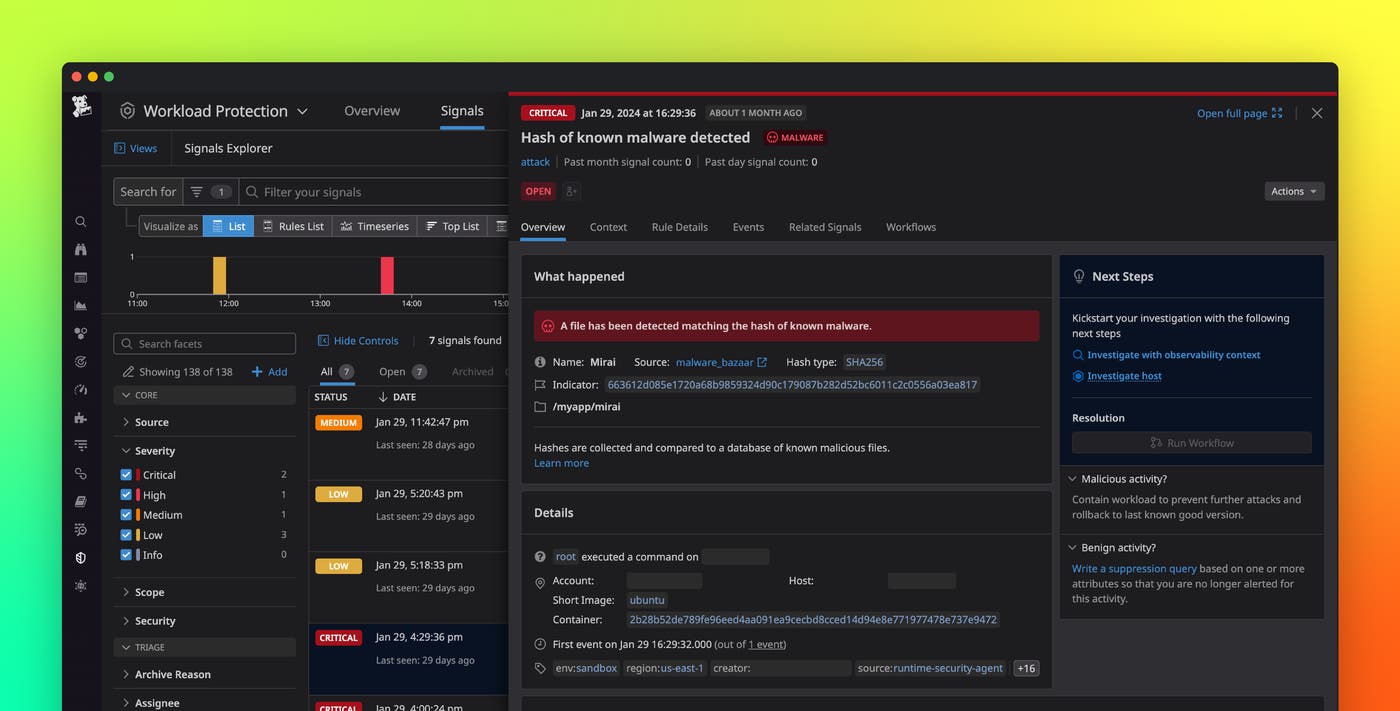
When Workload Protection identifies malware in your code base, it generates a security signal. You can view and search your security signals in the Workload Protection Signals Explorer.
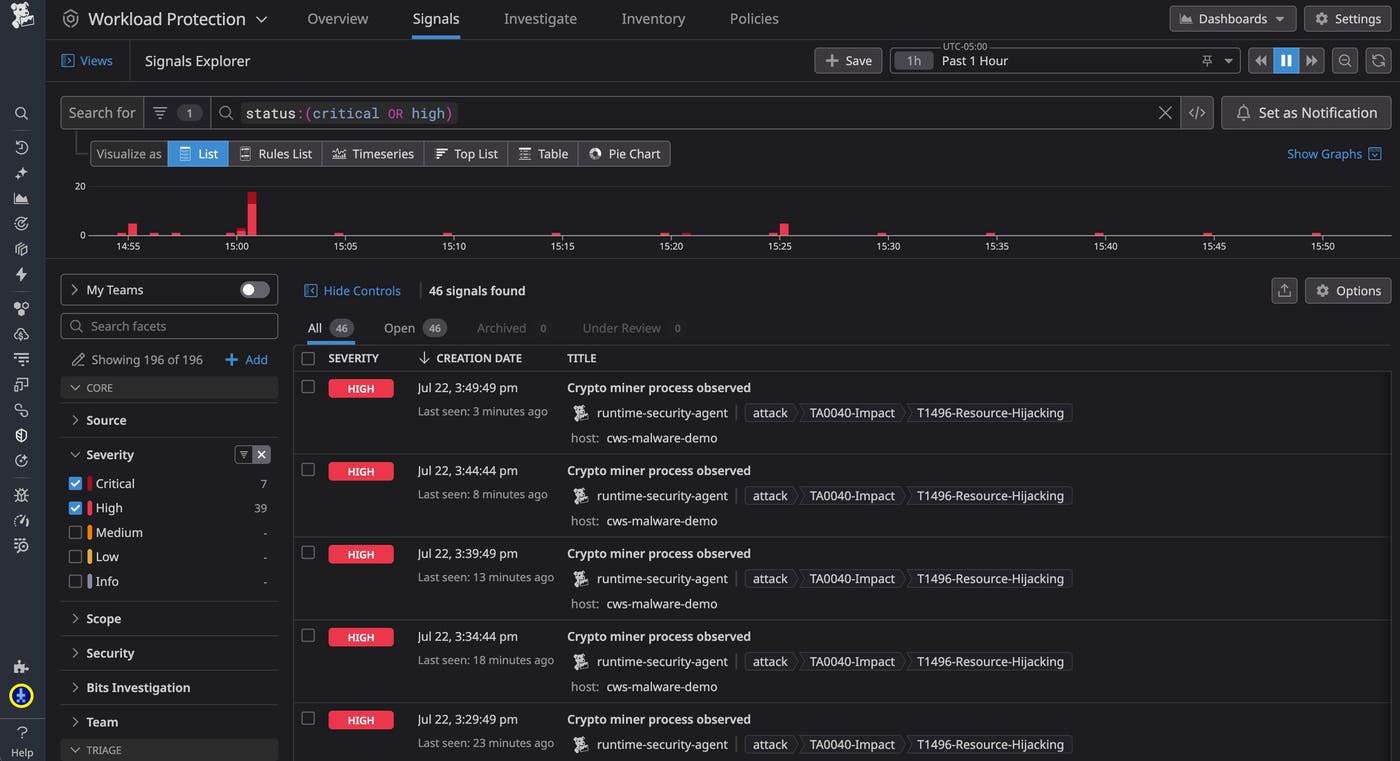
Malware-triggered security signals are automatically assigned a severity level of critical. As shown above, malware-based security signals are clearly labeled in the Signals Explorer, but you can also configure notifications to point you directly to high-severity or critical security signals such as this.
The Signals Explorer provides basic details on each security signal, such as a brief summary of what occurred and details on precisely when and where the signal was generated. You can select one of these signals from the explorer to quickly get more context and zero in on the malicious code.
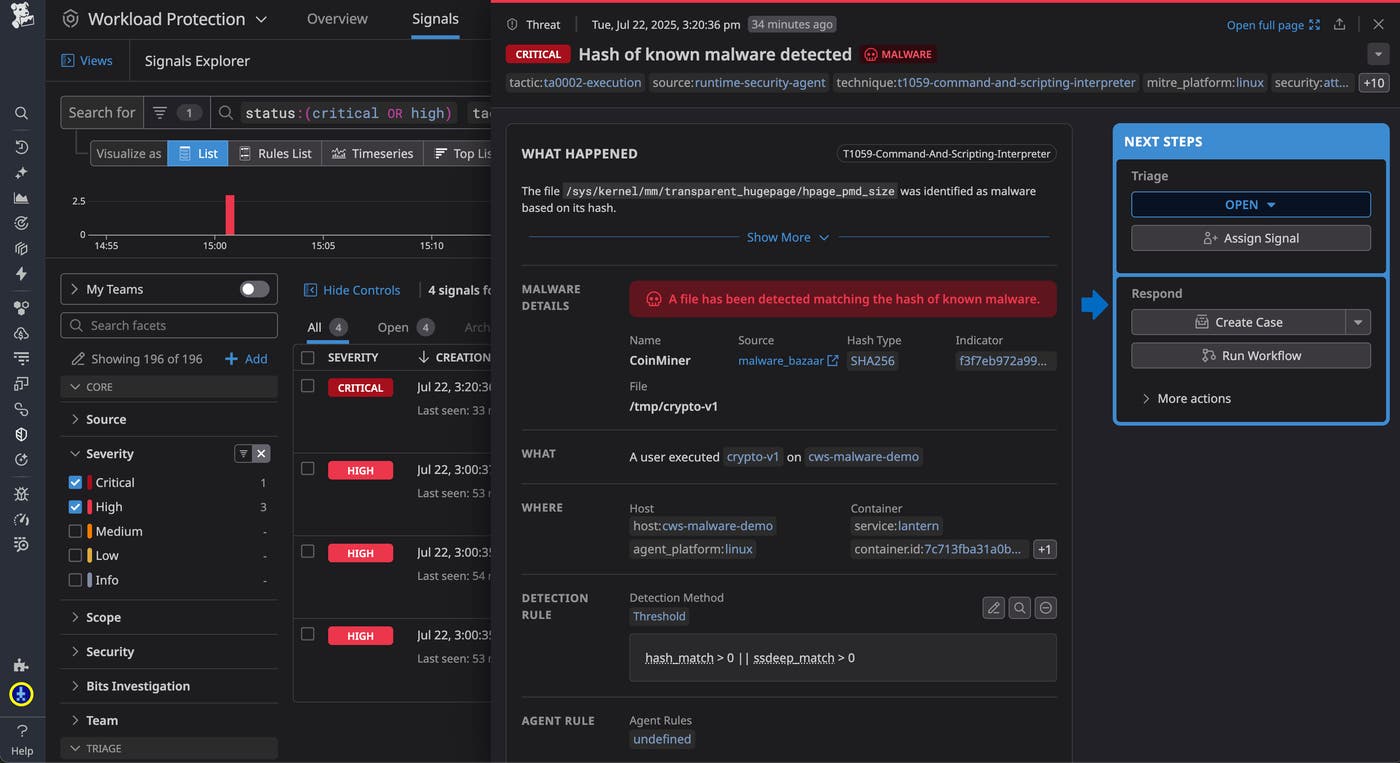
The security signal overview shown above, at right, lets you determine exactly where the malware was found. It specifies the affected container and host and provides a process tree to show you the precise context of the detected malware. It also provides a link to the specific entry in the MalwareBazaar database for the detected malware, so you can assess the nature of the threat.
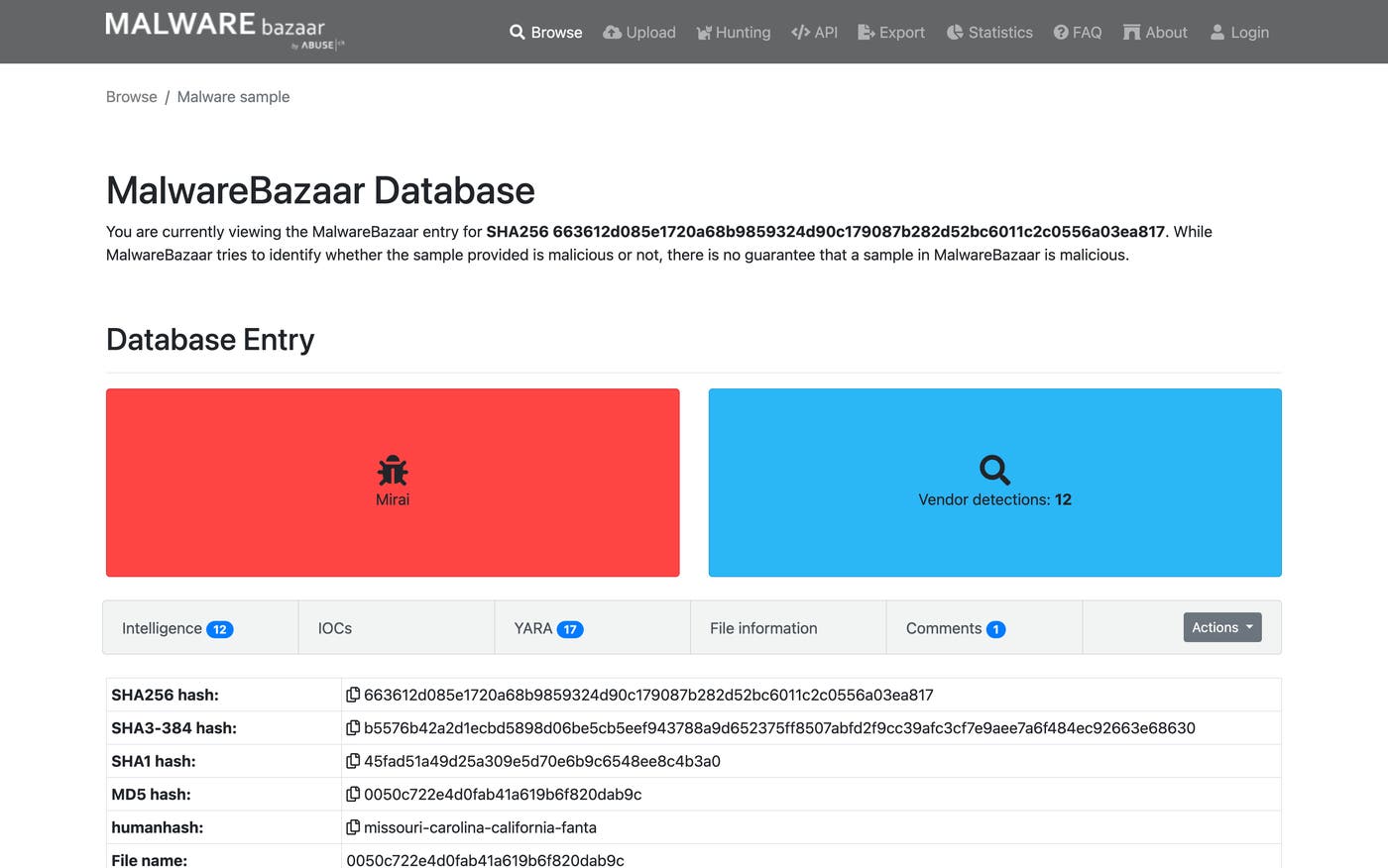
With all of this information, you can quickly take action to contain the issue as necessary and resume your investigation by pivoting to other resources in Datadog. For example, you might want to pause or isolate the affected container, then navigate to the Context tab of the security signal to survey key metrics from the affected host from around the time of the signal, which may be important for determining the impact of the malware.
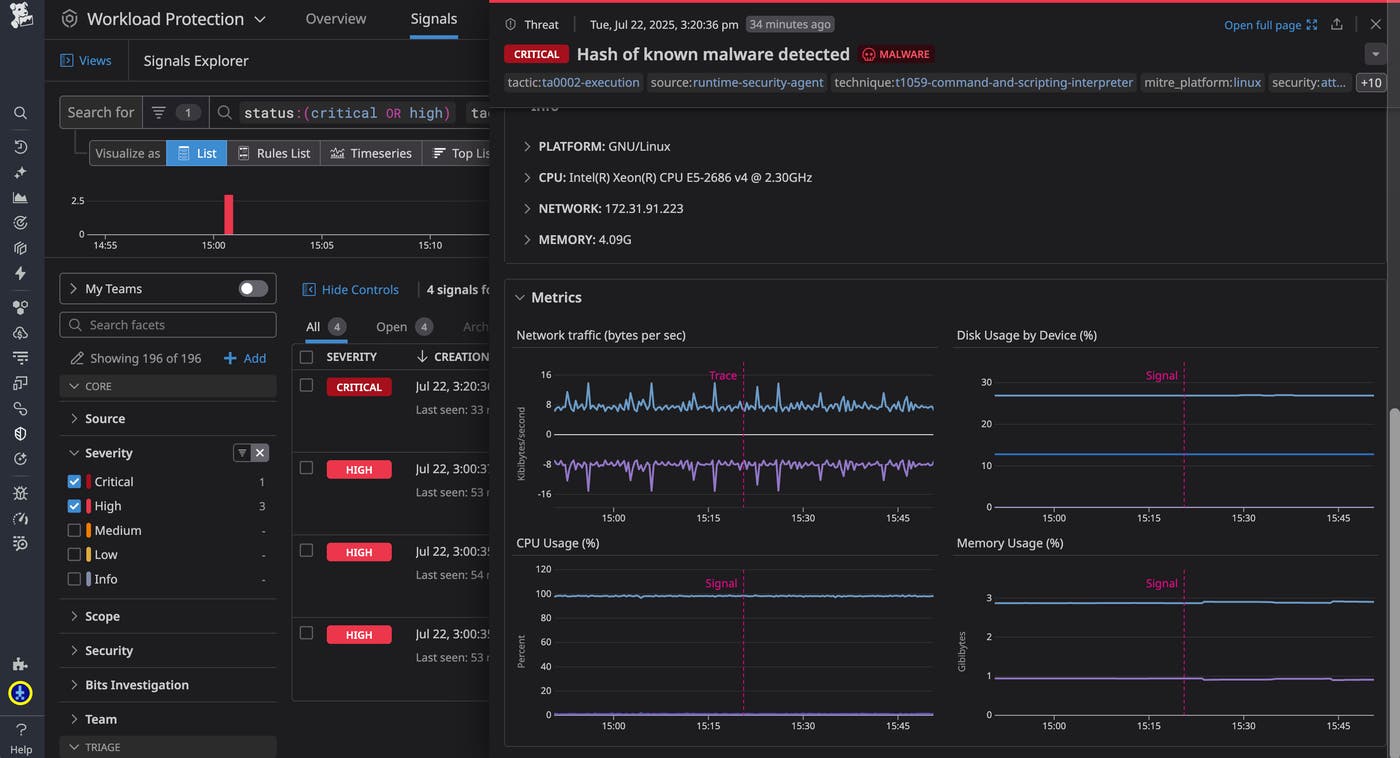
Or, you could navigate to the Related Signals tab to inspect any related suspicious activity flagged by your detection rules.
For a security-focused overview of data from your host, you can select “Investigate Host” to quickly pivot to the out-of-the-box Host Investigation dashboard. Here you can find a breakdown of security signals, infrastructure metrics, and other data that could guide your investigation of malware detected in your host.
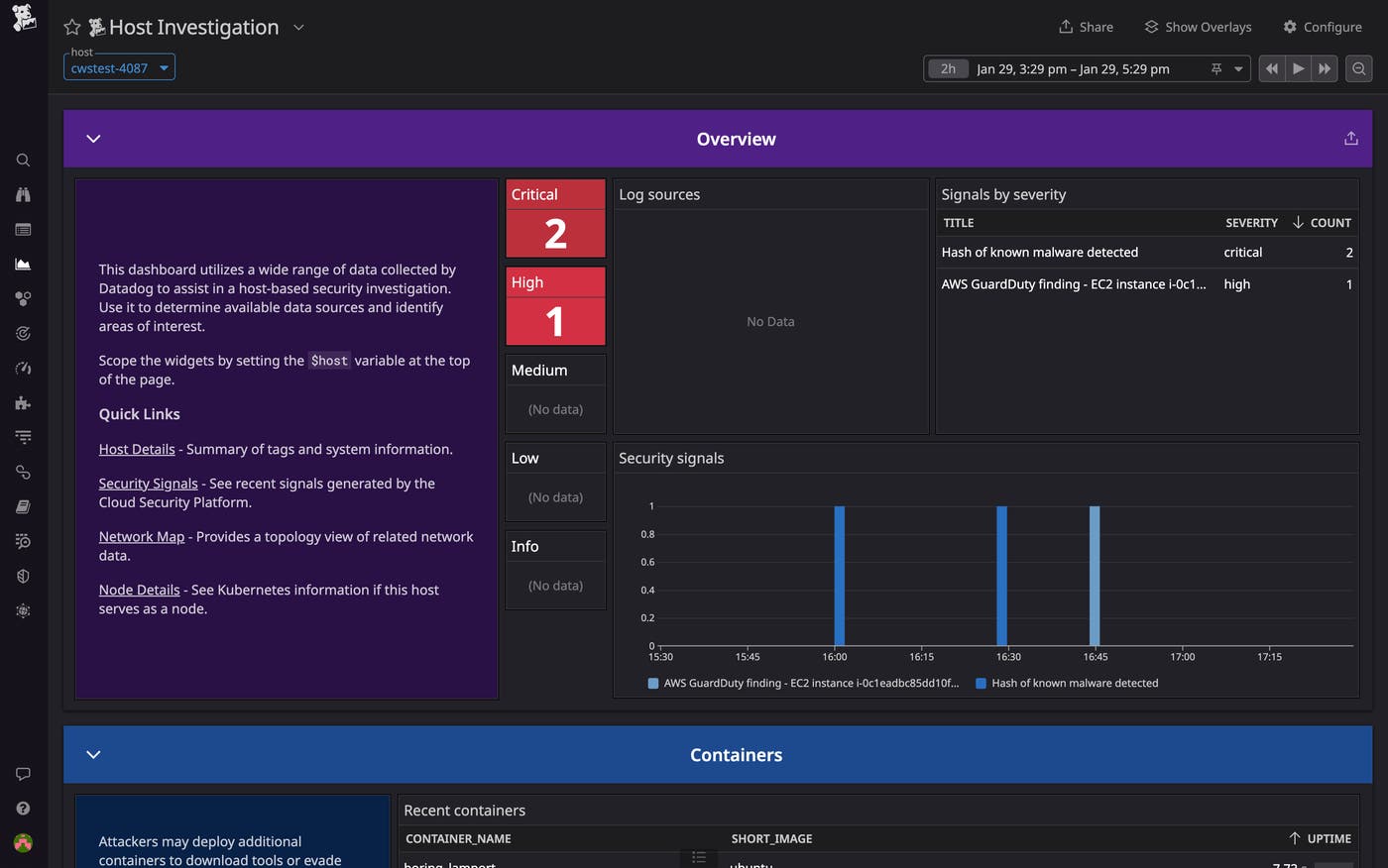
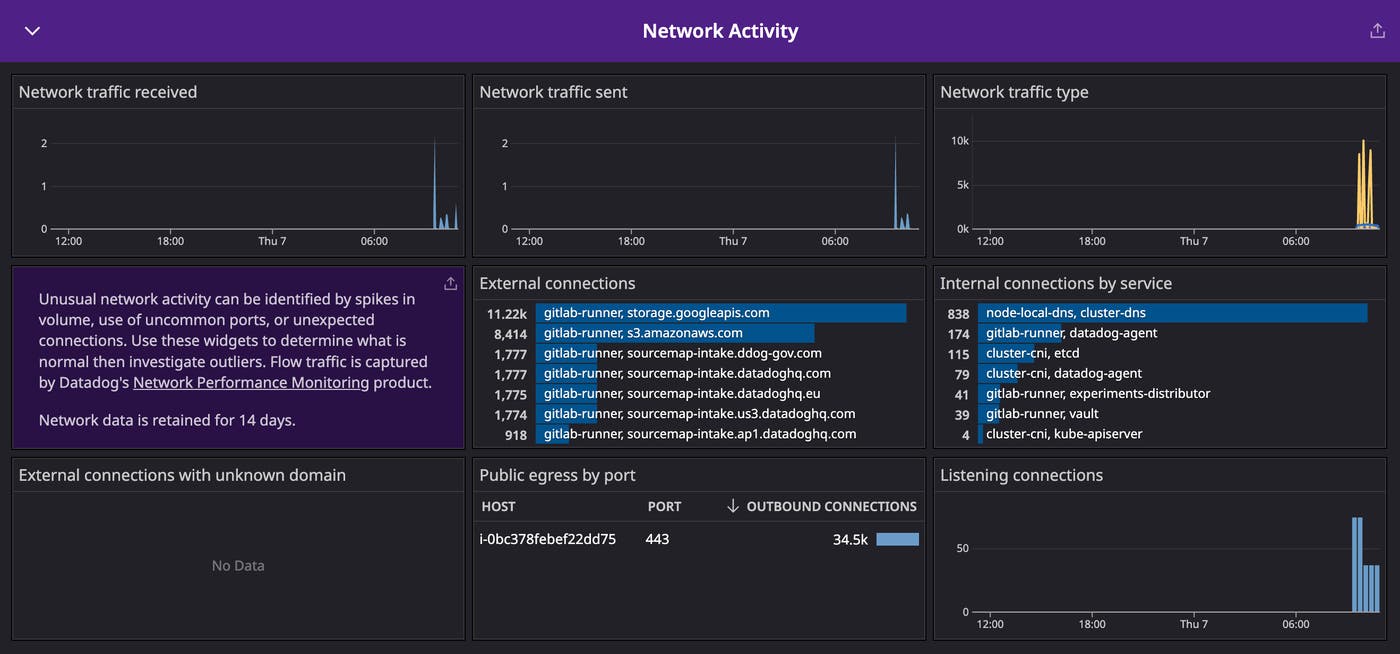
For example, you might want to examine the Network Activity section of the Host Investigation dashboard to look for signs of suspicious activity, such as outgoing connections to unusual IP addresses or domains, or spikes in traffic.
You may also want to pivot to Datadog Log Management to analyze logs for the affected container in order to determine the scope of the malicious activity.
Keep your containers secure with Datadog Workload Protection
Datadog Workload Protection offers a unified platform for malware detection that leverages our internal threat intelligence as well as real-time data from MalwareBazaar so you can keep your containers secure and quickly hone in on malicious code. Filtering MalwareBazaar’s crowd-sourced data helps us proactively monitor the cutting edge of malicious code while minimizing the potential for false positives. And because our malware detection is performed on our own servers, rather than your hosts, Workload Protection spares you the high computational overhead of hashing and comparing large volumes of data.
You can check out our Workload Protection docs to learn more. And, if you’re new to Datadog, you can sign up for a 14-day free trial.
