---
title: "Key metrics for Amazon RDS PostgreSQL monitoring"
description: "Learn how to identify and track key metrics for Amazon RDS PostgreSQL monitoring in this guide."
author: "Emily Chang"
date: 2018-04-12
tags: ["database monitoring", "aws", "amazon rds", "postgresql", "rds postgres"]
blog_type_id: the-monitor
locale: en
---
Amazon Relational Database Service (RDS) is a managed service that helps users easily deploy and scale relational databases in the AWS cloud. RDS provides users with six database engines to choose from: PostgreSQL, MySQL, Oracle, SQL Server, MariaDB, and Amazon Aurora. This article will focus on monitoring Amazon RDS PostgreSQL database instances.
RDS enables PostgreSQL users to easily implement high-availability deployments, which we'll explore in further detail [later in this post](#replication-and-reliability). It also provides the option to set up [automated database snapshots](https://docs.aws.amazon.com/AmazonRDS/latest/UserGuide/USER_WorkingWithAutomatedBackups.html) and [point-in-time recovery](https://docs.aws.amazon.com/AmazonRDS/latest/UserGuide/USER_PIT.html) if you should ever need to restore a database instance to an earlier state.
## Amazon RDS PostgreSQL overview
Before diving into the key metrics for monitoring PostgreSQL on RDS, let's briefly walk through some terminology, as it relates to PostgreSQL and RDS. In RDS, you can launch one or more **database instances**, each of which manages/hosts one or more databases. In RDS, the PostgreSQL primary server is known as a **source/primary instance**, and configuration settings are called **parameters**.
Each RDS database instance is assigned to a [**parameter group**](https://docs.aws.amazon.com/AmazonRDS/latest/UserGuide/Appendix.PostgreSQL.CommonDBATasks.html#Appendix.PostgreSQL.CommonDBATasks.Parameters), which is a collection of settings that you would normally specify in your `postgresql.conf` configuration file. Many of these settings can be modified, while others (such as [`wal_sync_method`](https://www.postgresql.org/docs/current/static/runtime-config-wal.html#GUC-WAL-SYNC-METHOD)) cannot. You can either use a default version-specific parameter group, or you can create a custom parameter group that is based on a default parameter group. You can learn more about each parameter in your database instance's parameter group by navigating to "Parameter groups" in the [RDS Console](https://console.aws.amazon.com/rds). In the example below, we are inspecting the default parameter group for version 9.6 of PostgreSQL: `default.postgres9.6`).
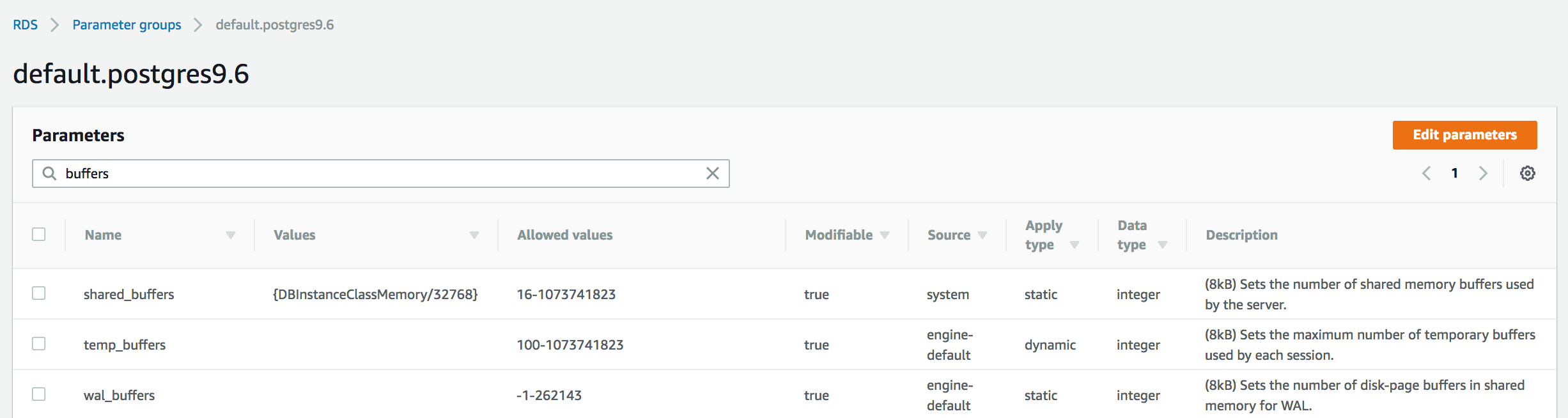
The "Source" column shows how the value for a parameter is determined: "engine-default" will inherit the default value based on that version of the PostgreSQL engine, while "system" indicates that the value of this parameter varies by instance class. For example, the `shared_buffers` parameter is calculated as a proportion of your database instance class's available memory (`DBInstanceClassMemory`), meaning that it will automatically increase in value if you decided to upgrade to an instance class with more memory.
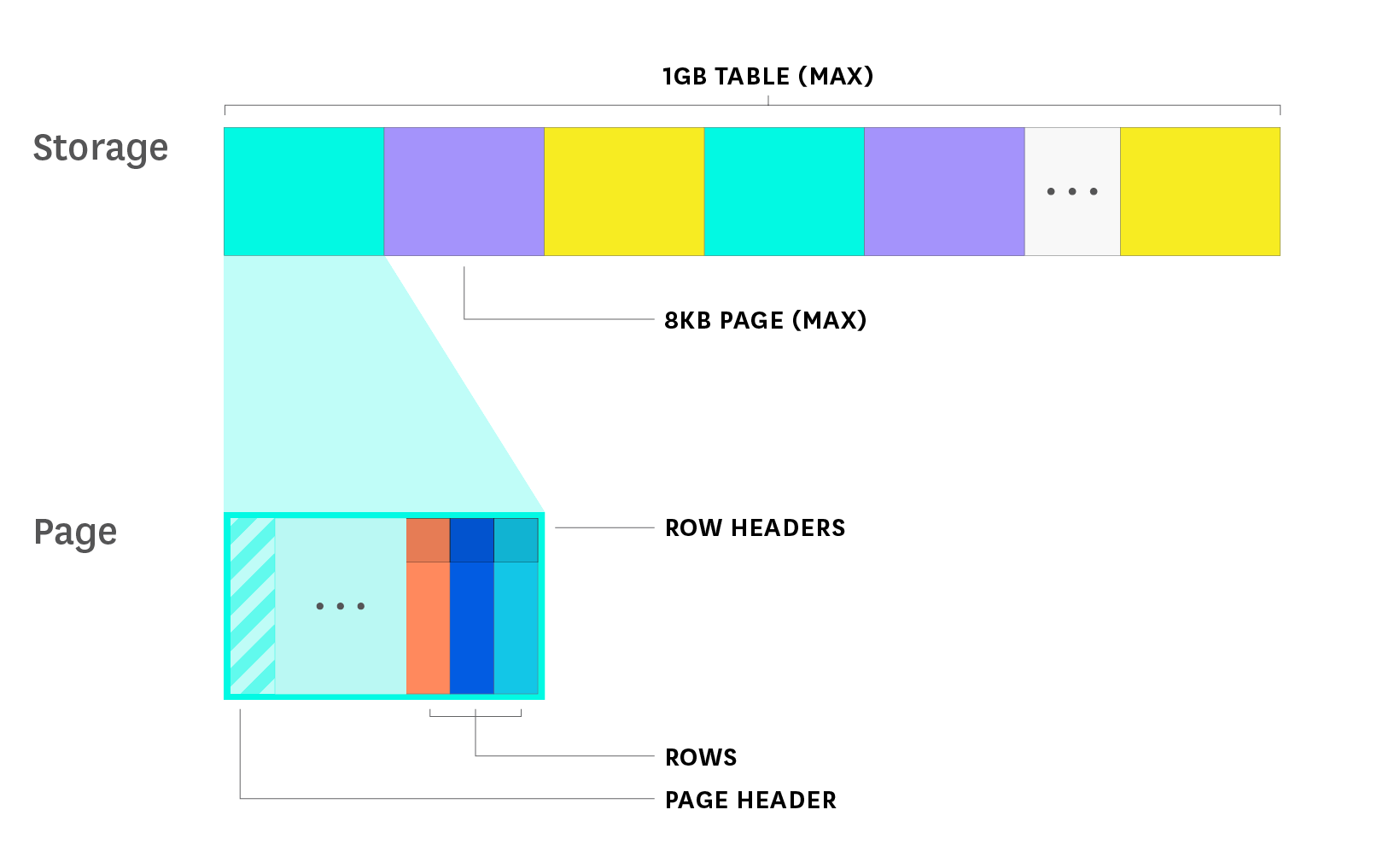
In PostgreSQL, each **table** (or **relation**) stores rows of data as an array of 8-KB **pages**, or **blocks**. Some versions of RDS PostgreSQL (9.4.11+, 9.5.6+, and 9.6.2+) allow Linux users to utilize [huge pages](https://docs.aws.amazon.com/AmazonRDS/latest/UserGuide/CHAP_PostgreSQL.html#PostgreSQL.Concepts.General.FeatureSupport.HugePages), a feature that is designed to help optimize queries to large chunks of in-memory data. Note that this feature is unavailable for certain RDS instance classes.
If your data contains field values that exceed the maximum page size, you may be able to use PostgreSQL TOAST (The Oversized-Attribute Storage Technique) to store your data (consult the [documentation](https://www.postgresql.org/docs/current/static/storage-toast.html) to see which data types are eligible for TOAST storage).
You may see the terms "block" and "page" used interchangeably—the only difference is that a [page includes a header](https://www.postgresql.org/docs/current/static/storage-page-layout.html#PAGEHEADERDATA-TABLE) that stores metadata about the block, such as information about the most recent write-ahead log entry that affects tuples in the block. We'll also cover write-ahead logs in more detail in a [later section of this post](#replication-and-reliability). The diagram below takes a closer look at how PostgreSQL stores data across rows within each page/block of a table (assuming a fixed page size of 8 KB).
PostgreSQL's work extends across four main areas:
- [**planning and optimizing queries**](#postgresql-query-planner)
- using [**multi-version concurrency control**](#writing-data-to-postgresql-mvcc) to manage data updates
- querying data from the [**shared buffer cache**](#memory-metrics) and on disk
- continuously [**replicating**](#replication-and-reliability) data from the primary/source instance to standby and/or read replica instances
Although these ideas will be explained in further detail throughout this post, let's briefly explore how they all work together to make PostgreSQL an efficient, reliable database.
PostgreSQL uses a query planner/optimizer to determine the most efficient way to execute each query. In order to do so, it accounts for a number of factors, including whether or not the data in question has been indexed, as well as [internal statistics](https://www.postgresql.org/docs/current/static/planner-stats.html) about the database, like the number of rows in each table.
When a query involves updating or deleting data, PostgreSQL uses [multi-version concurrency control](#write-query-throughput-and-performance) (MVCC) to ensure that data remains accessible and consistent in high-concurrency environments. Each transaction operates on its own snapshot of the database at that point in time, so that read queries won't block write queries, and vice versa.
In order to speed up queries, PostgreSQL uses a certain portion of the database server's memory as a [shared buffer cache](https://www.postgresql.org/docs/current/static/runtime-config-resource.html#GUC-SHARED-BUFFERS) (128MB by default), to store recently accessed blocks in memory. When data is updated or deleted, PostgreSQL will note the change in the write-ahead log (WAL), update the page in memory, and mark it as "dirty." PostgreSQL periodically runs checkpoint processes to flush these dirty pages from memory to disk, to ensure that data is up to date, not only in memory but also on disk. The animation below shows how PostgreSQL adds and updates data in memory before it gets flushed to disk in a checkpoint process.

PostgreSQL maintains data reliability by logging each transaction in the WAL on the primary server, and writing it to disk periodically. In order to ensure high availability, the primary server needs to communicate WAL updates to one or more standby servers so that it will be prepared to failover to a standby if needed. RDS users can implement this type of high-availability setup by creating a [Multi-AZ deployment](https://docs.aws.amazon.com/AmazonRDS/latest/UserGuide/Concepts.MultiAZ.html).
In this post, we'll cover all of these concepts in more detail, as well as the important metrics for monitoring PostgreSQL on RDS, which will help ensure that your database is able to do its work successfully.
## Amazon RDS PostgreSQL key metrics
Both PostgreSQL and RDS automatically collect a substantial number of statistics about the activity of your database instances, but here we will focus on just a few categories that can help you gain insights into the health and performance of your database:
- [Read query throughput and performance](#read-query-throughput-and-performance)
- [Write query throughput and performance](#write-query-throughput-and-performance)
- [Replication and reliability](#replication-and-reliability)
- [Resource utilization](#resource-utilization)
- [Connections](#connections)
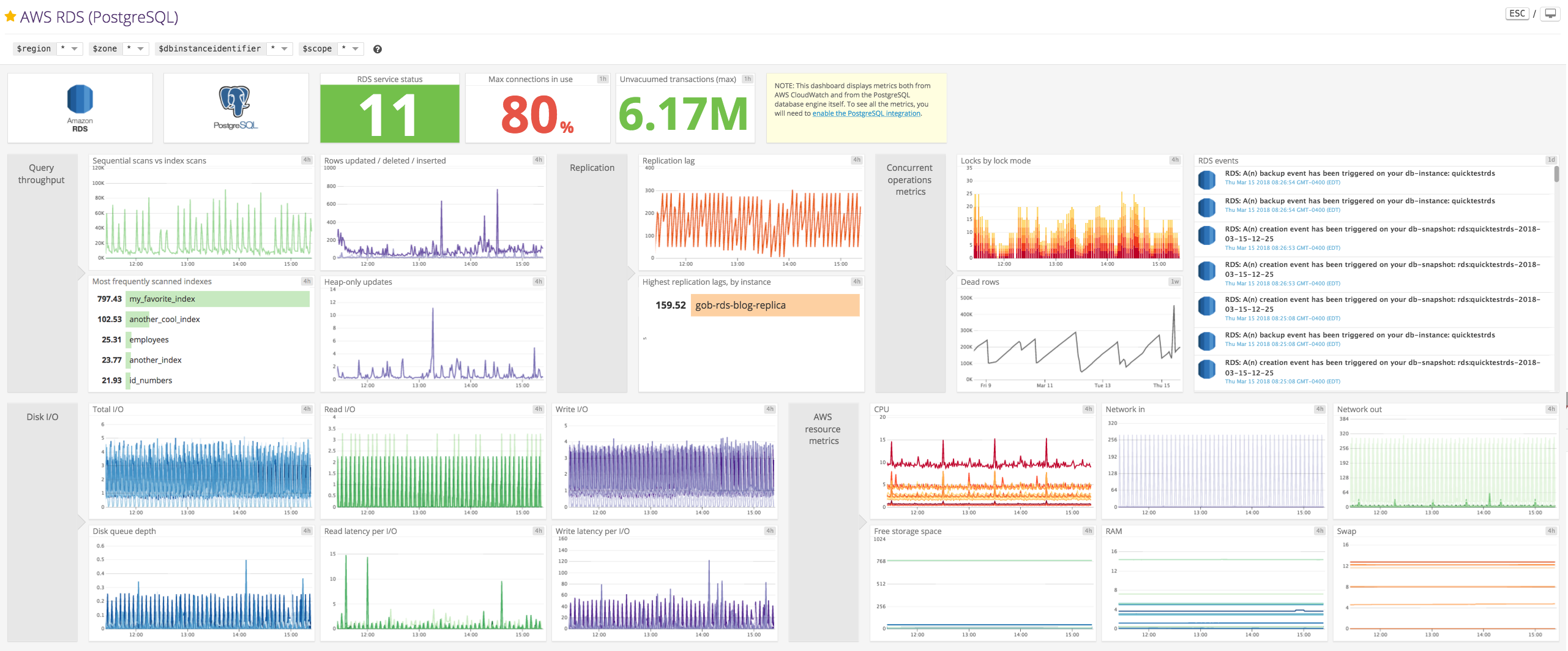
RDS-specific metrics are available through Amazon CloudWatch, and many of them are also applicable to other RDS database engines like [MySQL](https://www.datadoghq.com/blog/monitoring-rds-mysql-performance-metrics.md). The remaining metrics discussed in this post need to be accessed directly from PostgreSQL's [statistics collector](https://www.postgresql.org/docs/current/static/monitoring-stats.html) and other native sources. Refer to the "Availability" column of each table to see where you can query each type of metric. We'll explain how to collect metrics from both of these sources in the [next part](https://www.datadoghq.com/blog/collect-rds-metrics-for-postgresql.md) of this series.
This article references metric terminology defined in our [Monitoring 101 series](https://www.datadoghq.com/blog/monitoring-101-collecting-data.md), which provides a framework for metric collection and alerting.
### Read query throughput and performance
| Metric description | Name | [Metric type][monitoring-101-blog] | [Availability][part-2] |
| --- | --- | --- | --- |
| Number of index scans on a table | idx_scan | Other | PostgreSQL (pgstatuser_tables) |
| Number of sequential scans on a table | seq_scan | Other | PostgreSQL (pgstatuser_tables) |
| Rows fetched and returned by queries to the database | tupfetched, tupreturned | Work: Throughput | PostgreSQL (pgstatdatabase) |
| Amount of data written temporarily to disk to execute queries | temp_bytes | Resource: Saturation | PostgreSQL (pgstatdatabase) |
Monitoring read query throughput is an important aspect of ensuring that your applications are querying data efficiently as you scale your deployment. Keep an eye out for unexpected drops in throughput, which can indicate issues in your database.
#### **Metrics to watch:**
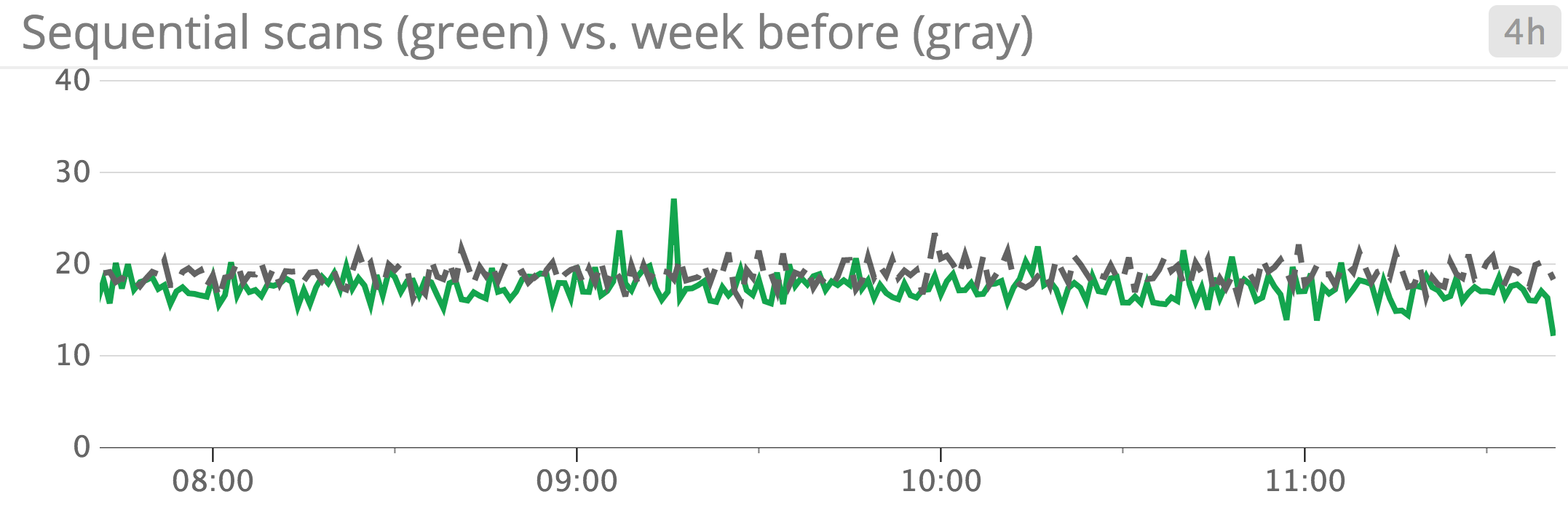
**Sequential scans vs. index scans:** Sequential scans typically take longer than index scans because they have to scan through each row of a table sequentially, rather than relying on an index to point to the location of specific rows. If you see the number of sequential scans increasing over time, you may be able to improve query performance by [creating an **index**](https://www.postgresql.org/docs/current/static/sql-createindex.html) on data that is frequently accessed. Running EXPLAIN on your queries can tell you more details about how the planner decides to access the data. However, note that the planner will prefer a sequential scan over an index scan if it determines that the query would need to return a large portion of the table.
To track trends in performance, you can use a monitoring tool to continuously collect the number of sequential scans as a metric, and compare the number of sequential scans performed this week and last week, as we've done in the graph below.
If you believe that the query planner is mistakenly preferring sequential scans over index scans, you can try tweaking the `random_page_cost` parameter (the estimated cost of randomly accessing a page from disk). [According to the docs](https://www.postgresql.org/docs/current/static/runtime-config-query.html#GUC-RANDOM-PAGE-COST), lowering this value in proportion to `seq_page_cost` (explained in more detail in the [next section](#seqpagecost)) will encourage the planner to prefer index scans over sequential scans. The default setting assumes that [~90 percent of your reads will access data that has already been cached](https://www.postgresql.org/docs/current/static/runtime-config-query.html#GUC-RANDOM-PAGE-COST) in memory. However, if you've chosen an instance class that has enough memory to store all of the data you need to access, lowering the random page cost may help yield good results. `random_page_cost` is a dynamic parameter/setting in RDS PostgreSQL, which means that you can modify it [without having to restart the RDS database instance](https://docs.aws.amazon.com/AmazonRDS/latest/UserGuide/Appendix.PostgreSQL.CommonDBATasks.html#Appendix.PostgreSQL.CommonDBATasks.Parameters).
**Rows fetched vs. rows returned by queries to the database:** Somewhat confusingly, PostgreSQL tracks `tup_returned` as the number of rows *read/scanned*, rather than indicating anything about whether those rows were actually returned to the client. Rather, `tup_fetched`, or "rows fetched", is the metric that counts how many rows contained data that was actually needed to execute the query. Ideally, the number of rows fetched should be close to the number of rows returned (read/scanned) on the database. This indicates that the database is completing read queries efficiently—it is not scanning through many more rows than it needs to in order to satisfy read queries.
In the screenshot below, PostgreSQL is scanning (purple) through more rows in this particular database than it is fetching (green), which indicates that the data may not be properly indexed.
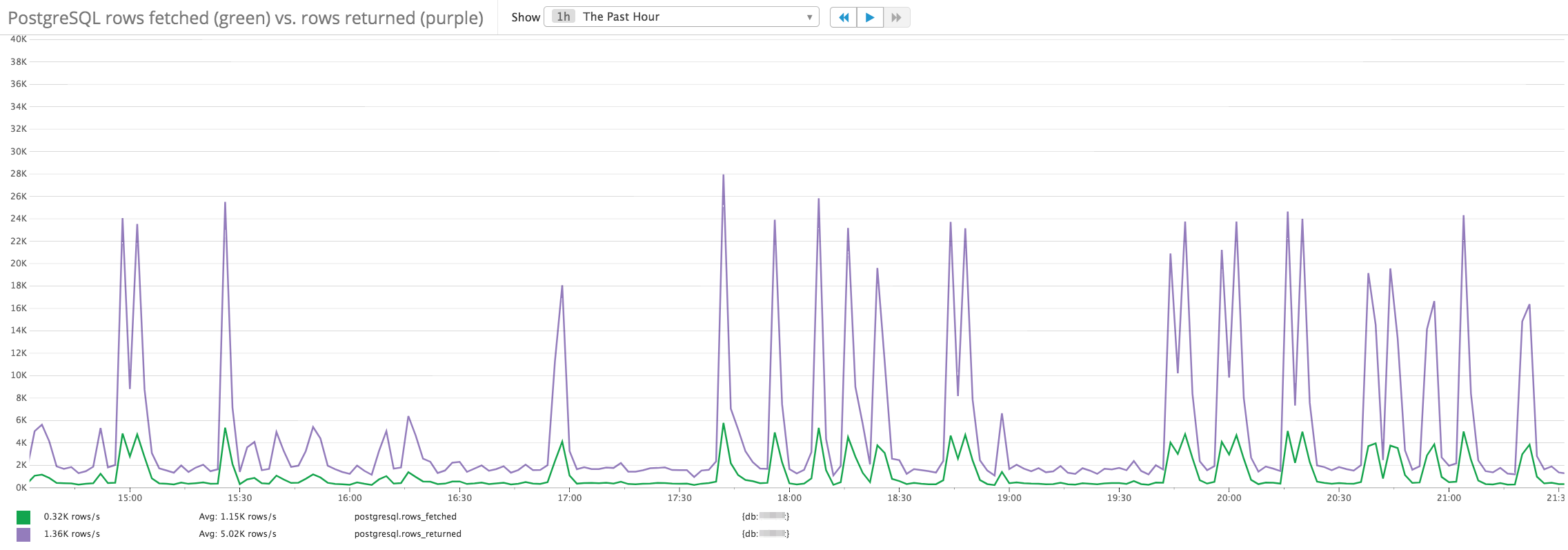
PostgreSQL can only perform an index scan if the query does not need to access any columns that haven't been indexed. Typically, creating indexes on frequently accessed columns can help improve this ratio. However, maintaining each index doesn’t come free—the database must perform additional work whenever it needs to add, update, or remove data included in an index. Therefore, it's important to track how often each index is being used; we'll explore this idea in further detail [later in this post](#storage-metrics).
**Amount of data written temporarily to disk to execute queries:** PostgreSQL reserves a certain amount of memory—specified by [`work_mem`](https://www.postgresql.org/docs/9.6/static/runtime-config-resource.html#GUC-WORK-MEM) (by default, 1 MB in v. 9.3, or 4 MB in v. 9.4+)—to perform sort operations and store hash tables needed to execute queries. EXPLAIN ANALYZE (which is explained in further detail in the next section) can help you gauge how much memory a query will require.
When a complex query requires access to more memory than `work_mem` allows, it has to write some data temporarily to disk in order to do its work, which has a negative impact on performance. If you see data frequently being written to temporary files on disk, this indicates that you are running a large number of resource-intensive queries. To improve performance, you may need to increase the size of `work_mem`, which is also a dynamic parameter in RDS. However, it's important not to set this too high, because it can encourage the query planner to choose more inefficient queries.
Also note that `work_mem` is specified as a per-operation limit—so if you're running a complex query that includes more than one sort operation running at a time, each *operation* will be allowed to use this much memory before writing temporarily to disk. If you set an overly generous `work_mem` parameter, your database will not have enough memory to serve many connections simultaneously, which can negatively impact performance or crash your database.
#### PostgreSQL query planner
To understand more about these throughput metrics, it can be helpful to get more background about how the [query planner/optimizer](https://www.postgresql.org/docs/current/static/planner-optimizer.html) works. The query planner/optimizer uses [internal statistics](https://www.postgresql.org/docs/current/static/planner-stats.html) (such as the number of fields in a table or index) to estimate the cost of executing different query plans, and then determines which one is optimal. One of the plans it always evaluates is a sequential scan.
Running an EXPLAIN command can help provide insights into the internal statistics that the planner actually uses to estimate the cost of a query:
```text
EXPLAIN SELECT * FROM blog_article ORDER BY word_count;
QUERY PLAN
-----------------------------------------------------------------------
Sort (cost=337.48..348.14 rows=4261 width=31)
Sort Key: word_count
-> Seq Scan on blog_article (cost=0.00..80.61 rows=4261 width=31)
(3 rows)
```
The planner calculates the cost by using a number of factors—in this case, the number of rows that need to be scanned (4,261) and the number of pages that this table is stored on. You can find out how many pages are in this particular table/relation (or `relname`), by querying `pg_class`:
```text
SELECT reltuples, relpages FROM pg_class WHERE relname='blog_article';
reltuples | relpages
----------+-----------
4261 | 38
```
This tells us that our `blog_article` table consists of 4,261 tuples/rows that are stored across 38 pages. The planner used the following formula to calculate the cost of the sequential scan in the query plan above:
```text
cost of sequential scan = (pages read * seq_page_cost) + (rows scanned * cpu_tuple_cost)
```
`seq_page_cost` refers to the planner's estimate of the cost of fetching a page from disk during a sequential scan, while `cpu_tuple_cost` is the planner's estimate of the CPU cost of querying a row/tuple. Actual sequential page cost will vary according to the [type of storage you're using in Amazon RDS](https://docs.aws.amazon.com/AmazonRDS/latest/UserGuide/CHAP_Storage.html) (e.g., if you're running SSDs or provisioned IOPS, your cost of fetching a page from disk would be lower than if you were using magnetic storage). You can adjust the values of `seq_page_cost` and `cpu_tuple_cost` (both of which are dynamic parameters in RDS) to reflect the type of storage you've selected for your instance.
Below, we've used the default values to calculate the cost shown in our query plan above:
```text
cost = (38 pages read * 1.0) + (4261 rows scanned * 0.01) = 80.61
```
Note that EXPLAIN shows you the estimated *cost*, rather than the estimated *time* it takes to run a query. However, the two values should be strongly correlated—the higher the cost, the longer the query will take.
If you run [EXPLAIN ANALYZE](https://www.postgresql.org/docs/current/static/using-explain.html) on a query, it will actually execute the query and show you the planner's estimated costs of running the query, compared to the actual timing of that query:
```text
EXPLAIN ANALYZE SELECT * FROM blog_article ORDER BY word_count;
QUERY PLAN
--------------------------------------------------------------------------------------------------------------------
Sort (cost=337.48..348.14 rows=4261 width=31) (actual time=9.039..11.101 rows=4261 loops=1)
Sort Key: word_count
Sort Method: quicksort Memory: 525kB
-> Seq Scan on blog_article (cost=0.00..80.61 rows=4261 width=31) (actual time=0.049..1.559 rows=4261 loops=1)
Total runtime: 11.981 ms
(5 rows)
```
EXPLAIN ANALYZE enables you to assess how closely the planner's estimates stack up against actual execution (in this example, the planner correctly estimated that it would need to scan through 4,261 rows). The output also tells us that it used 525 KB of memory to complete the sort operation (meaning it did not need to write any data temporarily to disk). Another benefit of running ANALYZE is that it helps provide the query planner/optimizer with up-to-date internal statistics that will make its execution plans more accurate as the database gets updated in real time. For help with deciphering EXPLAIN and EXPLAIN ANALYZE queries, you can consult a tool like [explain.depesz.com](https://explain.depesz.com/).
In addition to troubleshooting slow queries with EXPLAIN ANALYZE, you may also find it helpful to log the EXPLAIN output for slow queries that surpass a specific threshold, by editing [`auto_explain.log_min_duration`](https://www.postgresql.org/docs/9.3/static/auto-explain.html) (a dynamic parameter) in your [RDS parameter group](https://docs.aws.amazon.com/AmazonRDS/latest/UserGuide/Appendix.PostgreSQL.CommonDBATasks.html#Appendix.PostgreSQL.CommonDBATasks.Parameters).
### Write query throughput and performance
In addition to ensuring that your applications can *read* data from your database, you should also monitor how effectively you can *write/update* data to PostgreSQL. Any issues or unusual changes in write throughput usually point to problems in other key aspects of the database, and may affect replication and reliability.
#### Writing data to PostgreSQL: MVCC
Before we dive into the metrics, let's explore how PostgreSQL uses [multi-version concurrency control (MVCC)](https://www.postgresql.org/docs/current/static/mvcc-intro.html) to ensure that concurrent transactions do not block each other. Each transaction operates based on a snapshot of what the database looked like when it started. This means that every INSERT, UPDATE, or DELETE transaction is assigned its own transaction ID (XID), which is used to determine which rows will and will not be visible to that transaction.
Each row stores metadata in a header, including [`t_xmin` and `t_xmax` values](https://github.com/postgres/postgres/blob/master/src/include/access/htup_details.h#L118) that specify which transactions/XIDs will be able to view that row's data. `t_xmin` is set to the XID of the transaction that last inserted or updated it. If the row is live (hasn't been deleted), its `t_xmax` value will be 0, meaning that it is visible to all transactions. If it was deleted or updated, its `t_xmax` value is set to the XID of the transaction that deleted or updated it. This prevents that row from being visible to future UPDATE or DELETE transactions, since future transactions will get assigned an XID greater than `t_xmax`. Any row with a `t_xmax` value is also known as a "dead row" once it has either been deleted or updated with new data. Each sequential scan still has to scan over dead rows until a VACUUM process removes them (see more details about VACUUMs in the [section below](#exploring-the-vacuum-process)).
#### Write query throughput & performance metrics
| Metric description | Name | [Metric type][monitoring-101-blog] | [Availability][part-2] |
| --- | --- | --- | --- |
| Rows inserted, updated, deleted by queries (per database) | tupinserted, tupupdated, tup_deleted | Work: Throughput | PostgreSQL (pgstatdatabase) |
| Rows inserted, updated, deleted by queries (per table) | ntupins, ntupupd, ntupdel | Work: Throughput | PostgreSQL (pgstatuser_tables) |
| Heap-only tuple (HOT) updates | ntuphot_upd | Work: Throughput | PostgreSQL (pgstatuser_tables) |
| Total number of transactions executed (commits + rollbacks) | xactcommit + xactrollback | Work: Throughput | PostgreSQL (pgstatdatabase) |
#### **Metrics to watch:**
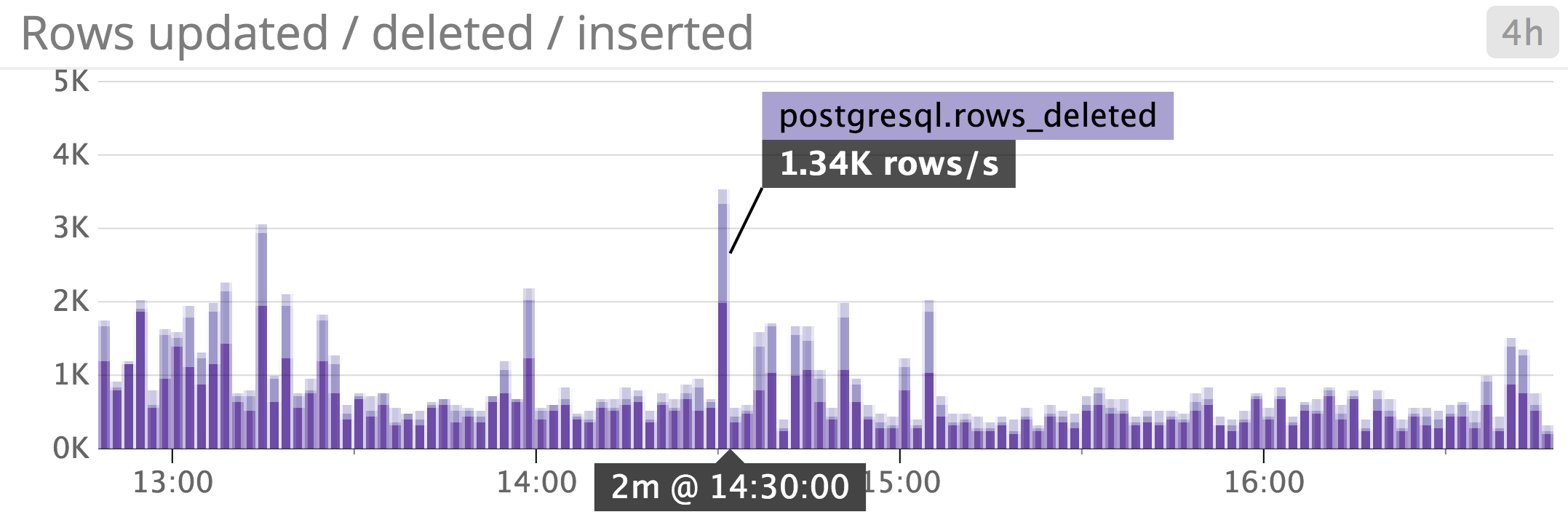
**Rows inserted, updated, and deleted:** Monitoring the number of rows inserted, updated, and deleted can help give you an idea of what types of write queries your database is serving. If you see a high rate of updated and deleted rows, you should also keep a close eye on the number of dead rows, since an increase in dead rows can slow down your queries and may indicate a [problem with VACUUM processes](https://www.datadoghq.com/blog/postgresql-vacuum-monitoring.md).
A sudden drop in throughput is also a concern, since it could indicate issues like locks on tables and/or rows that need to be accessed in order to make updates. Monitoring write activity along with other database metrics like locks, as well as [resource-level metrics](#resource-utilization) like I/O utilization, can help you pinpoint the potential source of the throughput issue.�
**Tuples updated vs. heap-only tuples (HOT) updated:** PostgreSQL will try to optimize updates when it is feasible to do so, through what's known as a [Heap-Only Tuple (HOT)](https://github.com/postgres/postgres/blob/master/src/backend/access/heap/README.HOT) update. A HOT update is possible when the transaction does not change any columns that are currently indexed (for example, if you created an index on the column `age`, but the update only affects the `name` column, which is not indexed).
In comparison with normal updates, a HOT update introduces less I/O load on the database, since it can update the row without having to update its associated index. In the next index scan, PostgreSQL will see a pointer in the old row that directs it to look at the new data instead. If you see a significantly higher number of updates than HOT updates, it may be due to frequent data updates in indexed columns. This issue will only continue to increase as your indexes grow in size and become more difficult to maintain.
#### Concurrent operations performance metrics
PostgreSQL's statistics collector tracks several key metrics that pertain to concurrent operations. Monitoring these metrics can help you ensure that the database is able to scale sufficiently to be able to fulfill a high rate of queries. Before we get into these metrics, let's explore one of the key maintenance tasks that helps PostgreSQL maintain concurrent operations: the VACUUM process.
##### Exploring the VACUUM process
MVCC enables operations to occur concurrently by utilizing snapshots of the database (hence the "multi-version" aspect of MVCC), but the tradeoff is that it creates dead rows that eventually need to be cleaned up by running a VACUUM process.
The VACUUM process removes dead rows from tables and indexes and adds a marker to indicate that the space is available. Typically, the operating system will technically consider that disk space to be "in use," but PostgreSQL will still be able to use that space to store updated and/or newly inserted data. In order to actually recover disk space to the OS, you need to run a [VACUUM FULL](https://www.postgresql.org/docs/9.6/static/routine-vacuuming.html) process, which is more resource-intensive and requires an exclusive lock on each table. If you do determine that you need to run a VACUUM FULL, you should try to do so during off-peak hours.
Routinely running VACUUM processes is crucial to maintaining efficient queries—not just because sequential scans have to scan through those dead rows, but also because VACUUM processes provide the query planner with updated internal statistics about tables, so that it can plan more efficient queries. By default, RDS PostgreSQL instances already have the [autovacuum daemon](https://www.postgresql.org/docs/current/static/routine-vacuuming.html#AUTOVACUUM) set up to vacuum a table whenever the number of dead rows in that table surpasses a specific threshold. This threshold is calculated based on a combination of factors:
- the [`autovacuum_vacuum_threshold`](https://www.postgresql.org/docs/current/static/runtime-config-autovacuum.html#GUC-AUTOVACUUM-VACUUM-THRESHOLD) (50, by default)
- the [`autovacuum_vacuum_scale_factor`](https://www.postgresql.org/docs/current/static/runtime-config-autovacuum.html#GUC-AUTOVACUUM-VACUUM-SCALE-FACTOR) (0.1, by default in RDS)
- the estimated number of rows in the table (based on the value of [`pg_class.reltuples`](https://www.postgresql.org/docs/current/static/catalog-pg-class.html))
The autovacuum daemon uses the following formula to calculate when it will trigger a VACUUM process on any particular table:
```text
autovacuuming threshold = autovacuum_vacuum_threshold + (autovacuum_vacuum_scale_factor * estimated number of rows in the table)
```
For example, if a table contains an estimated 5,000 rows, the autovacuum daemon (following the default settings listed above) will vacuum it whenever the number of dead rows in that table surpasses a threshold of `50 + (0.2 * 5000)`, or 1,050.
If it detects that a table has recently seen an increase in updates, the autovacuum process will run an ANALYZE command to gather statistics that will help the query planner make more informed decisions. Each VACUUM process also updates the [visibility map](https://www.postgresql.org/docs/current/static/storage-vm.html), which shows which pages are visible to active transactions. This helps improve the performance of index-only scans and increases the efficiency of the next VACUUM process by enabling it to skip those pages.
If your database instance belongs to a default parameter group, RDS will follow the default values listed above for `autovacuum_vacuum_scale_factor` and `autovacuum_vacuum_threshold`. The [`maintenance_work_mem`](https://www.postgresql.org/docs/current/static/runtime-config-resource.html#GUC-MAINTENANCE-WORK-MEM) parameter determines how much memory should be available to each maintenance process (including VACUUMs) to use. That means that, depending on [`autovacuum_max_workers`](https://www.postgresql.org/docs/10/static/runtime-config-autovacuum.html#GUC-AUTOVACUUM-MAX-WORKERS) (the maximum number of autovacuum processes that can run at a time), the autovacuum daemon is able to use a maximum of `maintenance_work_mem * autovacuum_max_workers` memory to run VACUUM processes.
In RDS, the default value of the `maintenance_work_mem` parameter is calculated as a proportion of your instance's memory capacity. Because the autovacuuming process needs to store rows in memory while it executes, you may need to adjust `maintenance_work_mem` to prevent it from being forced to run multiple VACUUM processes on a large table. Note that [AWS requires you to specify](https://docs.aws.amazon.com/AmazonRDS/latest/UserGuide/Appendix.PostgreSQL.CommonDBATasks.html#Appendix.PostgreSQL.CommonDBATasks.Autovacuum.WorkMemory) this parameter in kilobytes, not gigabytes.
You can also log any autovacuuming activity that takes longer than a few seconds by setting the `log_autovacuum_min_duration` parameter to a value between 1000–5000 ms. By default, this setting is not enabled. Since this is a dynamic parameter, you can enable it immediately to help you troubleshoot issues with VACUUMs. If you are running PostgreSQL 9.4.7+, you also have the option to use the [`rds_superuser`](https://docs.aws.amazon.com/AmazonRDS/latest/UserGuide/Appendix.PostgreSQL.CommonDBATasks.html#Appendix.PostgreSQL.CommonDBATasks.Roles) role to track real-time autovacuuming activity in `pg_stat_activity`.
#### How VACUUMs help prevent transaction ID wraparound failure
Because there are a finite number of transaction IDs that PostgreSQL can use at any given time, regular vacuuming helps prevent [transaction ID wraparound failure](https://www.postgresql.org/docs/9.5/static/routine-vacuuming.html#VACUUM-FOR-WRAPAROUND), which results from having too many transaction IDs in use and can cause catastrophic data loss. If the database detects that it is only about 1 million unvacuumed transactions away from triggering a wraparound failure, it will launch a mandatory VACUUM process and stop accepting any new transactions (essentially forcing itself into read-only mode) until the vacuuming process is completed. Tracking autovacuuming activity can help you ensure that VACUUMs are proceeding smoothly and reduce the likelihood of triggering a transaction ID wraparound failure by keeping the number of unvacuumed transactions under control. If you are using PostgreSQL version 9.4.5+, you also have the option to [log autovacuuming activity](https://docs.aws.amazon.com/AmazonRDS/latest/UserGuide/Appendix.PostgreSQL.CommonDBATasks.html#Appendix.PostgreSQL.CommonDBATasks.Autovacuum.Logging) (by setting the parameter `rds.force_autovacuum_logging_level` to `log`).
| Metric description | Name | [Metric type][monitoring-101-blog] | [Availability][part-2] |
| --- | --- | --- | --- |
| Locks | lock | Other | PostgreSQL (pg_locks) |
| Deadlocks (v. 9.2+) | deadlocks | Other | PostgreSQL (pgstatdatabase) |
| Dead rows | ndeadtup | Other | PostgreSQL (pgstatuser_tables) |
| Unvacuumed transactions | MaximumUsedTransactionIDs | Other | CloudWatch |
| Unvacuumed transactions | max(age(datfrozenxid)) | Other | PostgreSQL (pg_database) |
#### **Metric to alert on:**
**Unvacuumed transaction:** RDS provides a CloudWatch metric, `MaximumUsedTransactionIDs`, which tracks the number of unvacuumed transactions. [AWS recommends setting up an alert](https://aws.amazon.com/blogs/database/implement-an-early-warning-system-for-transaction-id-wraparound-in-amazon-rds-for-postgresql/) to get notified when the `MaximumUsedTransactionIDs` metric hits 1 billion, which should give you enough time to investigate why autovacuuming may not be running as frequently as expected. If this alert triggers, you can manually execute a VACUUM FREEZE on the table in question during a low-traffic period.
To reduce the chances of triggering this alert, AWS recommends adjusting the parameters that influence autovacuuming frequency. For example, if you have a large number of tables, you may need to increase `autovacuum_max_workers` (the maximum number of autovacuum processes that can run at the same time). However, if you have fewer, larger tables, it would probably be more beneficial to increase `maintenance_work_mem`, which will give each VACUUM process more memory to process a large table. Consult [this article](https://aws.amazon.com/blogs/database/implement-an-early-warning-system-for-transaction-id-wraparound-in-amazon-rds-for-postgresql/) for examples of the types of RDS PostgreSQL parameters you can modify in order to optimize autovacuuming performance and get notified earlier about the risk of transaction ID wraparound failure.
#### **Metrics to watch:**
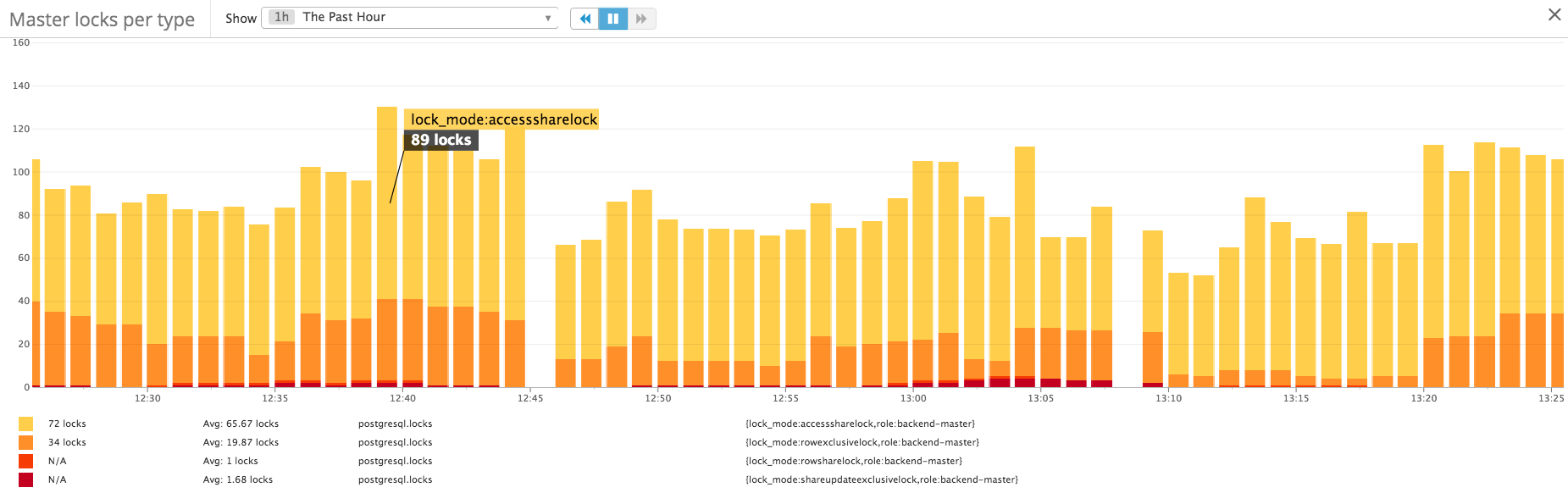
**Locks:** [PostgreSQL grants locks](https://www.postgresql.org/docs/current/static/explicit-locking.html) to certain transactions in order to ensure that data remains consistent across concurrent queries. You can query the [`pg_locks` view](https://www.postgresql.org/docs/current/static/view-pg-locks.html) to see the active locks on the database, which objects have locks, and which processes are waiting to place locks on objects.
Viewing the number of locks per table, categorized by lock mode, can help ensure that you are able to access data consistently. Some types of lock modes, such as ACCESS SHARE, are less restrictive than others, like ACCESS EXCLUSIVE (which conflicts with every other type of lock), so it can be helpful to focus on monitoring the more restrictive lock modes. A high rate of locks in your database indicates that active connections could be building up from long-running queries, which will result in queries timing out.
**Deadlocks:** A deadlock occurs when one or more transactions holds exclusive lock(s) on the same rows/tables that other transactions need in order to proceed. Let's walk through a simplified sequence of events to see what this might look like:
1. Transaction A obtains a row-level lock on row 1, and transaction B holds a row-level lock on row 2.
1. Transaction A tries to update row 2, and Transaction B requests a lock on row 1 to update a column value.
1. Each transaction is forced to wait for the other transaction to release its lock before it can proceed.
In order for either transaction A or B to complete, one of the transactions must be rolled back so that it will release a lock on an object that the other transaction needs. PostgreSQL's [`deadlock_timeout`](https://www.postgresql.org/docs/current/static/runtime-config-locks.html) parameter determines how long to wait for a lock before checking if there is a deadlock (by default, one second). Instead of lowering the timeout (which uses unnecessary resources to check for a deadlock), the PostgreSQL documentation advises trying to avoid deadlocks altogether by validating that your applications consistently acquire locks in the same order all the time, thereby avoiding conflicts.
**Dead rows:** If you have a vacuuming schedule in place (either through autovacuuming or some other means), the number of dead rows should not be steadily increasing over time—this indicates that something is interfering with your VACUUM process. VACUUM processes can normally run concurrently with most operations like SELECT/INSERT/UPDATE/DELETE queries, but they may not be able to operate on a table if there is a lock-related conflict (e.g., due to an ALTER TABLE or LOCK TABLE operation). If you suspect that a VACUUM is stuck, you will need to investigate to see what is causing the issue, because an ever-increasing number of dead rows can lead to slower queries and increase the amount of disk space that PostgreSQL uses. Learn more about how to troubleshoot this issue in our [PostgreSQL vacuuming guide](https://www.datadoghq.com/blog/postgresql-vacuum-monitoring.md).
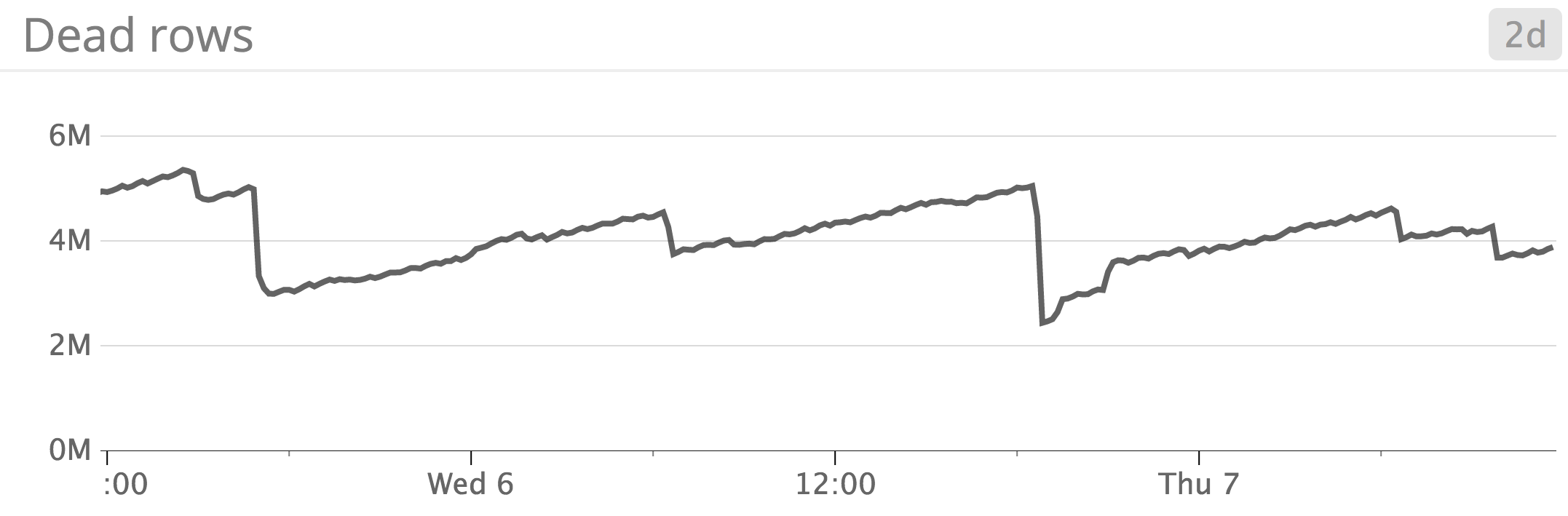
*The number of dead rows normally drops after a VACUUM process runs successfully, and then rises again as the database accumulates more dead rows over time, resulting in a sawtooth pattern.*
### Replication and reliability
As mentioned earlier, PostgreSQL writes and updates data by noting each transaction in the [write-ahead log (WAL)](https://www.postgresql.org/docs/current/static/wal-intro.html). In order to maintain data integrity without sacrificing too much performance, PostgreSQL only needs to record updates in the WAL and then commit those WAL updates (not the actual updated page/block) to disk to ensure data reliability in case the primary/source instance fails. After logging the transaction to the WAL, PostgreSQL will check if the block is in memory, and if so, it will update it in memory, marking it as a "dirty page."
The [`wal_buffers`](https://www.postgresql.org/docs/9.6/static/runtime-config-wal.html#GUC-WAL-BUFFERS) setting specifies the amount of shared memory that can be used to store WAL data before it must be written to disk. By default, this is equal to `1/32 * shared_buffers` (and `shared_buffers` is, by default, 128 MB). Note that [RDS PostgreSQL requires you to specify `shared_buffers`](https://docs.aws.amazon.com/AmazonRDS/latest/UserGuide/Appendix.PostgreSQL.CommonDBATasks.html#Appendix.PostgreSQL.CommonDBATasks.Parameters) in terms of 8-KB units, (e.g., a value of 16 would allocate 16 units * 8 KB, or 128 KB of memory). `wal_buffers` is a static parameter, so RDS requires you to restart the database instance in order for your change to take effect.
If your database is operating in `synchronous_commit` mode (the default behavior), the WAL is flushed to disk every time a transaction is committed—in fact, the transaction must confirm that the WAL update has been flushed to disk on the primary instance before it is considered committed. If `synchronous_commit` mode is turned off, the WAL is either flushed to disk every [`wal_writer_delay`](https://www.postgresql.org/docs/9.6/static/runtime-config-wal.html#GUC-WAL-WRITER-DELAY) ms (200 ms, by default), or when the WAL reaches a certain size, as specified by `wal_writer_flush_after` (1 MB, by default). [According to the documentation](https://www.postgresql.org/docs/9.6/static/runtime-config-wal.html#GUC-WAL-WRITER-DELAY), the maximum window of potential data loss is actually about three times the value of `wal_writer_delay`, because the WAL writer tries to optimize performance by writing whole pages to disk at a time when the database is very busy.
#### WAL replication in Amazon RDS PostgreSQL
RDS users can replicate data from a primary PostgreSQL database instance to one or more standby or read replica instances, via two features:
- [multi-availability-zone (Multi-AZ) deployments](https://docs.aws.amazon.com/AmazonRDS/latest/UserGuide/Concepts.MultiAZ.html), which use synchronous replication to maintain standby instances that serve as an effective failover solution
- [read replicas](https://docs.aws.amazon.com/AmazonRDS/latest/UserGuide/USER_ReadRepl.html#USER_ReadRepl.PostgreSQL), which asynchronously apply WAL updates from the primary/source via streaming replication
If you set up a [Multi-AZ deployment](https://docs.aws.amazon.com/AmazonRDS/latest/UserGuide/Concepts.MultiAZ.html), RDS will automatically failover to a standby in the event that the source/primary instance experiences an outage. If you enable this option, RDS will synchronously replicate WAL updates from the primary/source database instance to one or more standbys located in another availability zone(s).
**Synchronous replication** is the only replication method that ensures that every transaction on the primary/source instance is written to disk both on the primary and on the standby before the transaction can be considered "committed." Although this is slower than other types of replication, this method ensures that data is always consistent between the primary and the standby instance, even in the event that the primary instance crashes or becomes unavailable.
Note that RDS standby instances in a Multi-AZ deployment cannot accept any queries—their primary purpose is to provide a reliable failover solution.
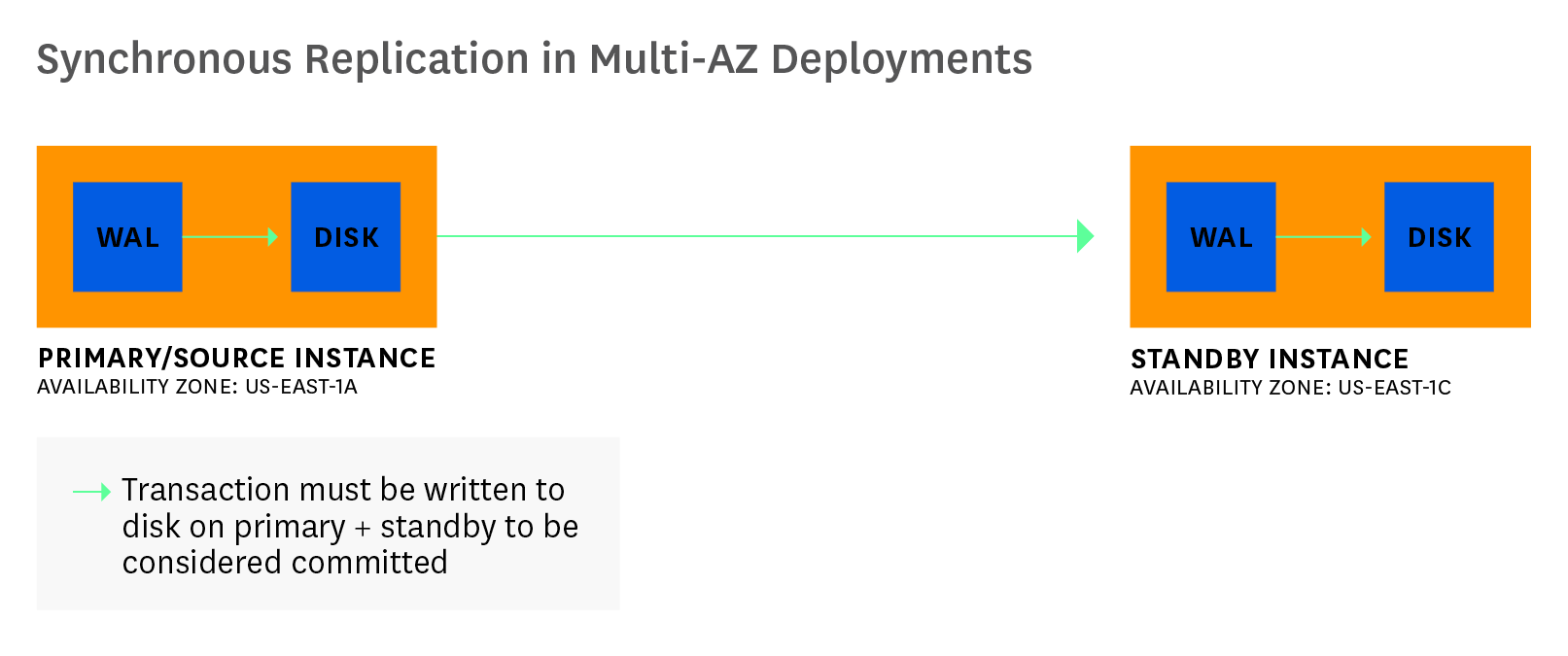
*In this example of a Multi-AZ deployment in RDS, the source/primary instance synchronously replicates its WAL updates to a standby server in a different availability zone within the same region.*
In addition to synchronously replicating WAL data in a Multi-AZ deployment, RDS also allows users of PostgreSQL versions 9.3.5+ to scale and improve database performance by creating [read-only replicas](https://docs.aws.amazon.com/AmazonRDS/latest/UserGuide/USER_ReadRepl.html#USER_ReadRepl.PostgreSQL). In this type of setup, the primary/source instance uses **asynchronous streaming replication** to replicate WAL changes to one or more read-only replicas without any downtime. Because this method is asynchronous, there can be a slight delay between the time a transaction is committed on the primary/source instance, and the time that same transaction is committed on each read replica. If you are running PostgreSQL version 9.4.7 or 9.5.2+, RDS enables you to set up [cross-region replication](https://docs.aws.amazon.com/AmazonRDS/latest/UserGuide/USER_ReadRepl.html#USER_ReadRepl.XRgn.Process), in which case the primary instance will asynchronously stream data updates to read replica instances located in different regions. This is useful, for example, if you want to improve query performance by setting up a read replica in each region where your users are located.
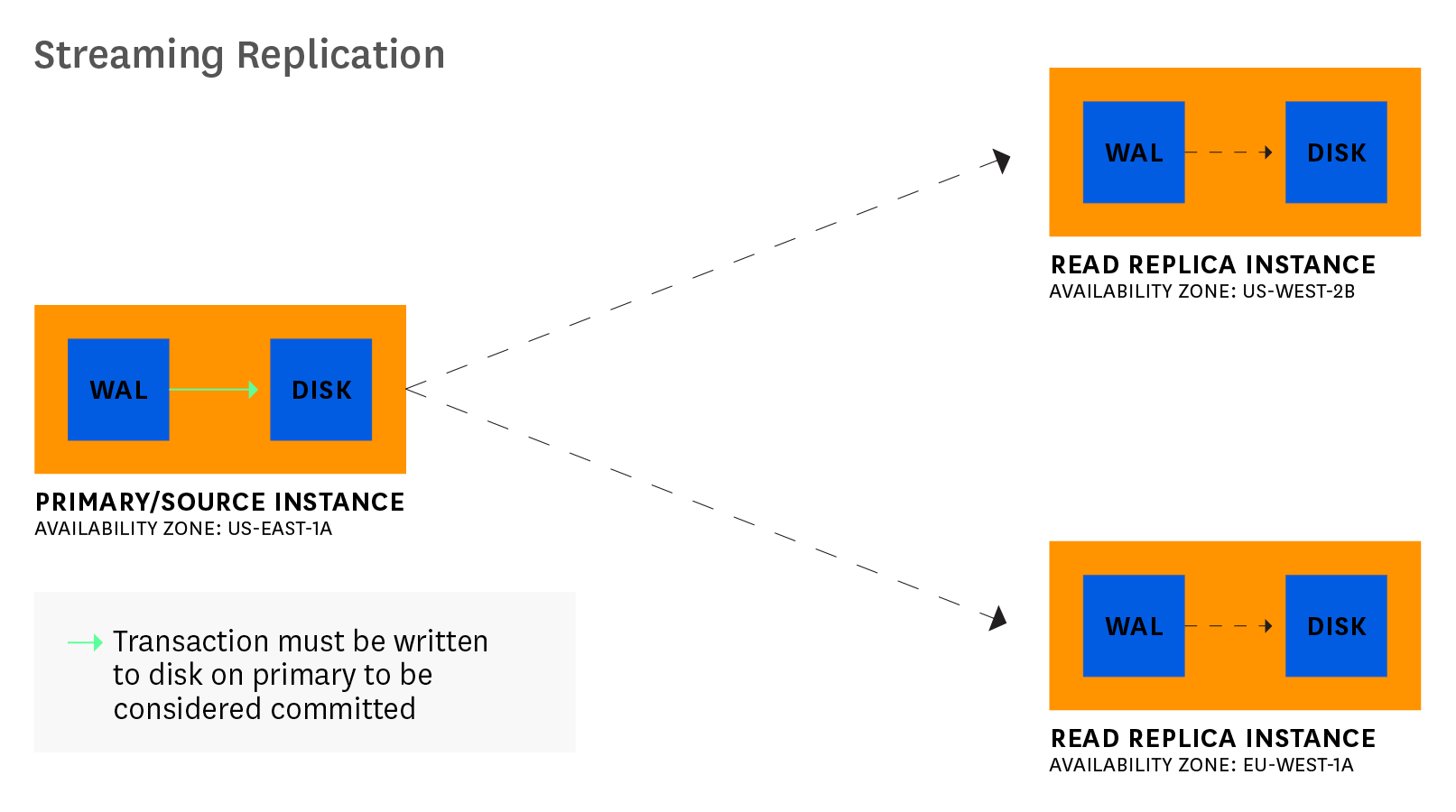
*In this example of cross-region streaming replication, the primary/source instance asynchronously replicates its WAL updates to two read replica instances in other regions.*
Aside from asynchronous streaming replication and synchronous replication, PostgreSQL users can also run a third type of replication, **cascading replication**. In this setup, a standby server receives WAL updates from the primary server and then asynchronously communicates those updates to other standbys. However, as of this time, RDS PostgreSQL does not support the ability to set up cascading replication.
#### Checkpoints and PostgreSQL reliability
Of course, the WAL is not the only file that needs to be committed to disk when data is inserted, updated, or deleted. [PostgreSQL's checkpoints](https://www.postgresql.org/docs/current/static/wal-configuration.html) are designed to periodically flush updated/dirty buffers (stored in memory) to disk. Each checkpoint completion is also logged in the WAL so that the standby server will know where to pick up and start replaying transactions in the event of a failover.
Checkpoints occur every [`checkpoint_timeout`](https://www.postgresql.org/docs/current/static/runtime-config-wal.html#GUC-CHECKPOINT-TIMEOUT) seconds (300, by default), or when the WAL file reaches a certain size specified as the [`checkpoint_segments` parameter](https://www.postgresql.org/docs/9.4/static/runtime-config-wal.html#GUC-CHECKPOINT-SEGMENTS) in versions prior to version 9.5. This parameter has since been renamed to [`max_wal_size`](https://www.postgresql.org/docs/9.6/static/runtime-config-wal.html#GUC-MAX-WAL-SIZE) in versions 9.5+. In RDS, the default value of `max_wal_size` or `checkpoint_segments` varies depending on your database instance class. When either one of these settings is reached (whichever comes earlier), it will trigger a checkpoint, unless the WAL does not log any new updates during the `checkpoint_timeout` period.
Checkpoint frequency is also influenced by the [`checkpoint_completion_target`](https://www.postgresql.org/docs/current/static/runtime-config-wal.html#GUC-CHECKPOINT-COMPLETION-TARGET) parameter, which is specified as the ratio of how quickly a checkpoint should be completed in relation to the time between checkpoints. This is designed to time checkpoints in a way that distributes the I/O load of writing data to disk.
The [RDS documentation recommends](https://docs.aws.amazon.com/AmazonRDS/latest/UserGuide/USER_ReadRepl.html#USER_ReadRepl.TroubleshootingPostgreSQL.WithinARegion) tweaking `wal_keep_segments` (the amount of WAL data the primary should keep in order to allow time to stream/replicate those updates to read replicas) to ensure that they are keeping pace with checkpoint frequency. If a read replica falls behind by this many WAL segments, streaming replication will not be able to continue, and RDS will have to recover by replaying archived WAL data on the lagging read replica. Therefore, it's important set this parameter to a value that is just high enough to give read replicas enough time to successfully stream WAL updates from the primary/source instance—but not so high that the primary instance stores more WAL files than needed.
#### Replication & checkpoint metrics
| Metric description | Name | [Metric type][monitoring-101-blog] | [Availability][part-2] |
| --- | --- | --- | --- |
| Replication delay (seconds) | ReplicaLag | Other | CloudWatch |
| Replication delay (seconds) | time elapsed since pglastxlogreplaytimestamp() | Other | PostgreSQL (pg_xlog) |
| Replication delay on cross-region read replica with highest lag (MB)* | OldestReplicationSlotLag | Other | CloudWatch |
| Disk space used by WAL data that still needs to be applied on read replicas (MB)* | TransactionLogsDiskUsage | Other | CloudWatch |
| Size of WAL files generated on the primary/source instance per sec (MB/sec) | TransactionLogsGeneration | Other | CloudWatch |
| Number of checkpoints requested & scheduled | checkpointsreq & checkpointstimed | Other | PostgreSQL (pgstatbgwriter) |
| Number of buffers written during checkpoints | buffers_checkpoint | Other | PostgreSQL (pgstatbgwriter) |
| Number of buffers written by the background writer | buffers_clean | Other | PostgreSQL (pgstatbgwriter) |
| Number of buffers written by backends | buffers_backend | Other | PostgreSQL (pgstatbgwriter) |
| **Cross-region replication only applies to v. 9.4.7, 9.5.2+* | | | |
#### **Metric to alert on:**
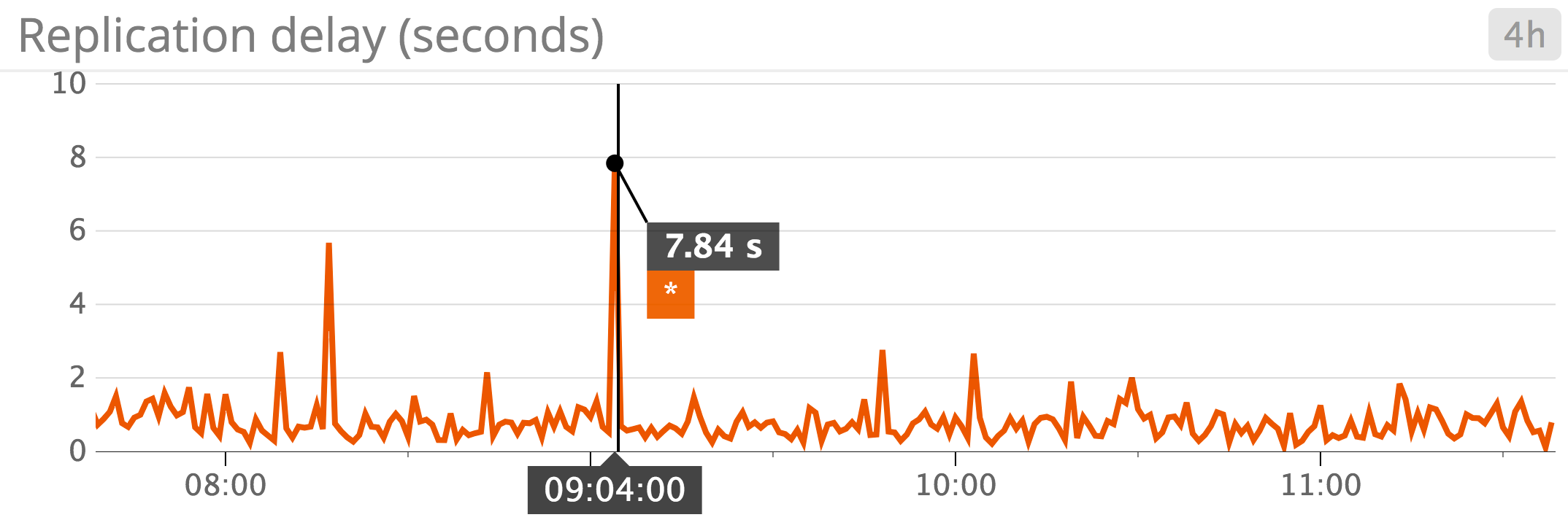
**Replication delay:** Replication delay is typically measured as the amount of time that has passed since the last WAL update was applied on each replica. Collecting and graphing this metric over time is particularly insightful, as it tells you how consistently data is being updated across your read replica instances. Monitoring replication delay will help you ensure that data updates are successfully being communicated to read replicas. However, it's important to remember that, [according to AWS](https://docs.aws.amazon.com/AmazonRDS/latest/UserGuide/USER_ReadRepl.html#USER_ReadRepl.PostgreSQL): "A PostgreSQL Read Replica reports a replication lag of up to five minutes if there are no user transactions occurring on the source DB instance." Therefore, you may expect to see high replication lag on a database that hasn't been updated recently.
If your database is constantly being updated, you should closely monitor replication delay on read replica instances, to ensure that they are not serving stale data. For example, if you see that replication delay is increasing by one second, every second, on a read replica, that replica could be serving queries with stale or outdated data.
PostgreSQL enables you to measure and track replication lag in seconds and bytes. RDS also provides a CloudWatch metric called `ReplicaLag`, which tracks replication lag in seconds, and is equivalent to the query:
```text
SELECT extract(epoch from now() - pg_last_xact_replay_timestamp());
```
If this metric is equal to -1, that means replication is not enabled on the instance. We'll explain how to query and track replication delay from PostgreSQL and CloudWatch in the [next part](https://www.datadoghq.com/blog/collect-rds-metrics-for-postgresql.md) of this series.
#### **Metrics to watch:**
**Replication lag on cross-region read replicas (MB):** RDS provides users with the option to deploy [cross-region replication](https://docs.aws.amazon.com/AmazonRDS/latest/UserGuide/USER_ReadRepl.html#USER_ReadRepl.XRgn.Process) (read replica instances located in different regions), which can help reduce the latency of read queries if your users are distributed across several geographical locations. However, cross-region replication may also result in greater replication lag because the source instance and the read replica are located in different regions.
To execute cross-region replication, RDS will create a physical replication slot on the source/primary instance for each cross-region read replica instance, and use each slot to store WAL updates that still need to be applied on each specific read replica. To ensure that your database instances have enough network bandwidth to execute cross-region replication smoothly, AWS recommends monitoring two CloudWatch metrics:
- `OldestReplicationSlotLag`: replication delay on the cross-region read replica that is lagging farthest behind the primary
- `TransactionLogsDiskUsage`: the amount of disk space used to store WAL data (to gauge the frequency/load of data updates)
If you see both of these metrics consistently increasing, you may want to upgrade your primary/source instance, along with each cross-region read replica, to an instance class that offers higher network performance. See the [RDS documentation](https://docs.aws.amazon.com/AmazonRDS/latest/UserGuide/USER_ReadRepl.html#USER_ReadRepl.PostgreSQL) for more details on troubleshooting issues with read replication.
**Requested checkpoints:** If you see a high percentage of checkpoints being requested as opposed to time-based/scheduled, this tells you that WAL updates are reaching the `max_wal_size` or `checkpoint_segments` size before the `checkout_timeout` is reached, indicating that your checkpoints can't keep up with the rate of database updates. Generally it's better for your databases' health if checkpoints are scheduled rather than requested, as the latter can indicate that your databases are under heavy load.
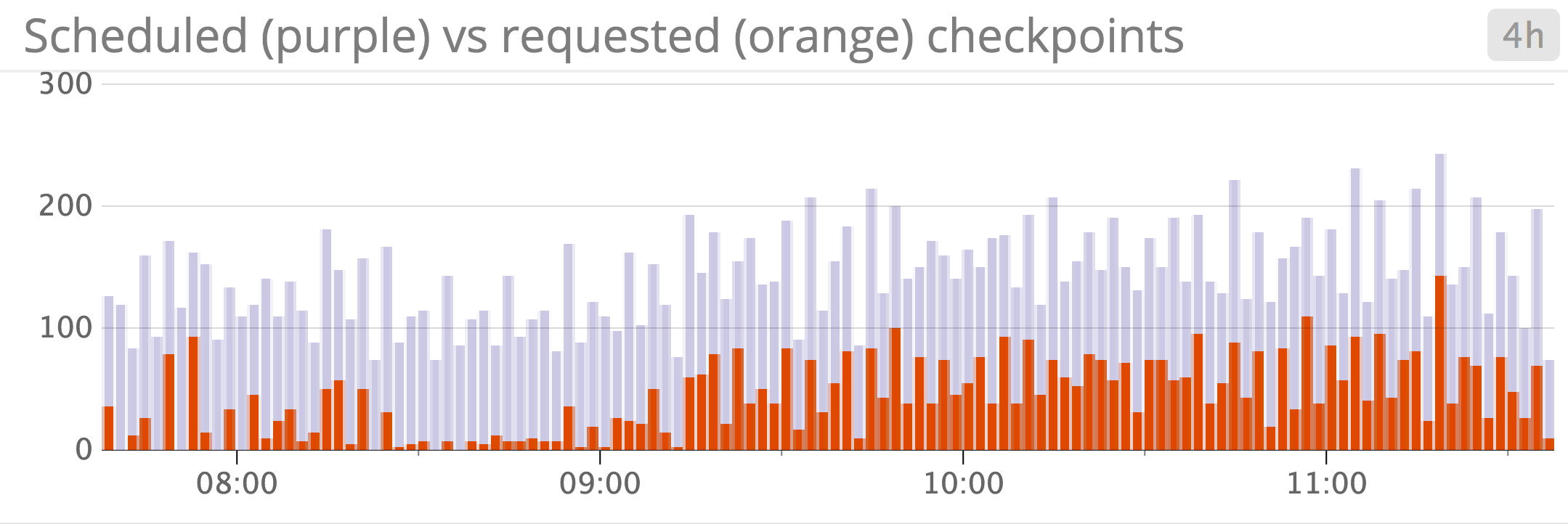
**Buffers written by checkpoints as percentage of total buffers written:** `pg_stat_bgwriter` provides metrics for each of the three ways that PostgreSQL flushes dirty buffers to disk: via the checkpoint process (buffers_checkpoint), via the background writer (buffers_clean), or via another backend process (buffers_backend). PostgreSQL uses the [background writer](https://www.postgresql.org/docs/9.6/static/runtime-config-resource.html#RUNTIME-CONFIG-RESOURCE-BACKGROUND-WRITER) process to help lighten each checkpoint's I/O load by writing dirty shared buffers to disk periodically in between checkpoints.
If you see an increasing number of buffers being written to disk directly by a backend process—that is, *not* by the background writer process or as part of a checkpoint (buffers_backend)—this indicates that your database is facing a write-heavy load, and that it needs access to clean buffers more frequently than the checkpoints and background writer processes are able to generate them. It's generally more efficient if the majority of buffers are written to disk during checkpoints, rather than via other processes. For example, the background writer can increase I/O load unnecessarily if the same page/block of data gets updated multiple times between checkpoints. If the background writer stepped in, it would write the update to disk multiple times, whereas that update would normally have just been flushed once (during the next checkpoint).
### Resource utilization
Monitoring key system-level metrics like CPU, disk, memory, and network can help you [investigate PostgreSQL performance issues](https://www.datadoghq.com/blog/monitoring-101-investigation.md#2-dig-into-resources) and ensure that the database has enough resources to complete its work. RDS also provides the option to enable [enhanced monitoring](https://docs.aws.amazon.com/AmazonRDS/latest/UserGuide/USER_Monitoring.OS.html) on your instances (excluding the `db.m1.small` instance class), which can help you gain more visibility into resource usage. Although CloudWatch also provides basic system-level metrics for RDS instances, enhanced metrics are collected by an agent that runs directly on the instance, rather than via the hypervisor, which results in higher-granularity data (collected as frequently as once a second).
#### Disk I/O metrics
| Metric description | CloudWatch name | Enhanced monitoring name | [Metric type][monitoring-101-blog] |
| --- | --- | --- | --- |
| Read I/O operations per second | ReadIOPS | diskIO.readIOsPS | Resource: Utilization |
| Write I/O operations per second | WriteIOPS | diskIO.writeIOsPS | Resource: Utilization |
| I/O operations waiting for disk access | DiskQueueDepth | diskIO.avgQueueLen | Resource: Saturation |
| Average amount of time per read I/O operation (ms) | ReadLatency | - | Resource: Other |
| Average amount of time per write I/O operation (ms) | WriteLatency | - | Resource: Other |
RDS PostgreSQL users can select from [three types of storage](https://docs.aws.amazon.com/AmazonRDS/latest/UserGuide/CHAP_Storage.html) (provided through Amazon Elastic Block Store) that cater to varying levels of desired performance: SSD, provisioned IOPS, and magnetic. Provisioned IOPS is the highest-performance option, and delivers speeds of up to 40,000 I/O operations per second.
RDS provides CloudWatch metrics, `ReadIOPS` and `WriteIOPS`, that correspond to the average number of read and write I/O operations completed per second over each 1-minute interval. However, `DiskQueueDepth`, which tracks the number of I/O requests waiting in the queue, can often be more informative. If you see a consistently high value for this metric, you may need to convert to another storage type, or scale your storage to help ease the workload. Adding read replica instances may also help reduce I/O pressure on read-heavy database workloads.
#### Memory metrics
| Metric description | CloudWatch name | Enhanced monitoring name | [Metric type][monitoring-101-blog] |
| --- | --- | --- | --- |
| Available RAM (bytes) | FreeableMemory | memory.free | Resource: Utilization |
| Swap usage (bytes) | SwapUsage | swap.cached | Resource: Saturation |
When PostgreSQL reads or updates data, it checks for the block in the shared buffer cache first, and also in the OS cache, to see if it can serve the request without having to read from disk. If the block is not cached, it will need to access the data from disk. However, it will also cache it in memory so that the next time that data is queried, it won't need to access the disk. PostgreSQL query performance relies heavily on caching data in the in-memory shared buffer cache, so [AWS recommends](https://docs.aws.amazon.com/AmazonRDS/latest/UserGuide/CHAP_BestPractices.html#CHAP_BestPractices.Performance.RAM) providing your database instances with enough memory to store all of your most commonly accessed data. Monitoring `FreeableMemory` and `SwapUsage` can help ensure that your database has enough RAM to serve queries from memory rather than disk.
AWS recommends tracking `ReadIOPS` to determine if your data is stored mostly in memory—ideally, it should be a low, steady value. If you suspect that your instance needs more memory, you can try scaling up its RAM and observing the ensuing effect on `ReadIOPS`. If it drops drastically, this indicates that your data was previously being accessed mostly from disk rather than memory, and that you may need to continue allocating more RAM to your instance to optimize query performance.
The [`shared_buffers`](https://www.postgresql.org/docs/current/static/runtime-config-resource.html#GUC-SHARED-BUFFERS) parameter determines how much memory the database can use for the shared buffer cache. In PostgreSQL, this value is usually about 128 MB, but in RDS, the default value of `shared_buffers` is calculated as a proportion of your database instance's available memory using the following formula: `DBInstanceClassMemory / 32768`. Note that RDS requires you to specify `shared_buffers` in terms of 8-KB units, while the [`DBInstanceClassMemory` parameter variable](https://docs.aws.amazon.com/AmazonRDS/latest/UserGuide/USER_WorkingWithParamGroups.html#USER_FormulaVariables) is provided in bytes, not kilobytes.
#### Storage metrics
| Metric description | Name | [Metric type][monitoring-101-blog] | [Availability][part-2] |
| --- | --- | --- | --- |
| Available storage space (bytes) | FreeStorageSpace | Resource: Utilization | CloudWatch |
| Disk space used by each table (excluding indexes) | pgtablesize | Resource: Utilization | PostgreSQL: Database object management functions |
| Disk space used by indexes in the table | pgindexessize | Resource: Utilization | PostgreSQL: Database object management functions |
| Number of index scans initiated on this table or index | idx_scan | Resource: Utilization | PostgreSQL: pgstatusertables or pgstatuserindexes |
When you create an RDS PostgreSQL database instance, you must provide it with a certain amount of storage (usually in the form of [EBS volumes](https://www.datadoghq.com/blog/amazon-ebs-monitoring.md)). Monitoring `FreeStorageSpace` can help you determine if you're running out of space, meaning that you either need to scale up your storage or delete unused or outdated data/logs. Note that you can increase, but not decrease, the amount of storage allocated to an RDS instance.
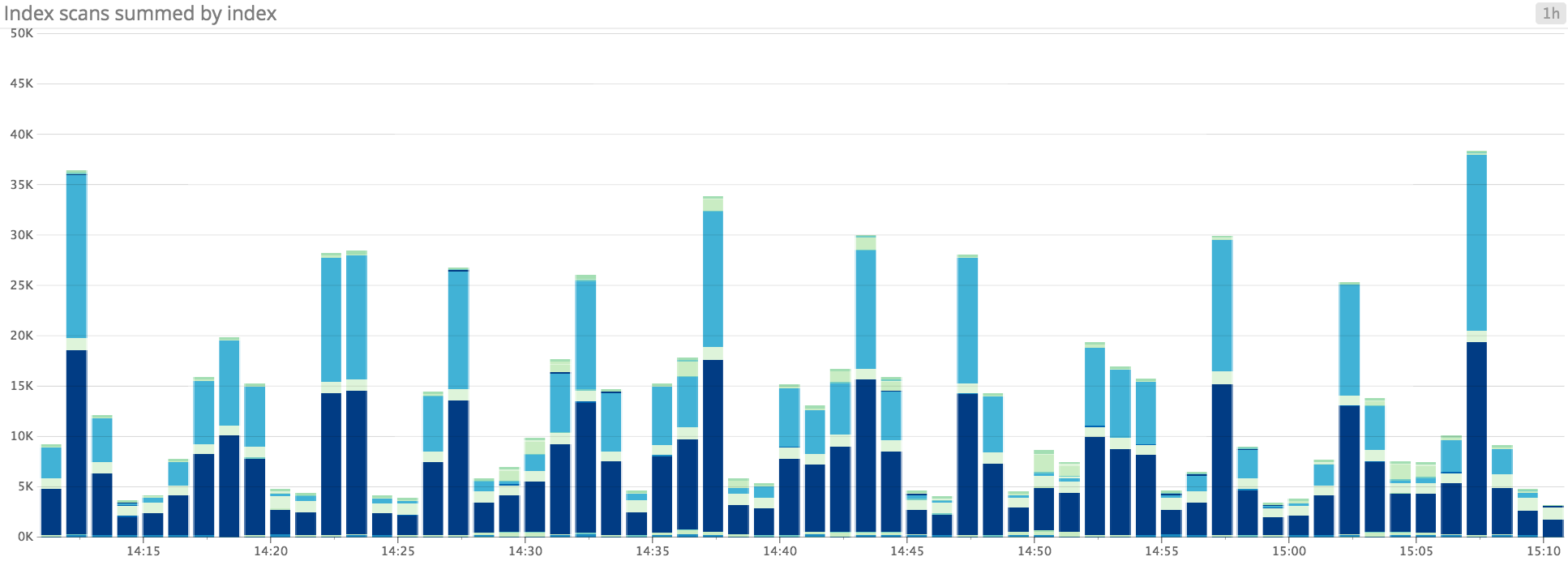
In addition to tracking available storage space on your database instances, you can also track how much storage space is being utilized by various tables and indexes in your database. PostgreSQL collects statistics internally to help you track the size of tables and indexes over time, which is helpful for gauging future changes in query performance. As your tables and indexes grow in size, queries will take longer, and indexes will require more disk space—so eventually, you will either need to [scale up](https://docs.aws.amazon.com/AmazonRDS/latest/UserGuide/CHAP_Storage.html#CHAP_Storage.AddingChanging) the instance's storage, [partition your data](https://www.postgresql.org/docs/current/static/ddl-partitioning.html), or rethink your indexing strategy. If you see any unexpected growth in table or index size, it may also point to problems with VACUUMs not running properly, so you should also [inspect VACUUM-related metrics](#exploring-the-vacuum-process) to see if they provide other insights.
In the [next part](https://www.datadoghq.com/blog/collect-rds-metrics-for-postgresql.md) of this series, we'll show you how to query `pg_stat_user_indexes` to see if there are any underutilized indexes that you could remove in order to free up storage space and decrease unnecessary load on the database. Indexes can be increasingly difficult to maintain as they grow in size, so it may not be worth applying resources to data that isn't queried very often.
#### Network and CPU metrics
| Metric description | CloudWatch name | Enhanced monitoring name | [Metric type][monitoring-101-blog] |
| --- | --- | --- | --- |
| Network traffic to RDS PostgreSQL instance | NetworkReceive Throughput (bytes/sec) | network.rx (packets) | Resource: Utilization |
| Network traffic from RDS PostgreSQL instance | NetworkTransmit Throughput (bytes/sec) | network.tx (packets) | Resource: Utilization |
| CPU utilization (percent) | CPUUtilization | cpuUtilization.total | Resource: Utilization |
Keeping an eye on the CloudWatch metrics `NetworkReceiveThroughput` and `NetworkTransmitThroughput` will help you determine if your instances have enough network bandwidth to serve queries and replicate updates to standby and/or replica instances. This is particularly important if your replica instances are located in a different region.
High CPU utilization is usually not a cause for concern. However, If you notice that CPU has increased significantly without any obvious reason, you can try querying `pg_stat_activity` to see if long-running queries may be the source of the issue.
#### Resource utilization metrics to alert on
- `FreeStorageSpace`: This is a critical metric to monitor on your database instances. If you run out of storage, you [will not be able to connect](https://aws.amazon.com/premiumsupport/knowledge-center/rds-out-of-storage/) to the database instance. As such, AWS recommends setting up an alert to get notified when this metric reaches 85 percent or higher. This will give you enough time to take action by deleting outdated data/logs, removing unused indexes or tables, or adding more storage to the instance.
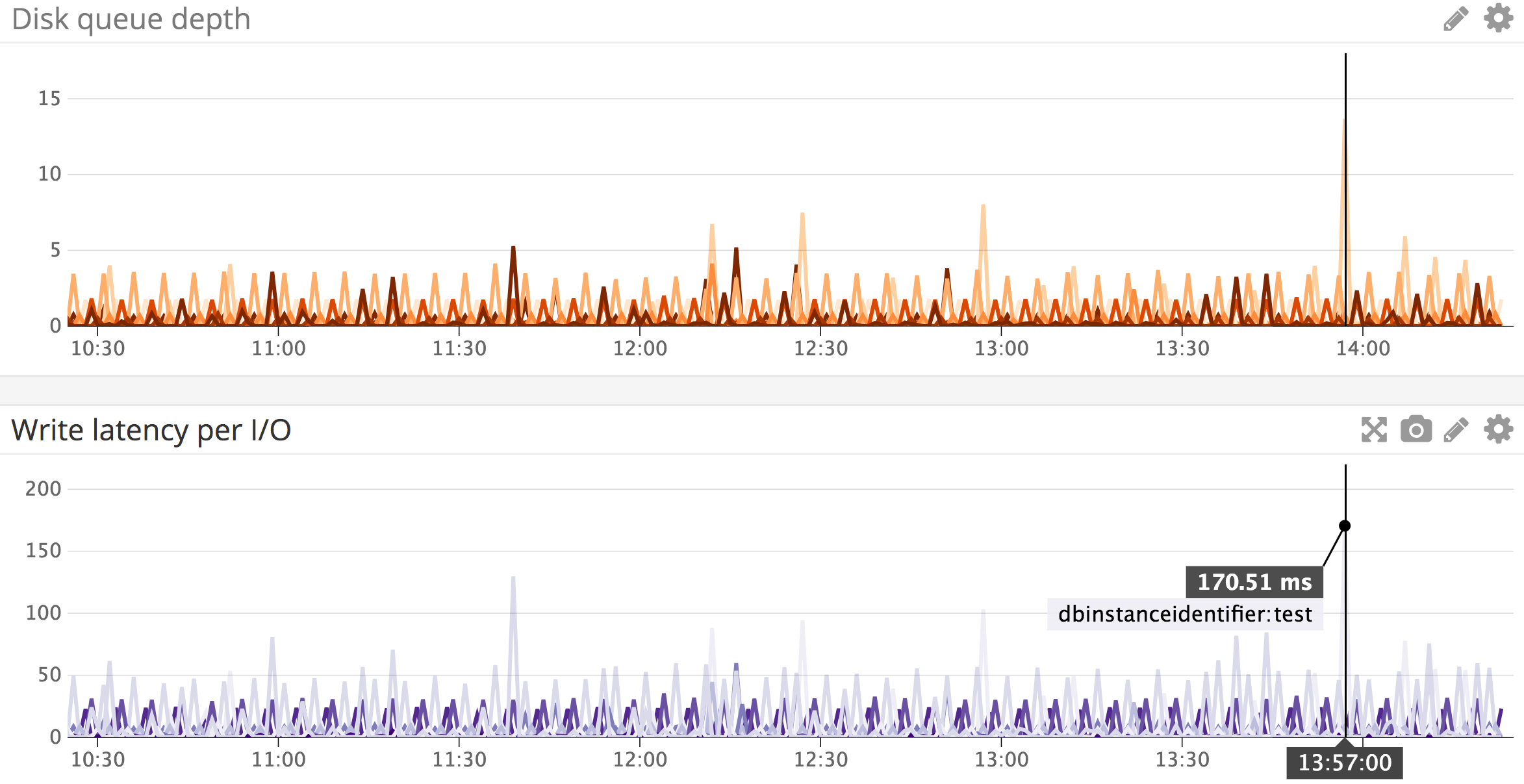
- `DiskQueueDepth`: High-traffic databases can expect to see queued I/O operations. However, if you see this metric increasing along with any noticeable spikes in read or write latency, you may need to upgrade your storage type to keep up with demand.
- `ReadLatency` and `WriteLatency`: These two metrics help you track the latency of I/O read and write operations, and can help you determine if your allocated storage is able to handle the database workload. If latency continues to degrade, you can [consult the RDS documentation](https://docs.aws.amazon.com/AmazonRDS/latest/UserGuide/CHAP_Storage.html) to see you could improve performance by upgrading to a higher-performance storage option like provisioned IOPS, which enables RDS instances to process more I/O requests concurrently.
### Connections
| Metric description | Name | [Metric type][monitoring-101-blog] | [Availability][part-2] |
| --- | --- | --- | --- |
| Number of open connections | DatabaseConnections | Resource: Utilization | CloudWatch |
| Number of open connections | numbackends | Resource: Utilization | PostgreSQL (pgstatdatabase) |
| Percentage of max connections in use | numbackends as percentage of maxconnections in pgsettings | Resource: Utilization | PostgreSQL (pgstatdatabase, pg_settings) |
| Client connections waiting on a server connection (PgBouncer) | cl_waiting | Resource: Saturation | PgBouncer |
| Max time a client connection has been waiting to be served (PgBouncer) | maxwait | Resource: Saturation | PgBouncer |
The PostgreSQL primary server process forks a new process every time a client requests a connection. PostgreSQL sets a [`max_connections`](https://www.postgresql.org/docs/9.6/static/runtime-config-connection.html#GUC-MAX-CONNECTIONS) limit, which determines the maximum number of connections that can be opened to the server at any one time. By default, RDS will set this parameter in proportion to your database instance class's available memory. The formula varies according to the version of PostgreSQL you're running.
RDS also reserves [up to three of these connections](https://docs.aws.amazon.com/AmazonRDS/latest/UserGuide/CHAP_PostgreSQL.html#PostgreSQL.Concepts.General.Limits) for system maintenance. If you see the number of open connections consistently approaching the number of maximum connections, this can indicate that applications are issuing long-running queries, and constantly creating new connections to send other requests, instead of reusing existing connections. Using a connection pool can help ensure that connections are consistently reused whenever they go idle, instead of requiring the primary/source instance to frequently open and close connections.
In high-concurrency environments, using a connection pool like [PgBouncer](https://pgbouncer.github.io/) can help distribute requests made to your primary instance. The pool serves as a proxy between your applications and RDS PostgreSQL instances.
In versions 9.6+, you can also set an [idle_in_transaction_session_timeout](https://www.postgresql.org/docs/current/static/runtime-config-client.html#GUC-IDLE-IN-TRANSACTION-SESSION-TIMEOUT), which instructs PostgreSQL to close any connections that remain idle for longer than this period of time. By default, this value is 0, which means that it is disabled.
## Next steps in Amazon RDS PostgreSQL monitoring
In this post, we've covered an overview of the key metrics to monitor when running PostgreSQL on RDS. As you scale your Amazon RDS PostgreSQL deployment over time, keeping an eye on these metrics will help you detect and troubleshoot potential issues and keep database operations running smoothly and efficiently. Read the [next part](https://www.datadoghq.com/blog/collect-rds-metrics-for-postgresql.md) of this series to learn how to collect all of these metrics from AWS CloudWatch and from PostgreSQL itself.